Train volunteers
Volunteers often play a significant role in running check-ins, and it's essential to train them thoroughly and ensure they understand your organization's data security and privacy policies.
Part of that training should cover the types of stations they'll use. Manned and roster stations give volunteers different levels of access to sensitive data, so they should never be left unattended or handed over to someone who isn't trained. Here's why:
Manned stations allow volunteers to view and update sensitive details, like contact information, medical notes, and trusted or not authorized people in a household.
Roster stations have similar access, but only while the event is live.
Important
Setting up stations as a volunteer
If a volunteer has editor permissions in Check-Ins, they can download the Check-Ins app and set up a station on their own. Without those permissions, volunteers can still download the Check-Ins app, but an administrator will need to sign in for them to create a station on their device.
Check out the videos below to see how the stations can be used, or go to this Check-Ins Volunteer Training playlist and share it with your team!
Manned station
Self station
Roster station
Check people in
Check people in by tapping the empty boxes next to their names.
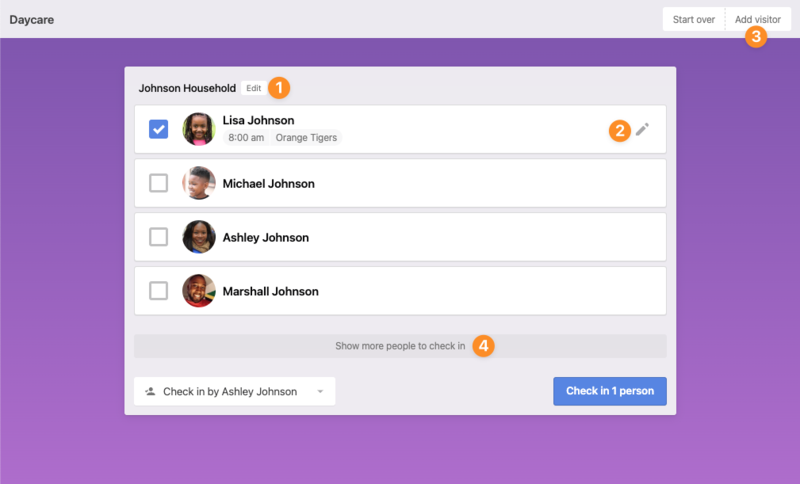
Add a member to the household or change a person's information.
Tap the pencil to check the person into the right place with the correct status of Regular, Guest, or Volunteer.
If a person comes with the household but isn't a part of the household, add the person as a visitor. A label will print for them, but they will not be added to the database.
Show other people you're able to select for check in.
Important
This will show inactive people in your household and people for whom you are a trusted person. Anyone with an inactive reason of deceased will not be displayed.
If a person is not found using search, they can be added to your database by selecting Add Person.
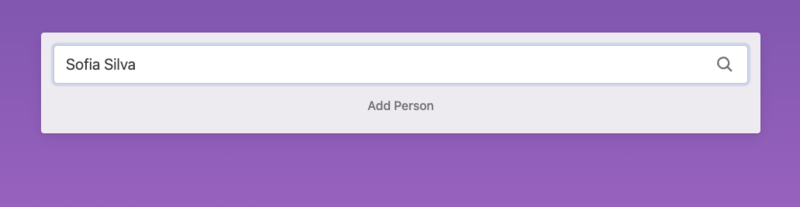
When you create a person, you have a few options on how to proceed before completing their check-in.
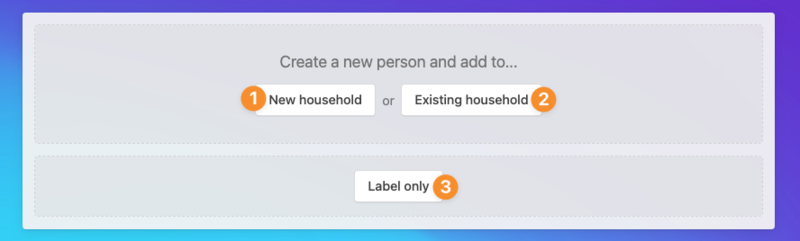
If the person doesn't have a household that already exists in Planning Center, create a new household for them.
If the person has started coming with members of their household, add them to the existing household.
If you have Allow One Time Visitors enabled in your event settings, print a label for the person without adding them to your database.
Warning
Remind your volunteers which fields to fill in when creating or updating a profile. While Check-Ins only requires a first and last name for people to check in, self stations won't allow someone to check in if your location filters depend on age, grade, or gender.
Check station settings
Ensure the station has the correct settings.
If you need to change the settings, you can create a station keys for each lead volunteer. Ask them for a 6-digit pin they will remember. You can then delete this key if they stop serving in the ministry. Keys can be used to quickly adjust:
Station type (manned, self, or roster)
The event and location to which the station is locked
Print to field
Theme
Station refresh settings
Speed tip suggestions
Settings to review:
Lock the station: If the station is only being used for one event or location, lock it to that event or location. This ensures everyone is checked into the right place.
Print to settings: A station can print to another station, which lets it print labels without being directly connected to a printer. Double-check the Print to settings so labels go to the right place.
Printer settings: Select Printer Settings on a station to choose the printer you want to connect to, print a test label, or change the label type.
Review label setup
If your station is set to print labels, ensure volunteers know where the labels will print and what to do if they don't.
Remember that multiple labels may print depending on your label setup or option settings. Let your volunteers know where each label should go and why, and point them to your folder and location settings for reference.
Save time with templates
Use station templates to automatically switch station settings on specific days and times to match your events. That way, when volunteers launch the Check-Ins app, the station is set up and ready to go.