Set up stations with templates
You can use templates to change multiple stations at once! Instead of manually changing stations one-by-one to reflect an upcoming event, create a template that automatically sets stations to the appropriate type, printer, theme, and location/event at a specific time.
If you have editor permissions, you can set up station templates by using Check-Ins on a web browser.
Tip
Need ideas on how to use templates? Check out the common templates guide!
Create a template
Before creating a template, you must update the settings for each station that will be affected by the template.
Select the Stations page from the top navigation in Check-Ins.
Select a station from the list.
In the popup, change the settings to match what you want that station to look like at the time of the event.
Repeat the process for each station that will be assigned to the template.
Select the ⚙️ settings icon in the top right.
Choose Templates from the dropdown.
Select New Template in the top right to create a template out of the station settings you currently have set.
The station settings will be saved in the template you create, so any changes made to them later will not affect the template.
Configure the new station template in the popup:
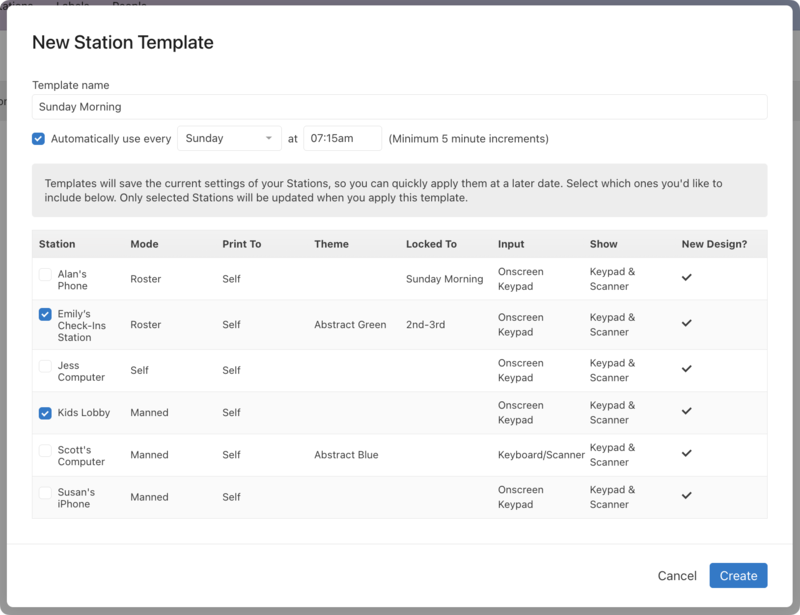
Template name: Title your template based on when or for what event this template should be used.
Automatically use every [day] at [time]: If this template is used weekly, choose when to activate it. Selected stations will use this template until another is applied or someone manually changes the settings.
Station: Use the checkboxes to choose which stations to assign to this template. If one of the stations needs to be changed to a different mode, printer, theme, or event, edit that station before saving the template.
Select Create to create the template.
Edit a template
If you need to edit a template, change the station settings first, then choose the template from the list.
Select the Stations page from the top navigation in Check-Ins.
Select a station from the list to edit it.
In the popup, change the settings to match what you want that station to look like at the time of the event.
Select the ⚙️ settings icon in the top right.
Choose Templates from the dropdown.
Choose the template where you'd like to save the updated station settings.
Update the template options in the popup.
Select Save to apply your changes.
Delete a template
If you no longer need a template, you can delete it.
Warning
Templates cannot be recovered once they're deleted.
Select the Stations page from the top navigation in Check-Ins.
Select the ⚙️ settings icon in the top right.
Choose Templates from the dropdown.
Choose the template you'd like to delete from the list.
Select Delete in the bottom left of the popup.
Select Yes, delete it in the confirmation popup to permanently delete the template.
Apply station templates
Select the Stations page from the top navigation in Check-Ins.
Select the ⚙️ settings icon in the top right.
Choose Templates from the dropdown.
Select Use next to a template to immediately apply its settings to the selected stations.
If stations don't change after selecting Use, they may need to be refreshed to apply the template settings.
To refresh a station on a desktop, select Start Over or View > Reload from the toolbar.
To refresh the mobile station app, force quit and reopen the app.