Add non-family members to households
It takes a village to raise a child, and members of that village may often live in different houses! Add these individuals to the Trusted People section of the child's household so they can check them in and out of events.
If certain people are not allowed to pick up a child, add them to the Not Authorized for Pickup section of the child's household to display a warning message to your volunteers during checkout.
Important
A household is required to add non-family members, even for a single person. Households do not need an adult.
Add a person to a household
Don't see a household? Learn more about adding households in People, or follow the steps below to add a person to a household directly in Check-Ins.
Select People from the top navigation in Check-Ins.
Select the name of the person that you want to add to a household.
On the person's profile, select the Households tab.
Select Add a household.
In the popup, select Add a household.
Type the other household member's full name to search for an existing person in your database. If the person is not in your database, select Create a new person and fill out their information.
Select Join household.
In the popup, you can edit the household name, add a household photo, update existing members using the three-dot icon next to their name, continue adding people, or remove the household altogether.
Select Save in the bottom right corner.
(Optional) If someone belongs to multiple households, repeat this process by selecting Add a household in the bottom left corner of their profile page on the Households tab in Check-Ins.
Tip
When adding a new person at a manned or roster Check-Ins station, you can add their household by tapping the New household button!
Add or edit trusted people
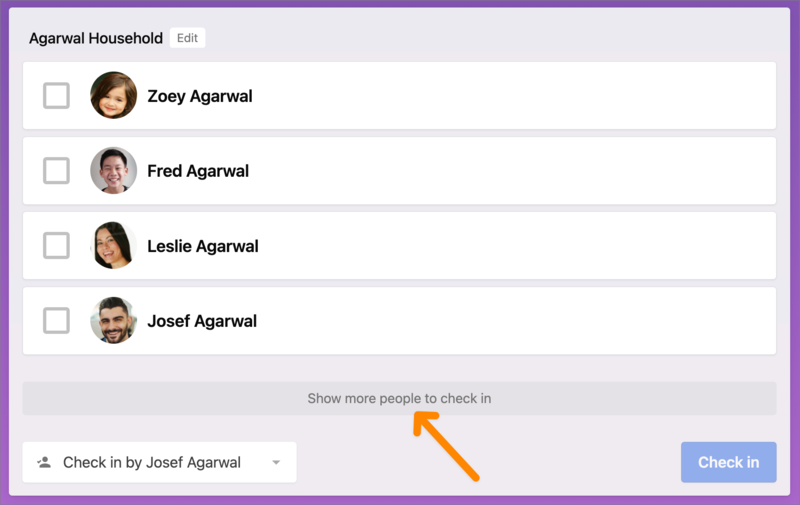
Like regular household adults, trusted people can check people in or out on manned or self stations and receive emergency texts. A trusted person can search for their own name or phone number at a station and tap the Show more people to check in button to check in any children for whom they are authorized.
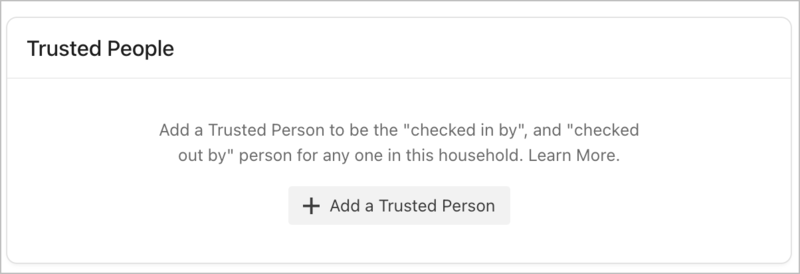
Follow the steps below to add or edit trusted people:
Select People from the top navigation in Check-Ins.
Search for and select the person's name that you want to add a trusted person for.
On their profile, select the Households tab.
Select Add a Trusted Person in the top right of the page.
Add the trusted person's full name to search for an existing person in your database or create a new person. Repeat this step for each trusted person you want to add.
Select Done in the top right corner of the section.
(Optional) If you need to change trusted people, select Edit, and then Remove next to the person's name.
Tip
On a manned station, you can add or edit trusted people by either:
Tapping the Check in by dropdown and choosing Edit trusted people.
Or, selecting Edit next to the household's name and tapping Manage trusted people.
Add or edit not authorized people
When circumstances are not ideal, your volunteers need to know that some individuals are explicitly not allowed to pick up a child.
Important
Adding someone to a household as a not authorized person will:
Prevent them from finding these children when they search for their own name or phone number at a manned or self station. They can still see their own household.
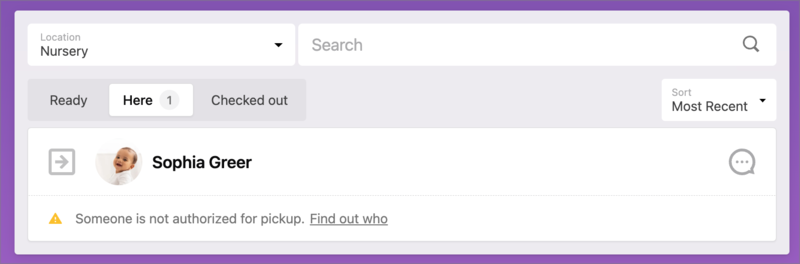
Display an alert on a manned or roster station during checkout. Volunteers can tap Find out who to see the individual's name and, if available, photo.
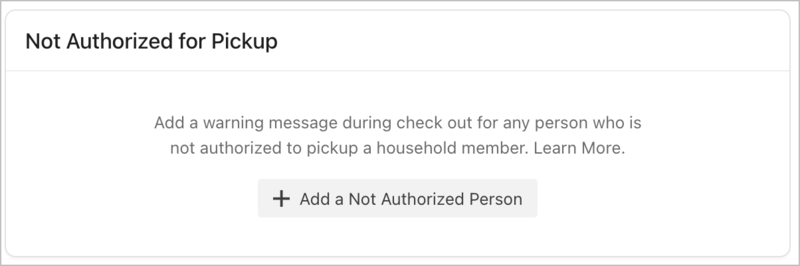
Follow the steps below to add or edit not authorized people:
Select People from the top navigation in Check-Ins.
Search for and select the person's name who you want to add a not authorized person for.
On the person's profile, select the Households tab.
Select Add a Not Authorized Person in the bottom right corner of the page.
Add the not authorized person's full name to search for an existing person in your database or create a new person. Repeat this step for each not authorized person that you want to add.
Select Done in the top right corner of the section.
(Optional) If you need to change not authorized people, select Edit, and then Remove next to the person's name.
Tip
You can also add or edit not authorized people on a manned station by either:
Tapping the Check in by dropdown and choosing Edit trusted people.
Or, selecting Edit next to the household's name and tapping Manage trusted people.
View people on a station during check in or checkout
Depending on when and what type of station you're at, you can view a child's household adults, trusted people, and not authorized people on a station.
During check in
On a manned or self station, a volunteer can enter the trusted person's name or phone number and view which people they are allowed to check in outside of their household by tapping Show more people to check in.
During check out
On a manned station, it will default to a household adult and show who they can check out. If the volunteer switches to a trusted person using the Check in by dropdown menu, they'll see all the children that the trusted person can check out for that session.
On a roster station's Here tab, an alert will show under the child's name if someone is not authorized for pickup.