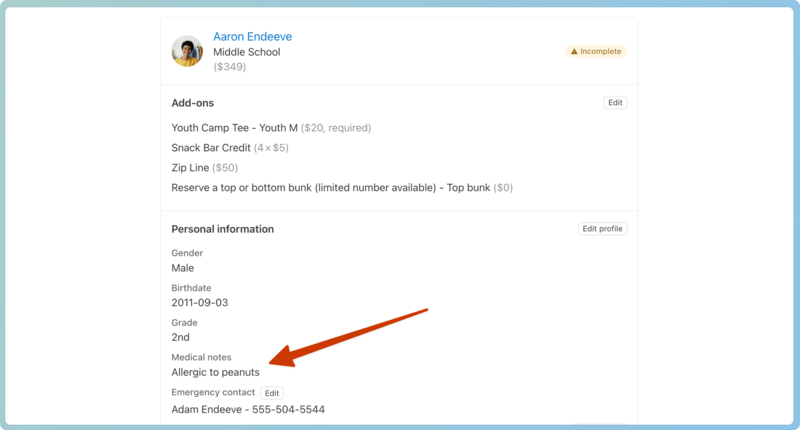
Medical notes and allergies
Add medical notes to people's profiles so volunteers know about allergies or health concerns before someone checks in.
Warning
If you choose to add medical data, make sure you comply with the Health Insurance Portability and Accountability Act (HIPAA). For more information, see Planning Center's Privacy Policy.
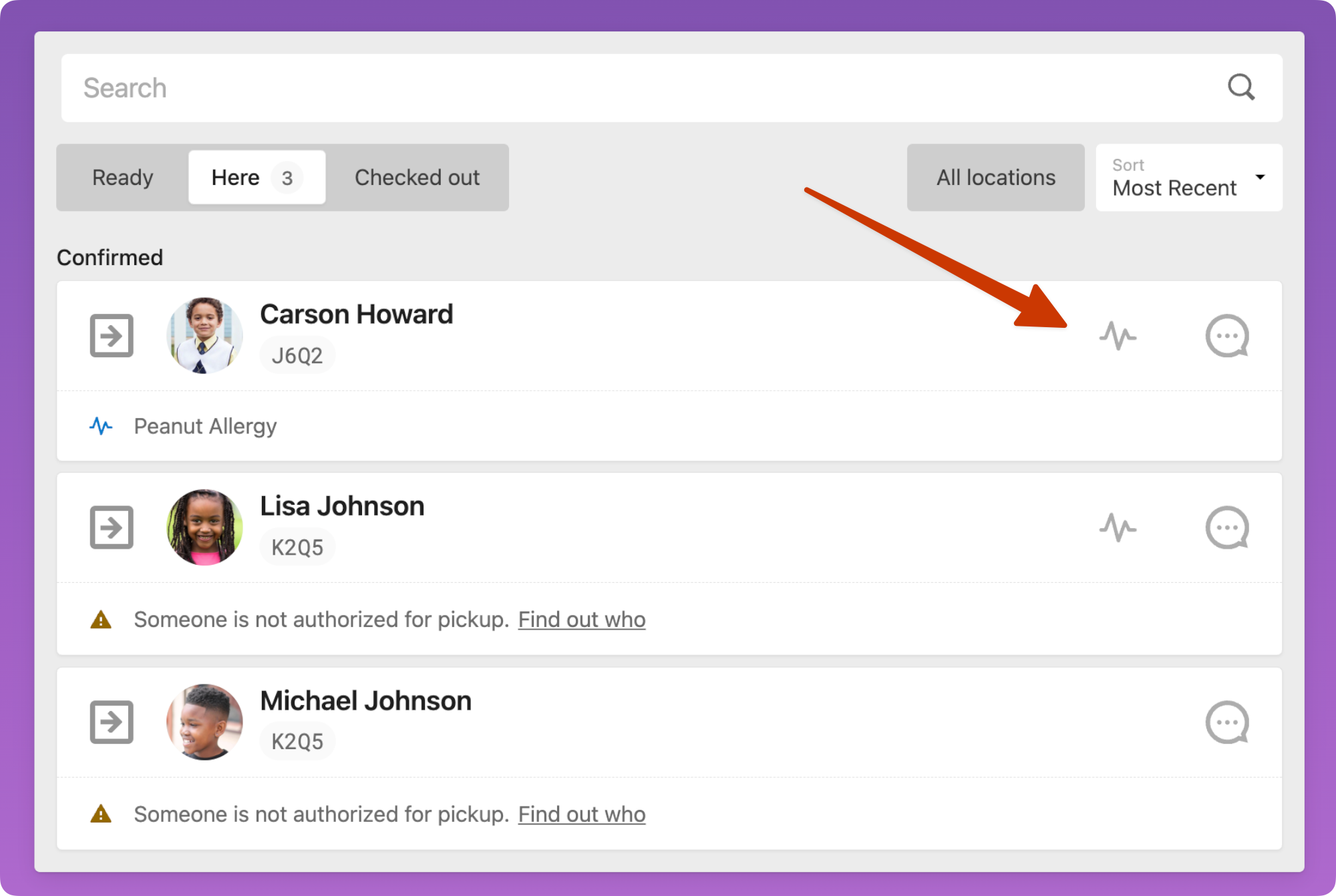
Medical notes that have been added to a person's profile can be printed on their name tag when they check in. You can also view medical notes on a roster station by tapping the medical notes icon to the right of someone's name.
Gather medical notes
To ensure you have the correct medical information, you can have parents enter this information for their children in Church Center or via a People Form.
Additionally, you can gather this information as an optional field on a selection type in a Registrations signup.
Tip
If you have a file of people's medical information, you can import the file in People.
Add medical notes from a station
You can add medical notes from a station when you add a new person or before you check them in.
To add medical notes before checking someone in:
On a manned station, search for someone's name and select their household from the list.
Select the Edit button above the list of household members.
Select the profile icon or initials of the person for whom you need to add medical notes.
Select Show all at the bottom of the person's contact information.
In the Medical notes field, enter the medical notes you want to print on this person's name tag.
Avoid adding "No Allergies" to make the medical notes field more prominent on the label.
For sensitive information, you can use an abbreviation or code that volunteers understand. If that information doesn't need to be printed, you can leave it out of the label and add it to a custom field in People instead.
Select Save Household in the top right to save these medical notes to the person's profile.
Important
If you update someone's medical note after they check in, you must check them in again to print a new label reflecting the updated information. Reprinting the label will not show the new information.
Add medical notes to a Check-Ins profile
If you're a Check-Ins editor, you can add medical notes to a profile by using Check-Ins on a web browser.
Select the People page from the top navigation in Check-Ins.
Select a person's name from the list to open their profile, or search for someone using the search bar in the top right.
Select Actions in the top right.
Choose Edit profile from the dropdown options.
Scroll down to the bottom of the Edit profile popup and select + Add a medical note in the bottom right.
Enter the medical notes you want to print on this person's name tag.
Avoid adding "No Allergies" to make the medical notes field more prominent on the label.
For sensitive information, you can use an abbreviation or code that volunteers understand. If that information doesn't need to be printed, you can add it to a custom field in People instead.
Select Save in the bottom right to apply your changes.
Medical notes in other products
When you edit a profile in any product, you can view and edit the Medical notes section.
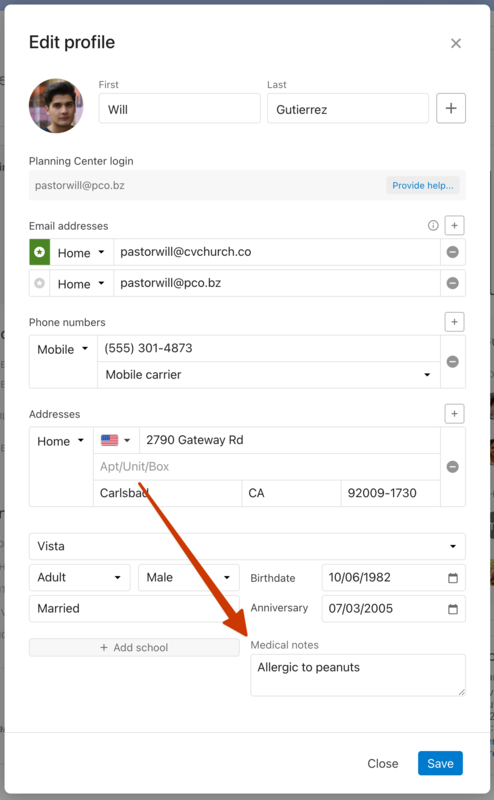
However, outside the Edit profile popup, medical notes are shown only in Check-Ins, People, and Registrations. You can find medical notes on the Profile tab in People.
If "Medical notes" is an optional field in a Registrations signup, the field will be auto-filled if notes are already on a person's profile. Those notes will appear on the attendee's registrations.