Filter people into locations
Filters are designed to do the heavy lifting of assigning attendees to locations for you! When your congregants' profiles are complete and accurate, location filters ensure that all existing and new attendees will be suggested the correct location. This differs for each station type.
Self station: Attendees can only see locations they fit into and cannot check into a different location.
Manned station: A volunteer can see the locations that attendees fit the filters for as Suggested Locations and can check them into a location even if they don't fit the filters.
Roster station: A volunteer can Search outside roster to check anyone into any location (depending on the Roster settings), regardless of the location filters.
Want to watch a video before you get started? No problem! This six-minute video will show you the steps in this article in action.
Set up filters
To set up filters for a location:
Select the Events page from the top navigation in Check-Ins.
Choose an event from the list.
Select the Labels & Locations tab from the left sidebar.
Select a location from the list to open its settings page.
Adjust the filter settings in the Filters section. Your changes are automatically saved to the location.
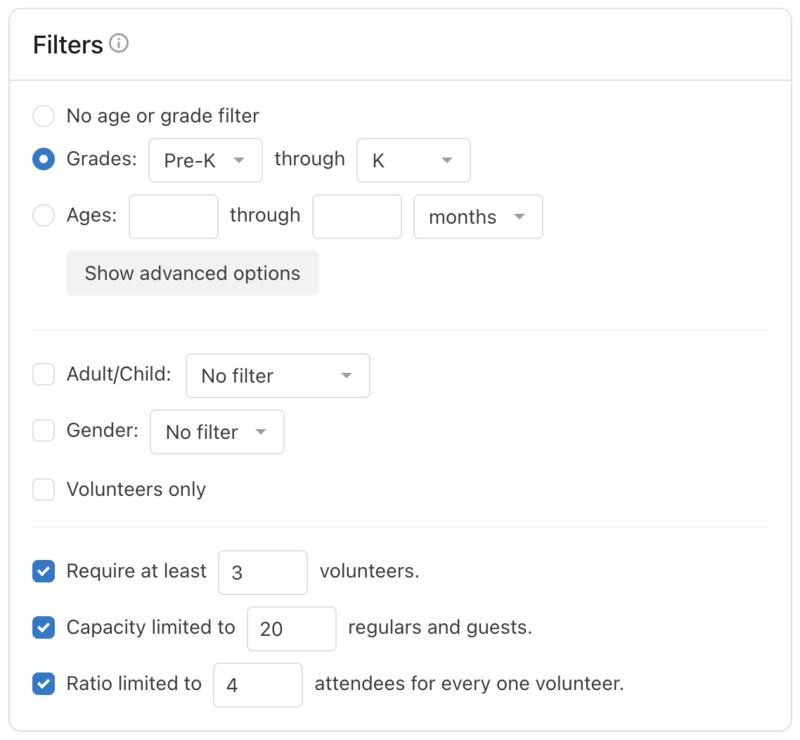
In the first section, choose whether to set an age or grade filter. When a child has a grade on their profile, the system will look for locations with a grade first. If there are no locations with grades, it will then look for a location that matches the age.
If someone has ignore age and grade filters checked in their profile, they will not be suggested a location unless they have a past check-in.
Grades: Use the dropdowns to choose which grade range to include in this filter. The available grade options are based on your organization's grade list settings.
Ages: Use the dropdowns to set an age range to include in this filter. Select Show advanced options to add advanced age filters.
Tip
To filter for those under Pre-K, use age in months.
In the second section, choose whether to allow only adults/children, a certain gender, or volunteers to check into this location.
In the third section, adjust the volunteer requirements, regular/guest capacities, and attendee-to-volunteer ratios for this location.
Set a minimum number of volunteers to ensure the right amount of volunteers are in the class.
Limit how many regulars and guests can check in. This limit does not reflect how many volunteers can check in.
Limit how many attendees can check in based on how many volunteers have checked in.
Important
Volunteer-related settings depend on your volunteers checking in as the Volunteer Type.
Advanced age options
Use advanced age filters when you want Check-Ins to allow or hold a child in a location based on their age on a specific date and not necessarily their current age. Enabling advanced filters allows you to:
Follow the school year for all kids, meaning preschool-aged won’t move up classrooms until "Promotion Sunday" like the elementary kids.
Keep the same group of kids together from three years old to third grade.
Here are some scenarios:
Use on or before and takes effect to follow the local school system by allowing kids into the Kindergarten location based on their age on a future date. So the takes effect would be Promotion Sunday, August 1st, for kids who are five on or before December 1st.
Verify the filters are correct in two ways:
The date range listed in the Advanced Filters example
An individual’s Available Locations in their user profile
How filters work
When picking certain locations to auto-populate, some specific logic takes priority. Here's some insight into how it works:
Check-Ins looks at the person's last check-in from the same day/time. If the person still fits those filters, and no new locations are a fit, it'll be the suggested location.
Tip
"Last check-in" is determined by your event's frequency and time. If someone is checking in to your weekly event on Sunday at 9 a.m., their "last check-in" refers to last Sunday, also at 9 a.m. If they checked in to a location at the 11:30 a.m. service last week, Check-Ins will not use that location information.
If a person fits the filters of the location they previously checked into, but now there's a new location that they also fit the filter for, Check-Ins will prioritize grade over age. It will suggest the new location if it's filtered by grade. It will suggest the last check-in location if both are filtered by age. In both cases, Manned and Self stations can manually select the preferred location.
If the person no longer fits the filters for the location they checked into last, Check-Ins will start the logic process from scratch.
It suggests the location filtered by grade that the person matches.
If there's no grade-filtered location, it looks for a location filtered by age that the person matches.
If there's no age or grade-filtered location that matches, it looks for additional settings like Adult/Child and Gender.
If there are no filters on any location, Check-Ins will default to the top location in your list of locations from the Labels & Locations tab of your event.
Important
A folder's attendee distribution settings can affect how locations are auto-populated.
This logic, and all of your hard work adding filters to your location, depends upon profile information being complete and accurate. If you're regularly experiencing issues with people being suggested incorrect locations, double-check that the vital profile details are entered. Emphasize fields for your volunteers so that they can help you keep this information current.
Troubleshooting
If someone has issues checking in on a Roster or Self Station, help them check in from a Manned Station. Manned Stations can override any set location filters or allow you to make changes to help the person checking in meet the location filters. If you're having to run to your Manned station every week, though, you may want to:
Edit and update profiles. Add birthdate, grade, or gender to ensure they meet the location filters and can self check in next time.
Edit and update location filters. Open Check-Ins on a web browser to adjust the filters.
Important
If someone has ignore age and grade filters checked in their user profile, they can check into locations they do not fit. However, a person will not be suggested a location unless they have a past check-in to that event.
If someone is checking in as a Volunteer type, they can override any location filter and check into any location, unless they do not have a cleared background check and the location requires it.