Merge duplicate teams
If you have duplicate teams in Services, you can merge them into a single team. This allows you to manage one primary team instead of switching between multiple team pages.
Important
You must be a people and plans administrator to merge teams in your organization.
When should you merge teams?
Here are some examples of when merging teams can be helpful:
Teams in multiple service types: If you previously created two separate teams for Service Type A and Service Type B, but they share the exact same members and positions, you can merge them into one consolidated team and assign the new team to Service Type A and Service Type B.
Split teams: If you previously created separate teams for each service time (e.g., Greeters 9AM and Greeters 11AM), you can merge them into a single split team.
Important
Make sure the teams you're merging share the same team leaders and that each leader's permission level is the same across all of the team's service types. If a team leader does not have scheduler permissions or higher in any of a team's service types, they won't be able to schedule the team in those service types.
Merge existing teams
Before merging, decide which team will be your primary team (the one you'll keep) and identify the duplicate team(s) (the ones you'll merge). Duplicate teams are deleted after merging, and their members and history are reassigned to the primary team.
See the What happens after you merge teams? section to learn more about how merging affects duplicate teams' data.
Warning
Merging teams cannot be undone. The duplicate teams will be deleted and can only be recovered for up to 30 days after the merge.
Select the People page from the top navigation in Services.
Select the Teams tab to view all of your organization's teams.
Choose the primary team from the list. You can also search for a specific team by name using the search bar at the top.
Select the Actions button in the top right.
Choose Merge from the dropdown.
In the popup, search for the duplicate team(s) you want to merge and select them from the list. You can merge multiple duplicate teams into the primary team.
If you're merging into a split team, use the dropdown next to each duplicate team to choose which split team time preferences those team members should be assigned to after the merge.
Important
This option only appears if the primary team is a split team.
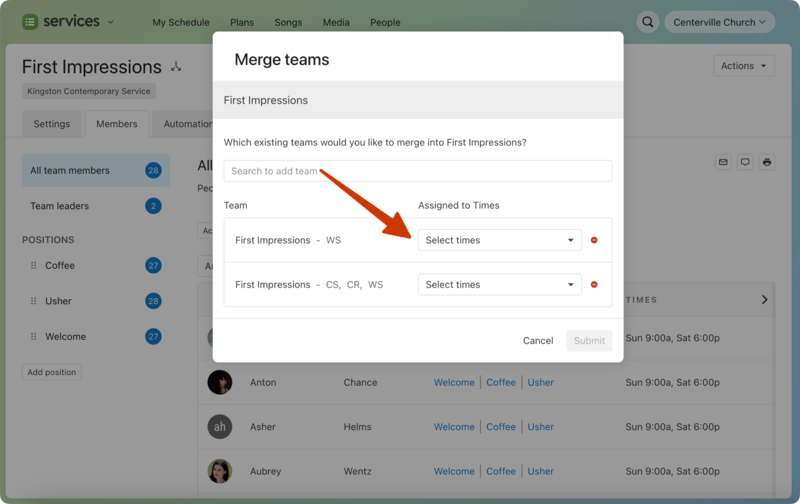
Select Submit to merge teams.
What happens after you merge teams?
Merging teams involves a primary team and duplicate team(s). The primary team is the team where you start the merging workflow, and is the team you'll keep after merging. The duplicate teams are the ones you choose to merge into the primary team.
Here's what happens to the duplicate teams' data:
Team Deletion: All duplicate teams are deleted. Duplicate teams can be restored for up to 30 days, but the primary team can't be reverted to its previous state.
Chat Conversations: Any chat conversations that belong to the duplicate team(s) are deleted. If the duplicate team was included in any multi-team conversations, those conversations remain, but the duplicate team is removed from the chat.
Scheduling History: The duplicate team's scheduling history permanently changes to reflect the primary team, including in templates and past plans. Other scheduling information, such as the Replies To Person, assigned times, scheduling status, and notification settings, will stay as they were.
Position Assignments: Team members from the duplicate team are reassigned to the corresponding positions on the primary team. If the duplicate team has positions that don't exist on the primary team, those additional positions are created in the primary team.
Needed Positions: All of the duplicate team's needed positions in existing plans or templates will be recreated for the primary team. If the primary team is a split team, needed positions are created for the time preferences you selected during the merge workflow.
Scheduling Emails: If you previously sent scheduling emails for the duplicate team, team members can still respond using the links in the original scheduling emails.