Capacity for signups
Manage your signup's capacity to limit the number of people who can register for each selection type. Attendees will have a limited time to complete their registration based on the signup's capacity settings:
One or more selection types have a set capacity: Registrants have 15 minutes per section to complete the information requested.
No set capacity: Registrants have 48 hours to complete their registration, and the timer only shows on Church Center when 15 minutes remain.
Add a selection type capacity
Add a capacity to a specific selection type from the Selection types tab.
Select the Signups page in the top navigation.
Choose the signup you're working on from the list.
Select the Configuration tab.
Select Selection types on the left.
Select Edit capacities in the top right.
Enter a capacity for each selection type.
Select Save.
If you've enabled split registrations for a signup that collects a simple count of attendees, your selection capacities will be carried over for each date, not divided among them.
Tip
Once capacity is reached, a free selection will show as full; a selection with a cost will show as sold out.
Add a total capacity
If you want to limit the entire signup, update the total capacity. The total capacity will take effect first, even if it's less than the sum of all the selection capacities combined.
Select the Signups page in the top navigation.
Choose the signup you're working on from the list.
Select the Configuration tab.
Select Selection types on the left.
Select Edit capacities in the top right.
Enter a capacity for the entire signup in the bottom right corner.
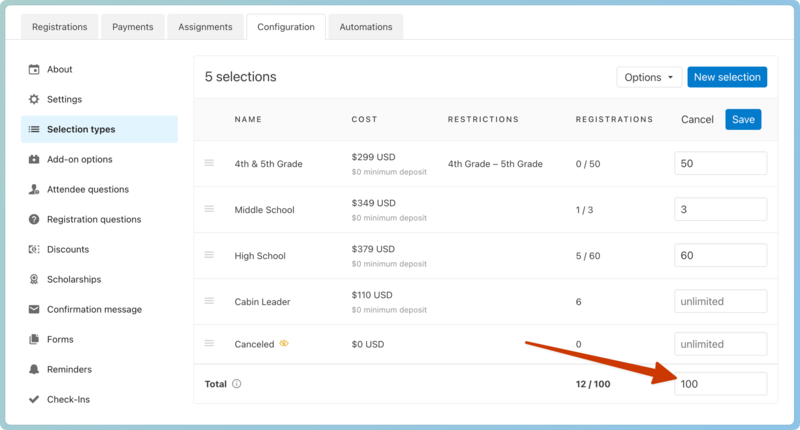
Select Save.
Tip
Once capacity is reached, a free event will show as full; a selection with a cost will show as sold out.
Add a maximum attendee capacity
If you want to limit the number of spots an individual family can purchase or you want each person to complete their registration and only make one selection, you can set a maximum selection per registration on the Selection types tab.
Select the Signups page in the top navigation.
Choose your signup from the list.
Select the Configuration tab.
Select Selection types on the left.
Select the Options dropdown.
Select Manage.
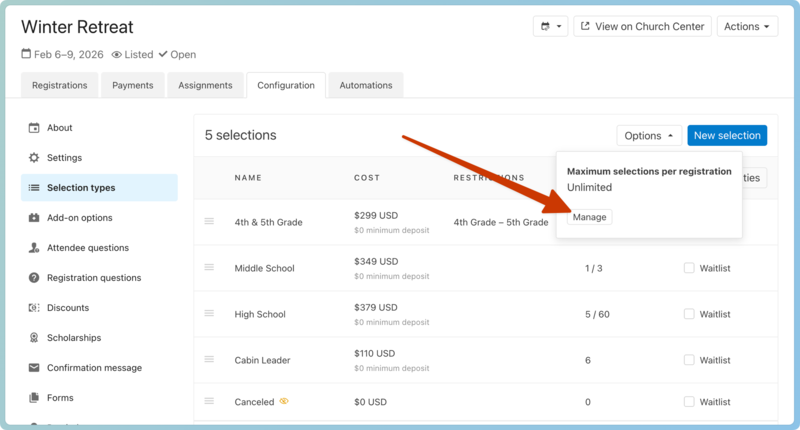
Enter a maximum number of selection types that each registration can register for.
Select Save.
If you have waitlists or split registrations enabled, this maximum applies to both situations.
Override capacities
An administrator can override capacities when registering people. The total capacity for the signup will be raised to include people registered by administrators.
If only a total capacity is set for the signup, the capacity will be updated for all selections during registration.