Profile overview
Each profile has built-in fields for personal information, household, social profiles, and more. When you change these fields, the changes are applied everywhere in your database. Want to watch a video before you dive into profiles? No problem! This seven-minute video demonstrates the concepts in this article in action.
Profile fields can be updated by anyone with at least editor access, with two exceptions:
Organization administrator profiles can only be edited by organization administrators.
Organization administrators are the only ones who can update a person's login method.
Select a person from the People page or use the 🔍 search shortcut in the top right to search for their name quickly.
On a person's profile, you can view the most important information at a glance and update contact or personal information by selecting the ✏️ edit icon. If a person has multiple contact information, their primary contact information is indicated with a ⭐️ gold star icon.
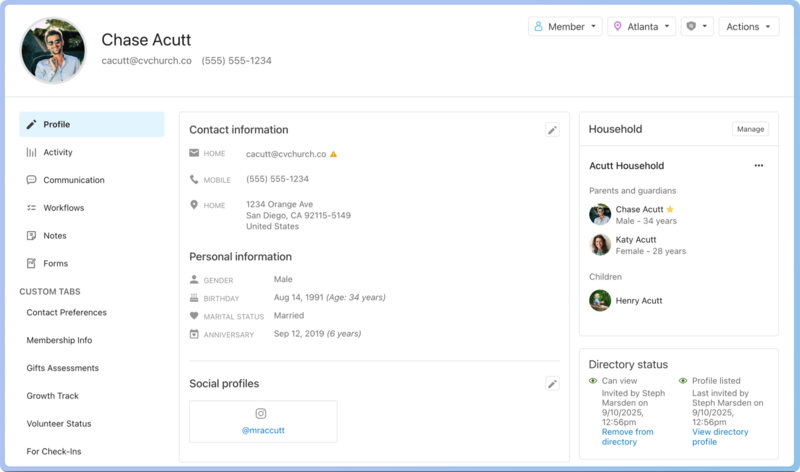
Header
The header holds administrative tools to help you keep track of individuals based on your account settings.
From the Actions dropdown, managers can view and edit permissions, perform an action in any product, merge, delete, or set the person to inactive.
Tip
When a person leaves your church, set them as inactive, removing any permissions they have in any product. They will no longer be able to log in, but their history will remain intact.
Update a person's membership status. Managers can customize the membership status options.
Add campuses in Accounts, then assign people to a campus based on their involvement.
Add a background check or view current background check details.
Profile picture
Update a profile picture by hovering over it and selecting View/Edit. Select Change photo and upload an image.
First name, given name, and nicknames
People go by lots of different names. Their given, legal name may not be the name people use when referring to them, and they might even have a nickname some like to call them. You can show all these name options on a person's profile.
Select the ✏️ edit icon in the Contact information section to open the Edit profile popup.
Select the ➕ plus sign icon to the right of their name.
Choose the option you'd like to add from the dropdown.
The Prefix, Middle Name, and Suffix options are helpful when you have multiple people with similar names.
For people called different names, use the First Name, Given Name, and Nickname options to help you find them in the database.
First Name: What the person usually goes by.
Given Name: The person's legal first name, if different from the first name they usually go by.
Nickname: Nicknames are optional names. They are shown on the person's profile page.
An example of how to use first name, given name, and nickname
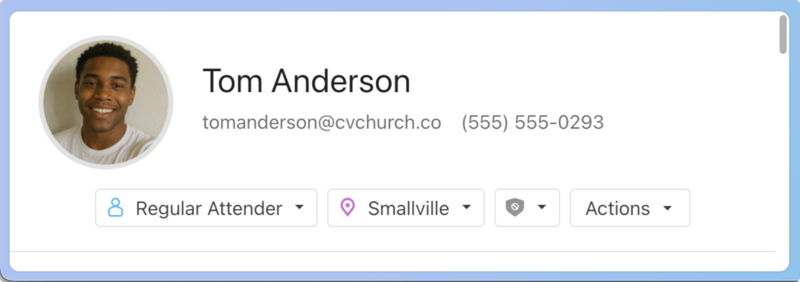
First Name: Everyone knows this person as Tom, and he calls himself Tom. If an email were sent to him addressed to Thomas, it would feel out of place. So, you would enter 'Tom' as his first name.
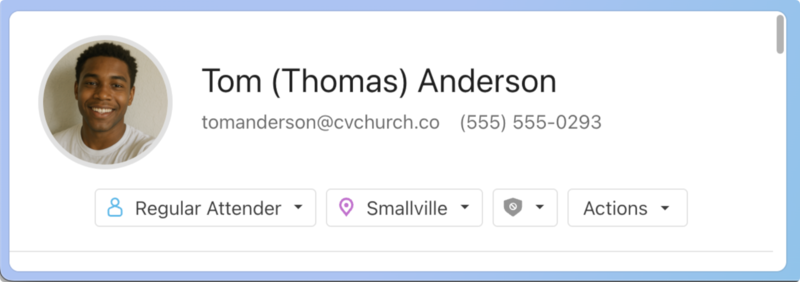
Given Name: Tom gives to the church, but his check says Thomas Anderson. Since everyone knows him as Tom, and Tom is what you want to see in most places in Planning Center, don't change his first name in the database. Instead, add Thomas as his Given Name, so his profile will appear in a search for Thomas Anderson in Giving.
Nickname: Eventually, other congregants get close to Tom and call him Neo after his favorite sci-fi superhero. So, you would put Neo in as his nickname.
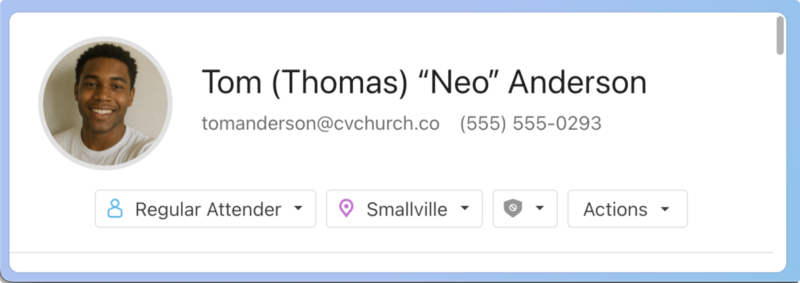
Now you can search for Tom using any of the names listed on his profile!
Households
You can create a new household for a person, add them to an existing one, manage their current households, and perform bulk actions on their households.
Directory
Review or update a person's directory access. Invite a person to the directory, or if they have already been added to the directory, remove them or view their directory profile.
Social profiles
Add social profiles like X, Facebook, LinkedIn, and Instagram.
Custom fields
Managers can create custom tabs and fields to track information that doesn't fit into a default profile field. View these custom tabs on the left side of a profile. Select a tab to edit fields within the tab.