Add attendee forms
You can use forms to gather additional information for individual attendees or collect other information that needs to be stored outside of a specific signup, like a medical release form. Forms are attendee-specific and available after a registration is submitted.
The form(s) you choose will depend on what information you need to collect. There are four types of forms you can add to a signup:
Attendee information form: This form is built into the registration process in Church Center. It allows you to require specific questions to be completed before the registration is confirmed for the attendees.
People form: Create a form in Planning Center People and attach it to your signup. People forms attached to signups are completed after a registration is submitted. They are a great option for capturing long-form application questionnaires, additional profile information not collected already through the signup, or yearly waivers. Keep in mind that you can't collect electronic signatures through a People form.
Tip
Looking for a way to keep track of waivers? Attach a People form to a signup, then use custom fields, lists, and automations to update a person's profile when they complete the form.
PDF form: Attach PDF forms that must be completed and returned by the attendee. A PDF form lets you control the format or require a signature. This type of form is commonly used for waivers or liability forms that require signatures.
External form: An external form is a form created by another program that you can attach via a link. This type of form is often used to add forms created by other organizations to your signups, such as a summer camp application for a camp your church is attending.
Create a new form
While the attendee information form is included by default, you can add another form to your signup by following the steps below:
Select the Signups page in the top navigation in Registrations.
Choose the signup you are adding a form to from the list of signups.
Select the Configuration tab.
Select Forms on the left.
Select New form.
Choose the type of form you'd like to add from the Type dropdown:
PDF: Name the form and upload a file from your computer.
People form: Choose a form from the dropdown. Only individuals with access to the People product can add People forms to a signup.
Online form (URL): Name the form and paste a URL into the URL box.
Choose which selection types and add-ons the form is for in the Options box on the right.
Select Save to add the form to the signup.
Track incomplete forms
Until all forms are complete, a registration is considered incomplete. If you are using the Check-Ins integration, attendees with incomplete forms will not be able to check in, so it's important to keep tabs on who still needs to complete them. You can use attendee filters to quickly identify attendees with incomplete forms.
As the event date gets closer, remind attendees to complete their forms by sending a reminder email from the Actions dropdown on the Registrations tab. Emails for both incomplete attendee information and external forms are available, and each will include a link to the form that needs to be completed.
Mark PDF and external forms as complete
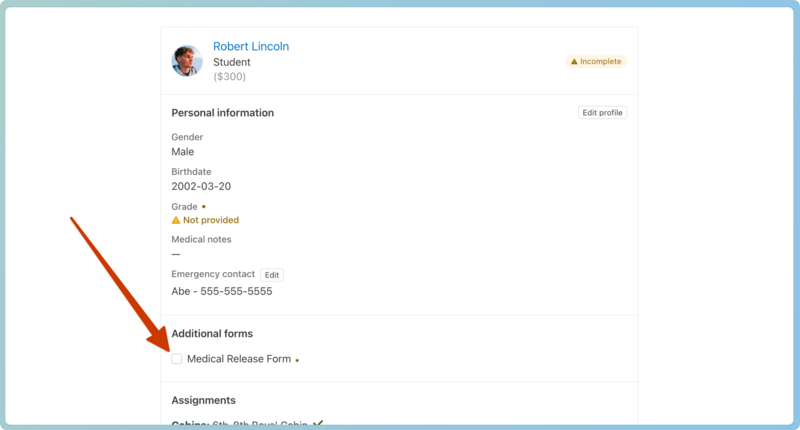
Unlike the attendee information form and People forms that are automatically marked complete in a registration, downloadable PDF forms and external forms must be marked manually when they're turned in.
From a person's registration details, check the box next to the form to mark it as complete.
 |