Filter attendees
You can filter the list of attendees for a signup to email them, take attendance, or export the filtered list to a CSV.
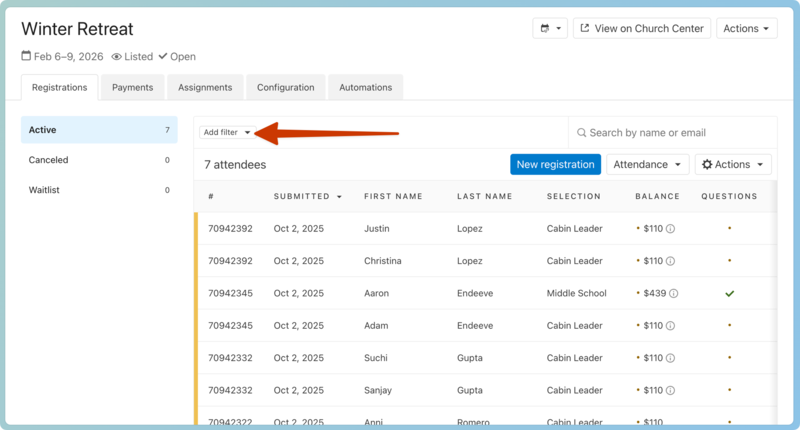 |
From the Registrations tab, filter the list of attendees:
Select Add filter to open the filter menu.
Choose an option from the dropdown, and then select the filter options.
Select Apply filter to filter the list based on your selections.
To remove applied filters, click an X to remove a specific filter or all filters.
Use attendee filters
From the Actions dropdown on the Registrations tab, you can choose what to do with the filtered attendees.
In the Email section, choose the type of email to send to the registration contacts of filtered attendees. If there is no registration contact, an email will be sent to each attendee in the registration.
In the Export section, download a CSV of the filtered attendees.
Filter split registrations
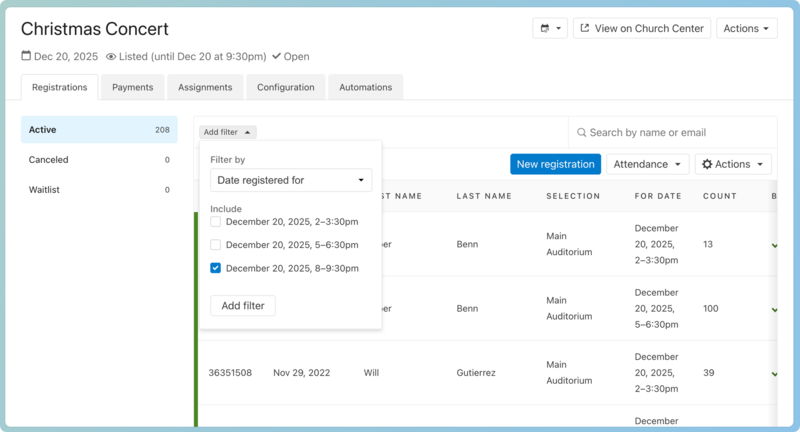
If you're using split registrations, you can use the Date Registered For filter to remove attendees from past dates and times that you no longer need in your view.
 |