Add attendee questions
When you need to gather information specific to individual attendees during registration, attendee questions are the way to go! The registrant answers these questions for each attendee before they complete the registration.
If you need to collect information from the entire registration group rather than individual attendees, use registration questions instead!
Tip
Unsure which type of question to use? Check out the Collecting information with signups article to help you decide.
Create questions
As you begin adding questions to your signup, it is recommended to have five or fewer attendee questions because registrants have only 15 minutes to answer attendee questions and add-ons for all attendees if a capacity is set for any selection type. If you must create more than five questions, consider adding an attendee form instead.
Go to the Configuration tab of your signup.
Select Attendee Questions on the left side.
Select Add a question.
In the Type box, choose which kind of question you'd like to create from the following options:
Text allows people to type out a short answer.
Paragraph gives people more room to type out a detailed answer.
Single checkbox allows people to check the box according to your instructions.
Dropdown allows people to choose one of the options you provide.
Checkboxes allow people to choose more than one of the provided options.
Add your question, making it as descriptive as possible to guide people to give the answers you need. Use the Description box to add extra clarification and context when necessary.
In the Availability box:
Choose whether to make a question optional or required to complete registration, or hide it from Church Center so it's available only to administrators and managers.
Select which selection types should see the question, either all selection types or only certain ones.
(Optional) In the Options box, select Add condition to show this question only when an earlier question has a specific answer:
From the Ask this question if dropdown, choose the trigger question.
Select the answer that should make this question appear, such as is checked or includes [answer].
Important
If the Add condition button is grayed out, there isn’t another question that can be used as a trigger question. Add another registration question or attendee question first. To move a question, drag it to a new position.
See the Use conditional questions to collect information section below for more information on conditional questions.
Select Save to add the question to your signup and view a list of all other attendee questions.
Use conditional questions to collect information
There may be times when you need to ask questions that don't apply to everyone, depending on how previous questions were answered. Maybe an attendee has an allergy, and you'd like to gather more information, or another attendee offers to provide transportation, but you need to know how many seats they have available. In these situations, not every attendee needs to answer every question, so you can use conditions to tailor a signup to each person.
Conditions can be added to questions in the Options box while editing a question. A condition makes the question appear only when an earlier question, called the trigger question, has a specific answer.
Any question type can be a trigger question. The answer you choose depends on the type. For checkbox and dropdown questions, choose the answer that should make the question appear. For text and paragraph questions, the question appears once the registrant has answered.
A conditional question can only depend on trigger questions from certain areas of your signup:
This type of question | Can be controlled by |
Registration question | Registration questions |
Attendee question | Attendee questions |
Attendee information form question | Attendee questions and attendee information form questions |
As you're creating conditional questions, keep the following things in mind:
The trigger question must always come before the question it controls. Once a condition is set, you will not be able to move a question above its trigger.
A required question is only required when it appears, so attendees who don't meet the condition can still finish registering.
If you delete a trigger question, the questions that depend on it will appear for everyone.
Find attendee answers
You can find attendee answers in several ways:
One registration: Administrators can view and edit answers under Attendee information in the registration details.
Multiple registrations: Download a CSV report to see answers from many registrations at once.
Filtering: On the Registrations tab, select Add filter, then select Questions in the Filter by dropdown to view attendees by their answers. Learn more about filters in Filter attendees.
Lists: If you have access to the People product, create a list of attendees based on their answers. You can find instructions for this list in Common Registrations lists.
Administrators can view and edit an attendee's answers in the registration details under Attendee information.
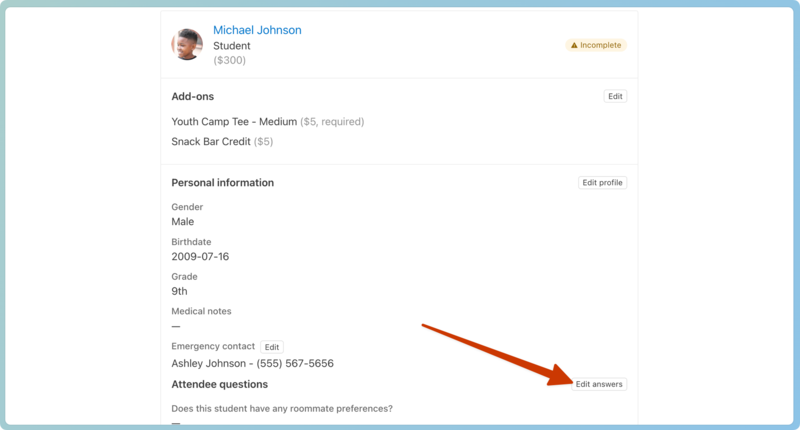
To see answers from multiple registrations at once, download a CSV report.
You can view attendees by their answers using the attendee info filter on the Registrations tab.