Workflow overview
A workflow lets you track people’s progress toward multi-step goals, such as becoming a member or serving in a ministry, or keep tabs on your communication history with them. Workflows can be used for linear processes, but some of the most common workflows involve steps for becoming a member, completing a growth track series, applying to serve in a ministry, or following up with first-time guests.
Most workflow steps require a team member to complete the task, but for some tasks you can set up an automatic action to complete the work for you, such as sending an email, updating a profile field, or creating a follow-up task. Once the action runs, it's recorded in the card history, the step is completed, and the card automatically moves to the next step.
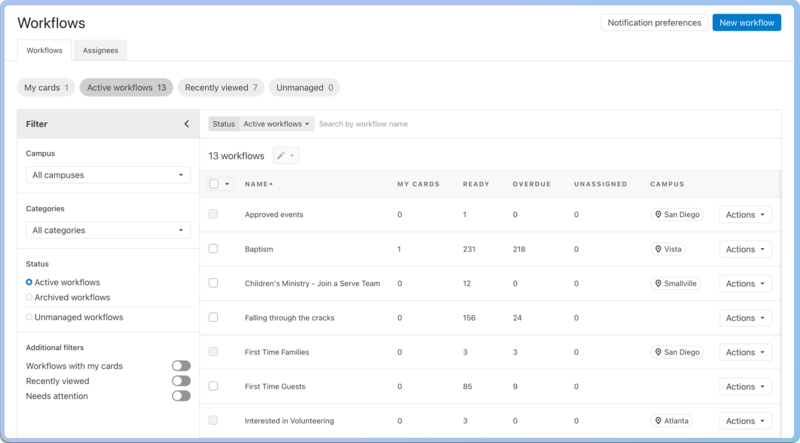
The Workflows page is where you can:
Search for a specific workflow.
Filter workflows by campus, category, status, and more.
View workflows with cards assigned to you, recently viewed workflows, and active, archived, or unmanaged workflows that are visible to you. Organization administrators can use the Unmanaged view to see all workflows without a manager.
Manage your workflow notification preferences and see or recover any recently deleted workflows.
Use the Assignees tab to see everyone with cards assigned to them, along with their overdue, snoozed, and ready counts. You can then sort by any of those columns to find out who has the heaviest workload, and click on a person to see their cards broken out by workflow with the same campus and category filters you'd use elsewhere.
Use the checkboxes on the left side of the list to change access to, archive, or delete multiple workflows at once.
Can't decide between a task and a workflow? Tasks are intended for single actions on a person or for a collection of actions on a non-person, such as an event or project, whereas workflows are meant to guide a person through a linear, multi-step process.
To get started, here's how to create a workflow!
Tip
Collaborators can view their assigned workflow cards in the toolbar by selecting the 📋 clipboard icon and selecting Workflows.
Workflows only is the minimum People permission level for workflow collaborators. Depending on their level of access in the workflow, collaborators can make changes to the workflow, edit all cards, edit their assigned cards, and complete steps as the card moves through the workflow.