Pledge campaigns
If your church asks donors for a long-term commitment to give toward your overall budget or a special project (like a building project), you can use pledge campaigns to track those pledges and view the progress toward your financial goals.
Giving will help you manage the pledge campaign from start to finish. During the lifecycle of the campaign, you will:
Track campaign progress, which can be done by administrators in Giving and donors on Church Center.
Manage pledges and make any adjustments through the campaign.
Want to watch a video before you get started? No problem! This five-minute video will show you the steps in this article in action.
Create a new pledge campaign
Set up a new campaign to track collected pledges and progress toward your goal.
Important
Before you set up a campaign, make sure you have a fund created where donations will be collected.
Select Donations in the top navigation in Giving.
Select Pledge campaigns on the left.
Select Create a new pledge campaign.
Next, walk through each step of creating your campaign.
Name your campaign and add a description that helps donors know what they are pledging to.
Select Next.
Enter a date range for your campaign to run. Keep in mind that it's possible to add start dates in the past or future based on your needs. If the start date is in the past, Giving will detect past qualifying donations to reflect the campaign's current progress.
Select Next.
Choose a target fund. All donations given to this chosen fund during the set date range will count toward the pledge campaign's overall goal.
Select Next.
(Optional) Choose a campus to associate the campaign with. When a campus is chosen, only donations with the chosen campus stamp will count toward the campaign total. It is only possible to choose a campus if the campus selector on the donation form is turned on.
(Optional) Set a campaign goal to track progress, and choose whether to display the overall goal to donors. When enabled, donors can follow the campaign's progress in addition to their individual pledge progress.
Select Create campaign.
Collect and enter pledges
Collect pledges using whatever method makes sense for your church, such as a signed card or a physical letter returned by the donor. As pledges are received, administrators and bookkeepers can enter them into Giving and send email acknowledgments to each donor.
If you have a lot of pledges to add at one time, add them from the campaign page.
If you only need to add a pledge for a specific person, add it from the donor's profile.
While it is possible to edit the email that donors receive when their pledge is entered, it is not possible to edit the pledge acknowledgment email template globally.
Add a pledge from the campaign page
To add multiple pledges for a campaign at the same time, enter them directly from the pledge campaign.
Select Donations in the top navigation in Giving.
Select Pledge campaigns on the left.
Select the campaign for which you need to enter pledges.
Go to the Pledges tab.
Select Enter pledge.
Begin typing a donor's name and either select their existing profile or create a new person.
Enter the amount the donor has pledged, and check the box to send the donor a confirmation email.
Use the text editor to edit the confirmation email to your liking.
Select the 📎 paperclip icon in the toolbar to upload an attachment. You can only upload attachments up to 10MB each, up to 5 per email, for a total of 10MB.
Add images using the 🖼️ image icon in the toolbar, or drag and drop the image file directly into the editor. Refer to the image sizing guide for file size restrictions.
The {{ }} placeholder dropdown lets you insert dynamic text, such as the donor's full name, pledge details, campaign information, a Church Center link, etc.
Select Save & Add Another to save the pledge information and enter another pledge.
Add a pledge from a donor profile
Enter pledges for an individual directly from the donor's profile.
Select People in the top navigation in Giving.
Search for a donor's name.
Select the Pledges tab of their profile.
Important
The Pledges tab on donor profiles is only visible if there is at least one pledge campaign set up in Giving.
Select Enter pledge on the right.
Enter the pledge details, including the pledge campaign and the pledge amount, and choose whether or not you'd like to send the donor a confirmation email.
If you are sending a confirmation email, use the text editor to edit the confirmation email to your liking.
Select the 📎 paperclip icon in the toolbar to upload an attachment. You can only upload attachments up to 10MB each, up to 5 per email, for a total of 10MB.
Add images using the 🖼️ image icon in the toolbar, or drag and drop the image file directly into the editor. Refer to the image sizing guide for file size restrictions.
The {{ }} placeholder dropdown lets you insert dynamic text, such as the donor's full name, pledge details, campaign information, a Church Center link, etc.
Select Save.
For joint donors, the pledge will be assigned to both donors.
Track pledge campaign progress
After your pledge campaign has been created and pledges entered, donations given to the target fund will be automatically tracked as progress to a donor's pledge and the overall campaign goal.
Important
Fair market values of in-kind donations you have received will not count toward a donor's pledge total or the overall campaign goal.
You can track a campaign's progress from the campaign page in Giving. Specific details are available in three places, depending on the information you're looking for.
See an overview of a campaign's progress
Review overall progress toward campaign goals from the Overview tab, including progress toward the total goal, total of pledged donations received, and donations given from pledges and those not from pledges.
The green Progress toward goal bar and graph display progress toward the total goal, including donations from pledgers that go beyond their total pledge.
The purple Pledged donations received bar and graph shows the total of pledged donations received. It does not include donations from pledgers that go above and beyond their pledge total.
To share the campaign's progress with those who don't have access to Giving, print the Overview tab by selecting Print.
View all pledge progress
See all entered pledges from the Pledges tab. View the details of a donor's pledge, including their pledged amount, date of their last donation, and overall progress toward their pledge, including amount and percentage complete.
Select a pledge to view additional details, or edit or delete it.
You can also enter additional pledges from this page or export a CSV file containing all pledge information.
See all donations given to a campaign
View all donations given to the target fund from the Donations tab, pledged or non-pledged. Any donation given to the target fund within the campaign's date will count toward the overall total.
Donations will be labeled with one of three options:
Pledged: Donations received to the target fund from donors who pledged toward the campaign.
Beyond Pledged: Donations received to the target fund from donors that exceed their total pledge amount.
Non-pledged: Donations received to the target fund from donors who do not have a pledge.
Use filters to view donations based on their pledge status, as well as their label, source, or source type (non-deductible donations).
Track an individual pledge
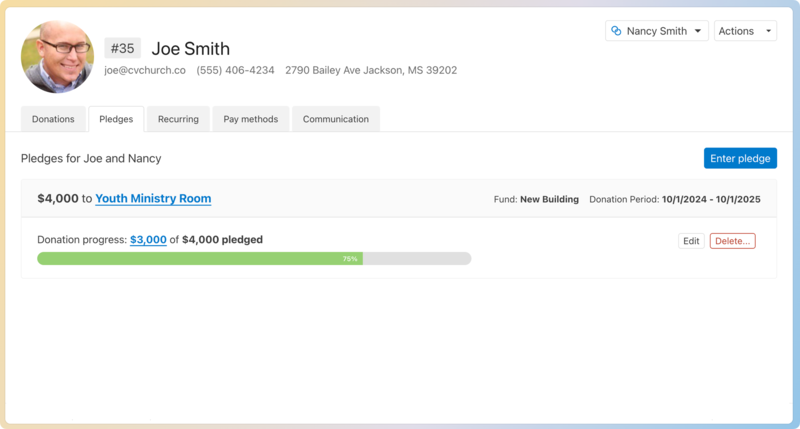
You can view an individual donor's progress from the Pledges tab on their profile. For couples who give jointly, pledges are shared, and progress is tracked when either person gives to the fund associated with the campaign.
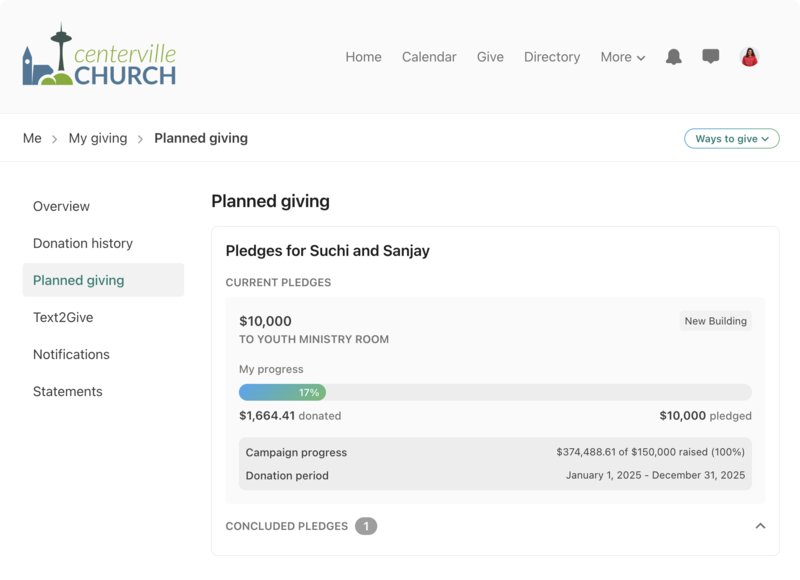
Donors can view the status of their personal and joint donors' pledges as well as collective progress made for the campaigns from their donor profile on Church Center.
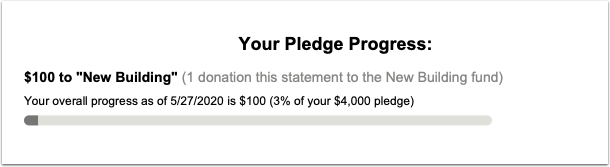
If you choose to include pledge information in statements, progress for any campaigns that a donor has pledged to will be included on their statement.
Editing campaigns and pledges
Admins can track progress for all campaigns as well as information on a specific campaign. Donors can track the progress of their individual pledges and the status of the overall campaign.
Edit a pledge campaign
It may be necessary to edit a campaign after it has started.
Select Donations in the top navigation.
Select Pledge campaigns on the left side.
Select the name of the pledge campaign you need to edit.
On the far right, select Edit campaign.
Edit the details of the campaign and select Save to save your changes.
Edit a pledge
Edit a donor's pledge or resend a thank you email from their profile.
Select Donations in the top navigation in Giving.
Select Pledge campaigns on the left.
Select the name of the pledge campaign the donor pledged to.
Select the Pledges tab.
Select the donor's name in the list of pledgers.
On the right side of the donor's pledge, select Edit.
In the Update Pledge box, adjust the pledge amount.
Choose whether or not you'd like to send an email to the donor notifying them of their pledge by checking or unchecking the box.
If you choose to send the donor an email, use the text editor to edit the confirmation email to your liking.
Select the 📎 paperclip icon in the toolbar to upload an attachment. You can only upload attachments up to 10MB each, up to 5 per email, for a total of 10MB.
Add images using the 🖼️ image icon in the toolbar, or drag and drop the image file directly into the editor. Refer to the image sizing guide for file size restrictions.
The {{ }} placeholder dropdown lets you insert dynamic text, such as the donor's full name, pledge details, campaign information, a Church Center link, etc.
Select Update.