Donor profiles
A donor's profile contains contact information for the person, along with their payment methods, past donations, and history of communications within Giving.
Find a donor's profile
Select People in the top navigation.
Type the person's name, email, phone number, or donor number in the search box.
Select the person's name from the dropdown to open their profile.
You can also use the 🔍 search icon in the top right of any page in Giving to quickly search by name or donor number.
Tip
To learn how to add, merge, or remove a donor from your database, check out the Manage donors article.
Profile overview
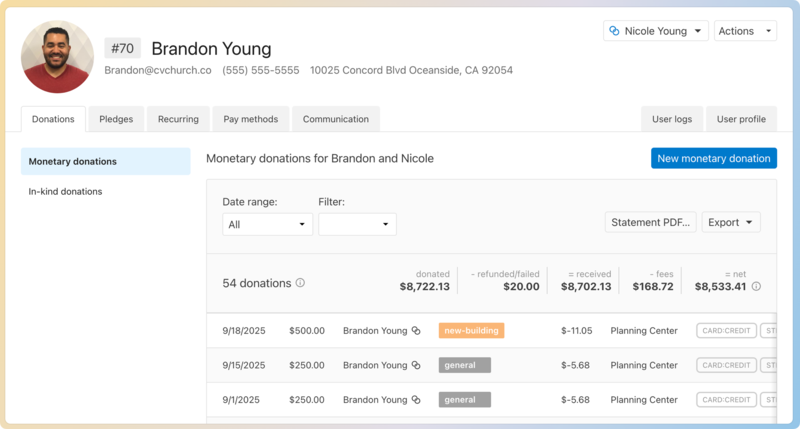
Select the person's profile photo or initials to upload, change, or delete their photo.
Select the # box next to the person's name to assign their donor number.
Use the Actions menu to update their contact information, manage permissions, add a donor note for other administrators, or delete their profile. (Donor notes are only accessible to administrators and bookkeepers on a person's profile.)
The Join donors button allows you to join the donor with another donor to see their combined donation history and generate joint statements. Once joined, this button displays the name of the joint donor.
The tabs on the donor profile are:
Donations: This tab shows the donor's entire donation history. To the right of the tab is a New Donation button, which you can use to process a manual donation for a donor with a saved payment method. You can also generate a PDF statement, print the donation history, or export a CSV of donations.
Pledges: If your church has a pledge campaign, you can add, edit, or delete a pledge for the donor and view their active pledges. This tab won't be shown if your church doesn't have a pledge campaign.
Recurring: This tab shows recurring donations that the donor has set up.
Pay methods: If the donor has opted to save a card or bank account to their profile or set up recurring donations, their payment methods will show here.
Communication: This tab includes all emails sent to and from the donor via the Giving system.
Inactive profiles
There may be reasons where you no longer need a donor's profile to stay active, such as when someone moves away or changes churches. When this happens, you can make their profile inactive to remove it from your active donor list. When a donor's profile is set to inactive:
The profile will remain visible to both donors, administrators, and bookkeepers if it has donation history, and will be marked as Inactive, and the profile picture will be grayed out. A reason for the inactivation and a link to reactivate the profile in the People product can be found in the Actions dropdown.
All donation history will remain in Giving.
Payment methods will remain in the donor's profile.
If the profile had recurring donations, they will continue to process. When the next donation occurs, or if any batch donations are entered for the donor, the profile will be reactivated. The only exception is profiles marked inactive with the reason Deceased. Recurring donations attached to these profiles will be set to On hold and will not continue to process.
A statement will be sent to the donor if they had successful donations within the statement time frame.
Deceased joint donors
If a donor is marked as inactive with the reason Deceased in the People product, their donor profile in Giving will remain joined, and donation history will still be available on the surviving joint donor's profile.
If you need to disjoin two donors, follow these steps:
Mark the deceased donor's profile as inactive by opening their profile in the People product and marking their profile as inactive, using the reason Deceased.
Open the deceased donor's profile and follow the steps for disjoining donors (since the donor is marked as deceased, no notification is sent when disjoining).
If needed, you can move donations from the deceased donor's profile to their surviving joint donor's profile by opening the deceased donor's profile and following the steps to reassign donations. You can't do this in bulk, so you will need to do it one by one.
Once these steps are completed, the surviving joint donor will only see their name and updated donation history on their donor profile and year-end statements.
View donation history
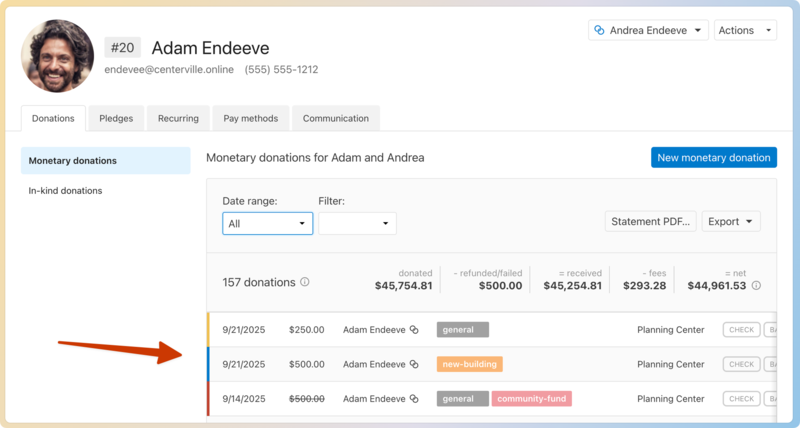
The Donations tab of a donor's profile shows an itemized list of donations. You can hover over the colors to the left of the donation date to view status details. Possible colors include:
Yellow: The donation is pending, in-transit, or part of an uncommitted batch.
Red: The donation was refunded, disputed, or failed.
Blue: The donation was edited or adjusted.
Successful donations don't have a color tag to the left of the date. Only successful, completed donations are listed in donor statements.
User logs and User profile tabs
Important
Only people with permission to log into Giving will have User logs and User profile tabs in their donor profiles, and only Giving administrators can view these tabs.
The User logs tab provides a detailed list of a person's activity in Giving.
The User profile tab is where administrators can view a person's activity in batches, adjust their notifications settings , and edit their permissions.