Issue refunds
Occasionally, you may need to issue a refund for a donation and send money back to your donor.
There are a few important things to know before issuing a refund in Giving:
Many aspects of a donation can be edited. A donation's fund allocation, check number, check date, label, or even which donor the donation is attributed to can all be edited without having to issue an actual refund.
Processing fees are not refunded. (There are no fees to refund a charge, but the fees from the original charge aren’t returned.)
100% of the donation must be refunded; partial refunds are not supported.
Warning
If you are using a Stripe account to collect donations, be sure to issue refunds from within Giving – not in the Stripe dashboard. Otherwise, your data may get out of sync.
Want to watch a video before you get started? No problem! This three-minute video covers issuing refunds and editing donations.
The refund process is slightly different depending on the payment method of the donation.
Refund a card donation
A donation made by credit or debit card can be refunded for as long as the cardholder's bank allows. After a refund is initiated, your donor sees the refund as a credit approximately 5-10 business days later, depending on their bank. Once issued, a refund cannot be canceled.
Search for the donor's name using the 🔎 search icon in the top right.
Select the Donations tab on the donor's profile.
Select the donation to refund from the list.
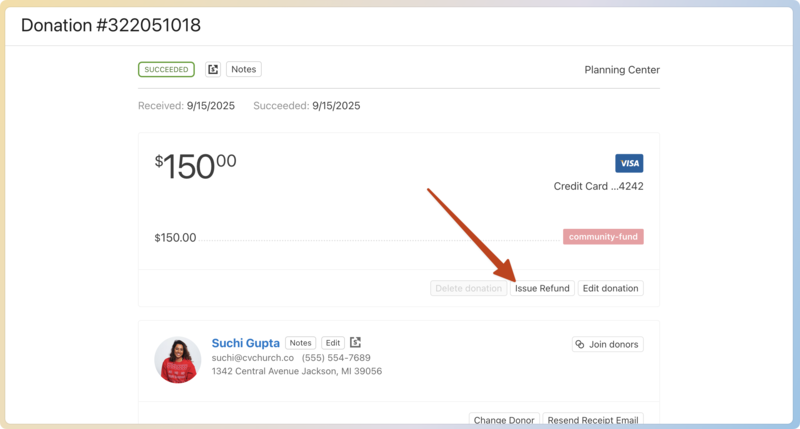
Select Issue Refund under the donation information.
Choose a reason for refunding.
Select Refund donation.
Refund an ACH bank transfer donation
ACH transactions are much slower to process than cards. The ability to issue a refund depends on where the ACH transaction is in its lifecycle:
Awaiting transit: Right after the donor gives, there's a two-hour window during which the donation hasn't been sent to the banking system. During this time, you can cancel the donation. This will not issue a refund, but it will delete the donation outright, preventing it from ever processing.
In-transit: The donation is locked in transit at the banking system for the 5 to 8 business days it takes for the transaction to settle. Refunding the donation now will initiate a reverse ACH transaction that will begin after the transaction settles.
Successful: After the transaction settles, refunding the donation will start a new, reverse ACH transaction.
Search for a donor's name using the 🔎 search icon in the top right.
Select the Donations tab on the donor's profile.
Select the donation to refund from the list.
For donations awaiting transit, select Cancel donation.
For donations in transit and successful donations, select Initiate refund.
Choose a reason for refunding.
Select Cancel donation.
Warning
ACH donations can be refunded for 90 days. After that, refunds must be issued by check. If you issued a refund by check and need to mark a donation as refunded, please contact support.
Refund a check, cash, or batch donation
Check, cash, and any donation belonging to a batch are donations where the payment was processed outside of Giving. Since Giving never processed the payment through Payments (the payment processor), an automatic refund directly to the donor cannot be initiated.
If you issue a refund outside of Giving (for example, you mailed the donor a physical check), you'll still want to make a record of the refund in Giving.
Tip
If a batch is uncommitted and the count is still in progress, there's no need to mark a donation as refunded. Just delete the donation!
Search for a donor's name using the 🔎 search icon in the top right.
Select the Donations tab of their donor profile.
Select the donation to be refunded from the list.
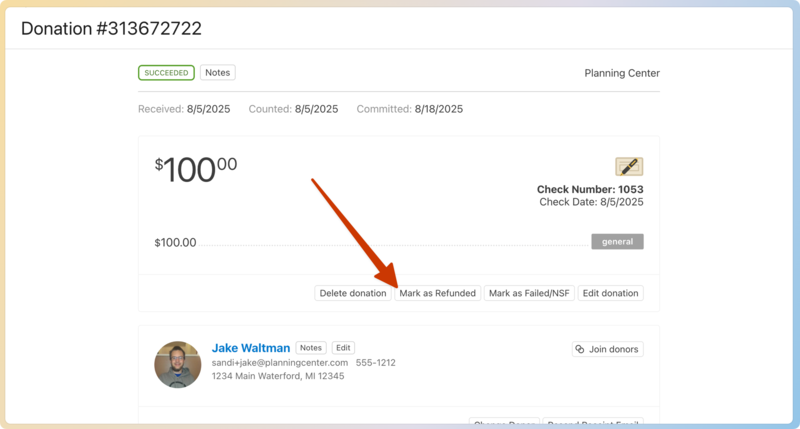
Select Mark as Refunded under the donation information.
(Optional) Add a comment.
Select Mark as refunded.
After a donation is refunded
After a donation is refunded, it's no longer considered a successful donation.
Refunded donations do appear :
On a donor's profile on the administrator side of Giving (with a red eraser icon next to it).
On a donor's profile on Church Center.
On the By donations report on the Reports tab of the Donations page.
On CSV exports.
On payout reports (card and ACH donations). Refunded donations appear as negative transactions in the payout reports in which they settle.
Refunded donations do not appear:
On the dashboard (as a part of the bar charts and stats).
On donor statements issued by you.
As a result when generating People Lists . For example, if a donor only has one donation and it's refunded, they wouldn't appear in a list that searches for donors.
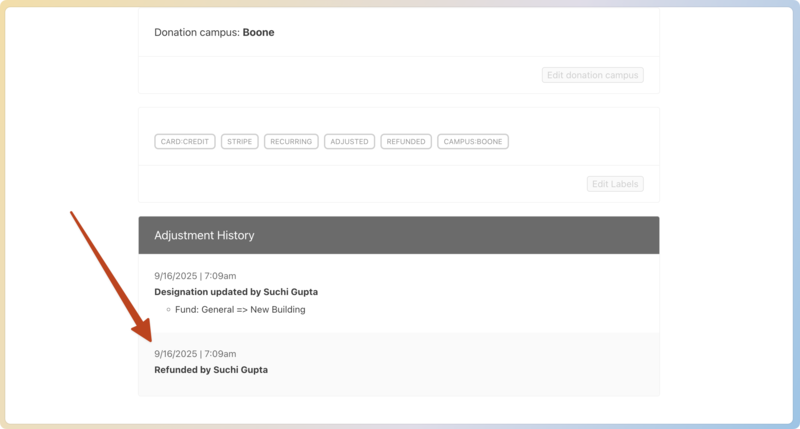
The moment a donation is refunded, a log entry will be added to the donation's adjustment history at the bottom of the donation record. The action will also be noted in the main system logs.