Create and manage payment sources
Any donation you receive through another platform can be added to Giving in order to keep your data organized in one place. If you receive donations through Venmo, Cash App, Zelle, or other digital wallets, you can create a payment source for each one. If you use multiple donation platforms concurrently with Giving or need to import historical donations from a previous system, you can create payment sources and assign the donations accordingly.
You can also use payment sources to enter certain non-deductible donations, such as those received from donor-advised funds or qualified charitable distributions.
Create the payment source
To track donations received outside of Giving, such as those imported from an old system, first create a payment source.
Select Manage in the top navigation.
Choose the Payment sources tab on the left.
Select Add a new payment source.
Name the payment source and choose a type:
Direct from donor: Monetary donations received from a donor. These donations are typically tax-deductible.
Donor-advised fund (DAF): Donations made directly from a charitable fund to which the responsible donor contributed. These donations are nondeductible.
Qualified charitable distribution (QCD): Donations made directly by the trustee of a donor's IRA. These donations are nondeductible.
Important
The information in this article is not advice. If you have any questions about a donation's legal or tax implications, always contact a licensed accountant—preferably one who specializes in working with non-profits.
(Optional) Check the Email donation receipts for [payment source] donations if you'd like receipts to be sent whenever donations are received from this payment source and the batch is committed. Receipts for imported donations are turned off by default and will not be sent.
(Optional) Check the Append [payment source] to donations with this source to add the payment source name to receipts/acknowledgments and statements.
Select Create to save the payment source.
Here's a two-minute video of what that setup process looks like:
Assign donations to a payment source from a batch
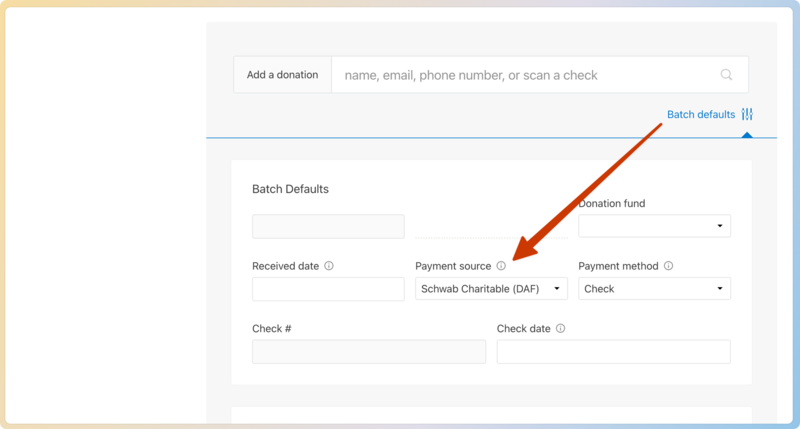
When you enter cash, check, card, or ACH donations from another platform, set the payment source in the batch defaults.
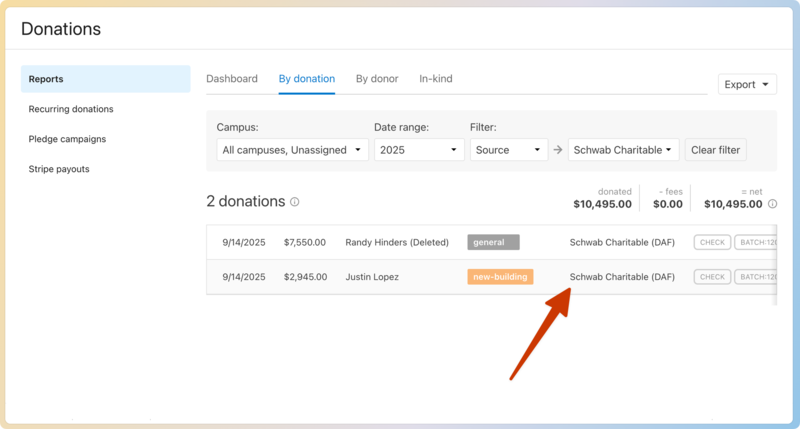
Payment sources are displayed in the column to the right of the fund stamp in the By donation and batch reports.
Tip
If you add the wrong payment source to a donation, you can select the donation to edit it. You can also bulk edit past donations to correct the payment source.
Archive or delete a payment source
If you no longer receive donations from an external payment source, archive it to keep the list of active payment sources up to date. When a payment source is archived, it will no longer appear as an option in batches, but historical donations will not be affected.
Payment sources that have received donations can be archived, whereas payment sources that have not received donations can be archived and then deleted.
Archive a payment source
To archive a payment source that you're no longer using:
Select Manage in the top navigation.
Select the Payment sources tab on the left.
Select the payment source you'd like archive.
Select Archive... in the bottom left of the popup.
Read the warning, then select Yes, archive [payment source].
Archived payment sources are located in the Archived dropdown on the Payment sources tab.
Restore an archived payment source
If you need to use a payment source that was previously archived, you can restore it.
Select Manage in the top navigation.
Select the Payment sources tab on the left.
Select the Archived dropdown at the bottom of the page to expand it.
Select the payment source you'd like to restore.
Select Restore payment source in the popup.
Delete a payment source
To delete a payment source that has never received donations, you'll first need to archive the payment source. Only then can you delete it.
Select Manage in the top navigation.
Select the Payment sources tab on the left.
Select the payment source you'd like archive.
Select Archive... in the bottom left of the popup.
Read the warning, then select Yes, archive [payment source].
Select the Archived dropdown at the bottom of the page to expand it.
Select the payment source you'd like to delete.
Select Delete permanently.
Read the warning, then select Delete payment source.