Introduction for bookkeepers
You've been added as a Giving bookkeeper! Now what? A bookkeeper needs to balance the books, but doesn't need full access to change account settings. You can access donations, reports, donor profiles, and deposit information to help manage books. This guide provides an overview of Giving to help you learn how it works and offers insight into how it works alongside your general ledger to assist in reconciling the books.
Tip
If you cannot log in, follow the steps in the Log in to Planning Center article.
How do donations flow into Giving?
Giving allows you to track online and physical monetary donations, including certain types of non-deductible donations and in-kind donations.
Online donations are given via Church Center or text and processed with Planning Center Payments.
Physical donations, such as cash or check, and non-deductible donations, such as qualified charitable donations, are tracked in batches.
In-kind donations, such as gifts of physical items, services, or stock, are tracked manually through the In-kind donations tab.
You can also track donations given through external payment sources, such as PushPay, F1, Paypal, or any other systems you have in place with batches in Giving.
Keeping online and physical donations in one place allows you to keep track of all donor activity and provide one donor statement.
Certain non-deductible donations, such as those given through qualified charitable distributions or donor-advised funds, can be tracked through an added payment source and batches. To separate these donations from deductible donations, they will be labeled as non-deductible on donor statements.
View reports and payouts
There are several places to access reports in Giving, depending on the information you need.
All reports generated from the Reports tab are based on the date the donation was received. Reports can be printed or exported, allowing you to review Giving data or move it into other programs.
Dashboard: For a breakdown of your donation information, head to the Dashboard. From here, see a picture of giving over time, giving by fund, and more.
By donation: Reports by donation can be filtered to provide an overview of donations by fund, campus, status, and payment type, among many other parameters. This is where you will likely generate a majority of needed reports.
By donor: Donors are added to your Giving database when they create a donation or when you create a donation for them. If you need to track down a cumulative total of a donor's giving over time, you can find it on the By Donor tab in Reports.
Statements: You can generate statements in Giving and email them to your donors or print them out and send them by mail. Donors can access statements from their Church Center profile.
Payouts
As you receive donations online and via text, money is deposited into your linked bank account. Every time a payout is received, reports are generated in Giving and Account settings, which you can use to enter the deposit into your general ledger.
The payout report in Giving provides a detailed view of Giving income for each payout, including an itemized list of donations in the selected payout.
The payout report in Accounts settings provides an overview of Registrations and Giving income for each payout. The report will include Registrations totals broken down by signup and Giving totals broken down by fund. You can export an itemized list of all transactions included in a payout from here, as well.
Warning
It is only possible for payouts to be paid out to a single bank account. If your bookkeeping process requires separate bank accounts for each fund, Giving might not be a good fit for your organization.
You can find information about your Planning Center Payments account from the Payments tab in Account settings.
Reconcile Giving income with your general ledger
Planning Center Giving won't replace your general ledger, as it only tracks your charitable income. You will still need a basic bookkeeping software (like QuickBooks) to handle your payable and receivable accounts.
It is recommended to record journal entries in your general ledger instead of individual payments. Deposit entries will reflect your cash and check totals, as well as your payout totals. In your general ledger, record something like this:
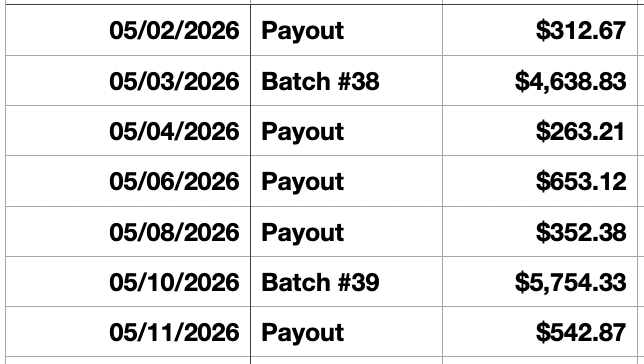
If you do keep individual donations and payments in your general ledger and would like to continue this method, it's recommended to export the CSV of an individual payout from the Payouts tab on the Payments page in Account settings. This will ensure donations are tracked based on their deposit date, not the received date.
Notifications
Everyone who can log into Planning Center can view their notifications across all Planning Center products by selecting the 🔔 bell icon in the toolbar. Selecting a notification takes you to that product. Or, if you select the three-dot button next to the notification, you can either mark it as read or add it as a task in your To do list. You can filter your notifications by selecting Show read or Hide read at the top of the toolbar.
Get help and support
Any time you have questions, Planning Center's support team is here to help! Use the ? question mark icon in the toolbar to open the Help and support sidebar.
From here you can:
Search online documentation for an instant answer to your question. The toolbar also suggests help articles based on the page you are currently viewing.
Access getting started resources or jump into Planning Center University (PCU). You can also connect with other Planning Center customers in the customer communities and see what's new by checking out the changelog.
Connect with a support agent for one-on-one help. You can email them directly from the toolbar, or schedule a phone call if you prefer.
Depending on which Planning Center product you're using, you can also contact support directly from the corresponding mobile app:
Services/People: Tap your profile icon in the top right, then tap Help to access help articles or open a ticket with support.
Check-Ins: Tap the ⚙️ settings icon in the bottom right, then tap Contact Support to open a ticket with support.
Music Stand: Tap the menu icon (three horizontal lines) in the top left, then tap Help to access help articles or open a ticket with support.
Organization administrator requests
The following Support requests can only be made by organization administrators:
Data removal or corrections you can't make yourself (undo old CSV imports, iCal imports, etc)
Gain access to anything that was created and managed by someone else in the account
Restore or fully delete a canceled account
Request access to Giving (if there are currently no Giving administrators in the account)