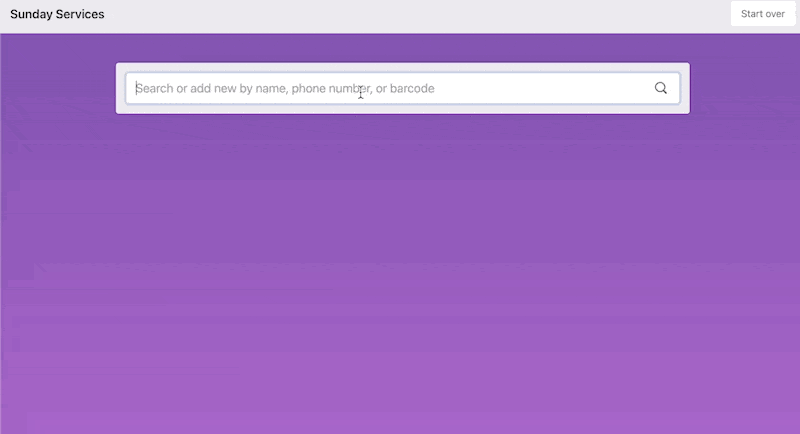
Customize success messages
Success messages at a station tell people they've checked in or out successfully, and you can customize these messages to fit the personality and needs of your church. If you don't add a custom success message, the default check-in message will say "Check-ins were successful!" and the default check-out message will say "Check-outs were successful!"
Want to watch a video before you get started? No problem! This four-minute video covers success messages and personalized station themes.
Select the Stations page from the top navigation.
Select the ⚙️ settings icon in the top right.
Choose Success messages from the dropdown.
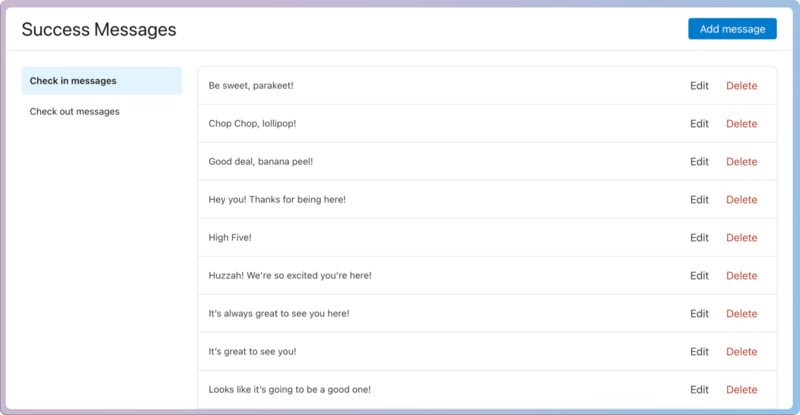
Switch between check in and check out messages using the tabs in the left sidebar.
Add a new message using the Add message button in the top right.
Edit or Delete an existing message using the buttons on the right.
Once you've created a few custom success messages, Check-Ins will randomly choose one to display after someone has successfully checked in or out at a station.