Checked in by person
When you check in a child, you can also select the person who checked them in that day. The household adults and any trusted people will be listed in the Checked In By field dropdown at the bottom left of the screen.
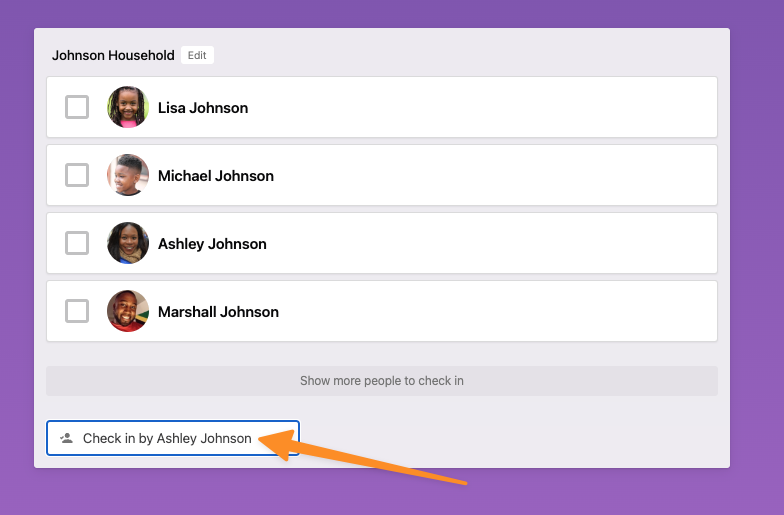
Tip
You can also edit trusted people for the household in this dropdown. Trusted people can include children.
The default person in this field depends on the station type.
Roster stations: This field is not shown, so all roster station check-ins will default to None.
Self and manned stations:
If you search by a mobile number, it defaults to the household adult with that phone number on their profile.
If you search by home number, it defaults to the last person selected as the Checked In By person.
If you scan a barcode or mobile pass, it defaults to the person to whom the barcode or mobile pass is assigned.
If you scan a Church Center QR code, it defaults to the person who was logged in or was selected as the Checked In By person when pre-checking.
If you search by a trusted person's phone number, it defaults to their name.
Manned stations:
If you search by a child's name or phone number, and the primary contact is not an adult, it defaults to None.
If you search by a household adult's name, it defaults to the name of that adult.
If you add a new household, it defaults to the primary contact, as long as the primary contact is an adult.
Important
If you manually changed the Checked In By field to another person during a previous session, the default will be the person who was selected most recently.
Add to label
The name of the person selected in this field will be printed along with their mobile number on any label that includes the Checked In By name and phone number fields. If they don't have a mobile number, their home number prints instead.
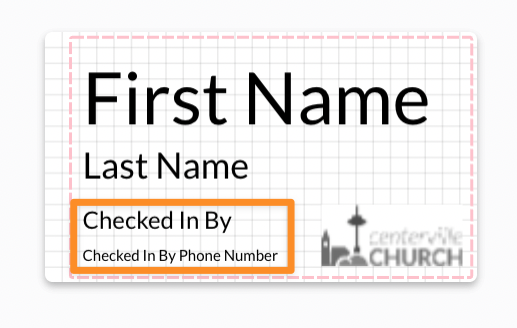 |
If no one is selected, no name or number will print in that field.
Tip
To change the Checked In By person on a label, check in the child again and select another person from the dropdown. This will print a new set of labels and assign a new security code.
If you want to send a text, you don't have to change the checked in by person. You can text any household adult or a trusted person.