Plans: Teams
The Teams tab of a plan page in Services mobile shows you the people who are scheduled to this specific plan, and allows people with scheduler permissions and higher to make adjustments to teams.
Tip
There are more options for scheduling people when using Services on a web browser.
Open the Teams tab
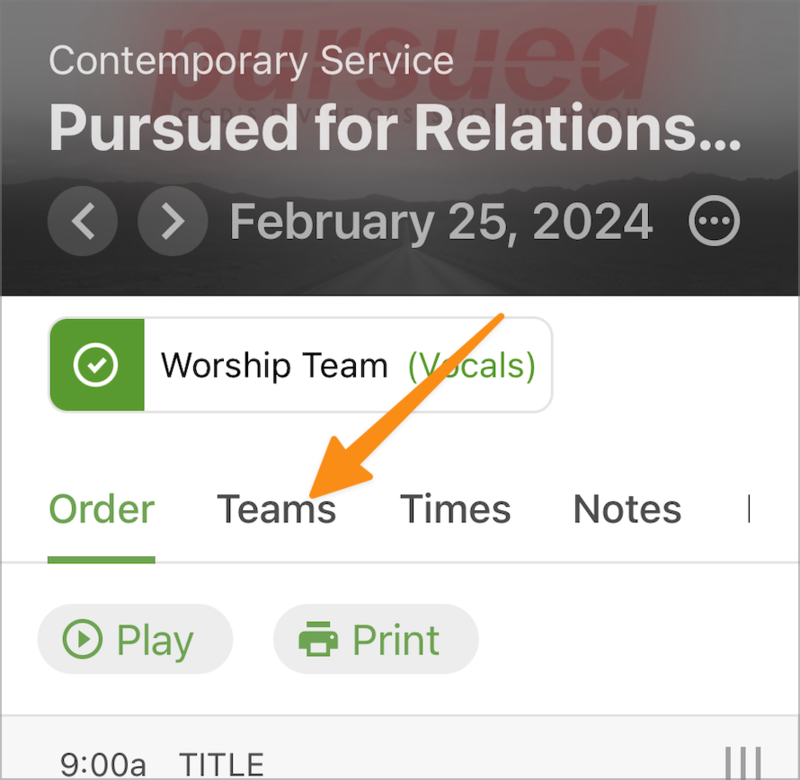
To view your scheduled teams, go to a plan, and then tap Teams.
 |
Use My Teams and All Teams to view who has been scheduled to the plan.
My Teams are teams in which you are a leader, assigned to a position, or scheduled for this plan.
All Teams are all the teams assigned to this plan.
Important
Some permissions don't allow access to All Teams. Contact your leader if you need access.
Update scheduled positions
To update your team's schedule in the Services mobile app, you can either set up needed positions, import a template, or use the auto-scheduler. Follow along with the articles below to learn more:
Contact team members
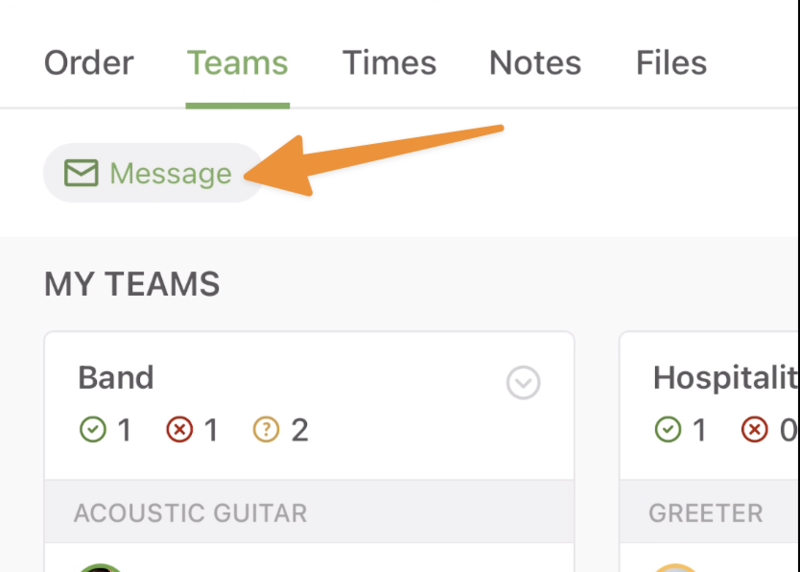
Email or text your teams by tapping the ✉️ email icon in the right corner.
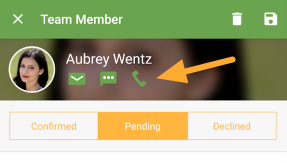
To contact a team member directly, tap their name to send them an email, text message, or make a phone call.
 |