Plans: Take attendance
You can take attendance for one or more teams to track which team members served for a particular plan.
Editors and administrators can take attendance for any team, but Schedulers can take only attendance for the teams they lead.
Important
Attendance is shown the Activity tab in their People profile and you can also use Attendance as a condition when creating a list in People.
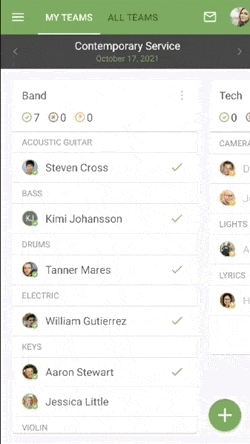
Take attendance for one team
To take attendance for one team:
From a team dropdown, tap Take Attendance.
Choose a time.
Tap the checkboxes next to the names of the people who attended.
If you're on an Android device: Tap the x in the upper right corner of the team section.
If you're on an iOS device: Tap Done.
 |
Take attendance for all teams
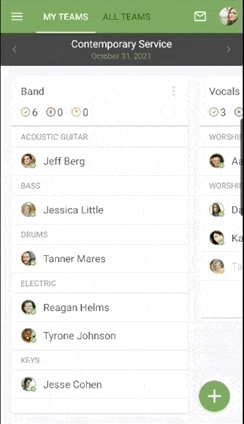
To take attendance for all teams in a plan:
From the + menu, tap Take Attendance.
Choose a time.
Tap the checkboxes next to the names of the people who attended.
Tap Done.
 |
View attendance
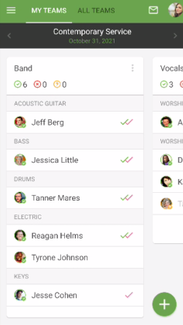
A separate checkmark will show for each time the person attended, and the checkmarks are color-coded to reflect the day that the person served.
 |
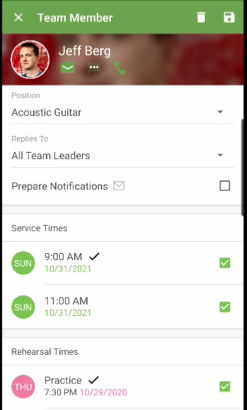
Tap on a person's name to see the service times they are assigned to and the times they attended.
 |
If you use the Check-Ins and Services Integration to take attendance, that attendance will also show as a checkmark by a person's name.