Introduction to Music Stand
Welcome to Music Stand! If you've already set up Music Stand for your church, this article will show you how to log in, open a plan, and open the song library.
If you don't have a mobile device but still want to use Music Stand, you can launch Web Music Stand from the Services website.
Log in to Music Stand
You can download Music Stand on your mobile device using the Google Play Store (Android) or the App Store (iOS).
Once you've downloaded the app, log in with the same email address and password you use in Services. If you're having trouble logging in, see the Log in to Planning Center article.
Important
Log in to Music Stand using only your personal login information instead of using a shared profile. If you need to share annotations, you can access other people's annotations while using your own profile.
When using a shared device, such as a stage iPad, make sure to log out of Music Stand before closing the app.
Open a plan
The Music Stand app sidebar is similar to Services Mobile, which shows the upcoming plans in your schedule. Depending on your permission level in Services, you can either select a plan from the My Schedule section or look for a specific plan in any folders or service types where you have viewer permissions or higher.
To open a plan:
Tap the menu icon (three horizontal lines) in the top left to open the sidebar.
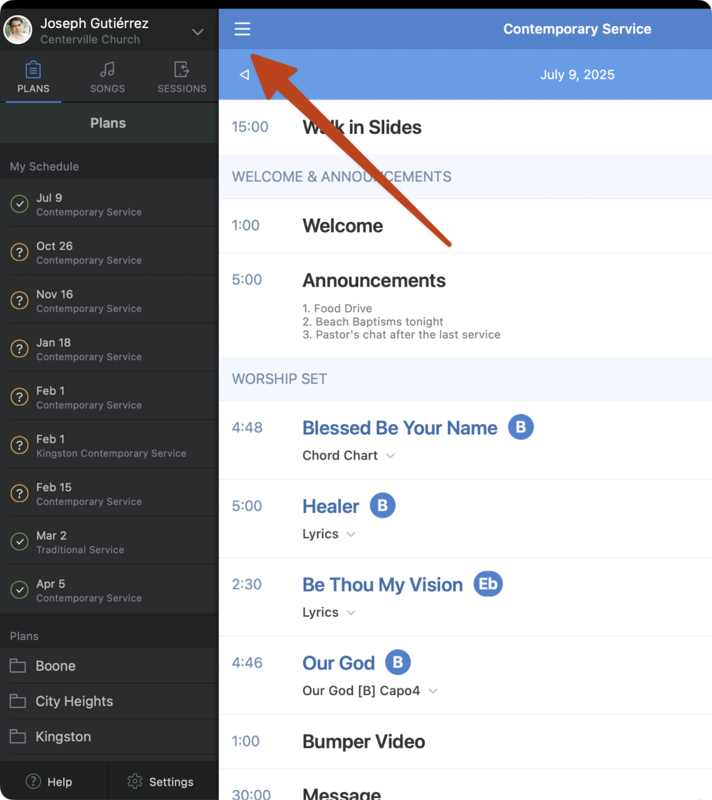
Select the Plans tab.
Select a date from the list to open the corresponding plan page.
If you have viewer permissions or higher in Services, you can select a folder or service type to find a specific plan where you're not scheduled.
Tap the dropdown below a song to choose which PDF you'd like to view.
Tap the song name in the service order to open the selected PDF.
Take the following actions on the song view:
Tap the center of the screen to view the top toolbar, where you can change PDFs, open the media player, use the metronome, or add annotations.
Important
If you're using an Android device in landscape orientation, you must tap the page you'd like to annotate or edit before using the toolbar. You can only edit or annotate one page at a time.
To turn pages, swipe left and right on the chord chart or tap on the left or right side of the screen. You can also set up a foot pedal or keyboard to turn pages.
Double-tap the center of the screen to quickly return to the plan page.
Tip
By default, Music Stand is set to dark mode. You can change it to light mode by tapping the sun icon in the top right corner.
Open the song library
If you have song viewer permissions or higher in Services, you can view any PDF from the song library in Music Stand.
Tap the menu icon (three horizontal lines) in the top left to open the sidebar.
Select the Songs tab.
Select a song from the list or find a specific song using the search bar.
Select an arrangement from the list.
Choose which PDF you'd like to view.
Take the following actions on the song view:
Tap the center of the screen to view the top toolbar, where you can change PDFs, open the media player, use the metronome, or add annotations.
To turn pages, swipe left and right on the chord chart or tap on the left or right side of the screen. You can also set up a foot pedal or keyboard to turn pages.
Double-tap the center of the screen to quickly return to the Songs tab.
Edit chord charts and plans
If you have editor permissions or higher in Services, check out the following articles to learn how to edit chord charts and plans in Music Stand!
Get help and support
Any time you have questions, Planning Center's support team is here to help! Use the ? question mark icon in the toolbar to open the Help and support sidebar.
From here you can:
Search online documentation for an instant answer to your question. The toolbar also suggests help articles based on the page you are currently viewing.
Access getting started resources or jump into Planning Center University (PCU). You can also connect with other Planning Center customers in the customer communities and see what's new by checking out the changelog.
Connect with a support agent for one-on-one help. You can email them directly from the toolbar, or schedule a phone call if you prefer.
Depending on which Planning Center product you're using, you can also contact support directly from the corresponding mobile app:
Services/People: Tap your profile icon in the top right, then tap Help to access help articles or open a ticket with support.
Check-Ins: Tap the ⚙️ settings icon in the bottom right, then tap Contact Support to open a ticket with support.
Music Stand: Tap the menu icon (three horizontal lines) in the top left, then tap Help to access help articles or open a ticket with support.
Organization administrator requests
The following Support requests can only be made by organization administrators:
Data removal or corrections you can't make yourself (undo old CSV imports, iCal imports, etc)
Gain access to anything that was created and managed by someone else in the account
Restore or fully delete a canceled account
Request access to Giving (if there are currently no Giving administrators in the account)