Add annotations to files
Annotate your charts so you can review notes while you practice or play! Annotations are saved to each PDF and are tied to your profile, so if you open the same PDF in the future, your notes will still be there. If you add annotations offline, they will sync when you are back online.
Tip
You can also access another person's annotations and merge them with your own, or use them to replace your annotations.
The available annotation tools differ based on the device you're using.
Annotate on an iOS device
If you're using an iOS device, you can annotate PDFs with or without an Apple Pencil.
To annotate without an Apple Pencil:
Tap the menu icon (three horizontal lines) in the top left to open the sidebar.
Select the Plans tab.
Select a plan date from the list to open it.
Select a song from the service order to open the corresponding PDF.
Tap the center of the screen to show the top toolbar.
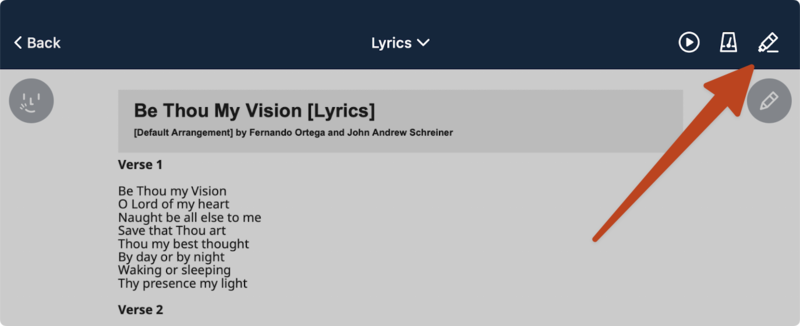
Tap the annotation icon in the top right.
Use the annotation tools in the top toolbar to customize your annotations:
Pen: The pen tool allows you to draw freeform on the PDF. Tap the pen icon to open Apple's built-in drawing toolset, where you can adjust the thickness, opacity, and color of the selected tool.
Text: The text tool allows you to type in text using the on-screen keyboard. To move text, tap and hold it until it's outlined in blue, then drag it. To delete text, tap it and choose delete on the keyboard.
My Annotations: Tap My Annotations to view other annotations and merge them with your own, or replace yours with someone else's annotations.
Undo/Redo: Tap the curved arrows in the top right to undo or redo recent actions.
Clear: Tap Clear in the top right to clear all annotations. Choose whether to clear annotations on this page only or for the entire PDF.
Warning
Once you confirm that you'd like to clear annotations, you will not be able to recover the cleared annotations.
Tap Done in the top right to finish annotating the PDF.
To annotate with an Apple Pencil:
Tap the menu icon (three horizontal lines) in the top left to open the sidebar.
Select the Plans tab.
Select a plan date from the list to open it.
Select a song from the service order to open the PDF.
Tap your Apple Pencil anywhere on the screen to open Apple's built-in drawing toolset, where you can adjust the thickness, opacity, and color of the selected tool.
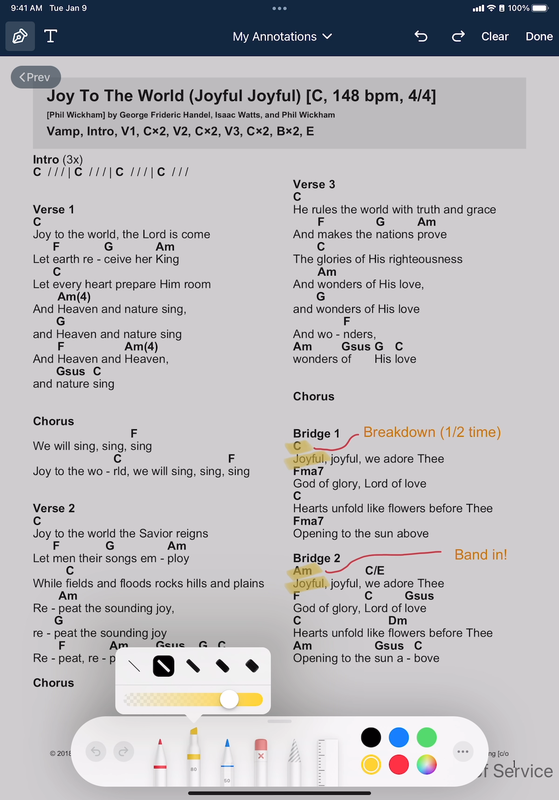
Use the annotation tools in the top toolbar to customize your annotations:
Pen: Tap the pen icon to open Apple's built-in drawing toolset, where you can adjust the thickness, opacity, and color of the selected tool.
Text: The text tool allows you to type in text using the on-screen keyboard. To move text, tap and hold it until it's outlined in blue, then drag it. To delete text, tap it and choose delete on the keyboard.
My Annotations: Tap My Annotations to view other annotations and merge them with your own, or replace yours with someone else's annotations.
Undo/Redo: Tap the curved arrows in the top right to undo or redo recent actions.
Clear: Tap Clear in the top right to clear all annotations. Choose whether to clear annotations on this page only or for the entire PDF.
Warning
Once you confirm that you'd like to clear annotations, you will not be able to recover the cleared annotations.
Tap Done in the top right to finish annotating the PDF.
Annotate on an Android device
To annotate on an Android device:
Tap the menu icon (three horizontal lines) in the top left to open the sidebar.
Select the Plans tab.
Select a plan date from the list to open it.
Select a song from the service order to open the PDF.
Tap the annotation icon in the top right.
Use the annotation tools in the top toolbar to customize your annotations:
Annotation Options: Tap the 👤 person icon in the top left to open the Annotations section of the PDF Options. Select Annotator to view another person's annotations or Import from another file....
Zoom: Use the zoom tool to zoom in and out while annotating.
Pen: Use the pen tool to draw freeform on the PDF.
Highlighter: The highlighter tool highlights any area of the page. As you draw, it appears in front of the text, but after you tap Done, the highlight blends in with the text.
Selective Eraser: Draw a rectangle on the screen to erase any pen or highlighting within the rectangle. When you draw, you can see what will be erased, but it will not erase until you let go. The eraser will not erase text from a text box or the PDF.
Text: The text tool allows you to type in text using the on-screen keyboard. To move text, tap and hold it until it's outlined in blue, then drag it. To delete text, tap it and choose delete on the keyboard.
Color/Size: Change the color or the size of the pen or highlighter tools.
Undo/Clear All: Tap Undo or Clear All in the top right to undo an annotation or clear all annotations. If you tap Clear All, choose whether to clear annotations on the selected page only or for the entire PDF.
Warning
Once you confirm that you'd like to clear annotations, you will not be able to recover the cleared annotations.
Tap Done in the top right to finish annotating the PDF.