Choose a different PDF
If there are multiple PDFs attached to your songs, you can choose which PDF to view. Each person can choose a different PDF for each song without affecting others.
Important
If limited file visibility is set up in Services, the default PDF is based on which files are assigned to your position.
Change PDFs on a plan
To choose a PDF from a plan page:
Tap the menu icon (three horizontal lines) in the top left to open the sidebar.
Select the Plans tab.
Select a plan date from the list to open it.
Tap the dropdown arrow below a song name to show other files attached to the song.
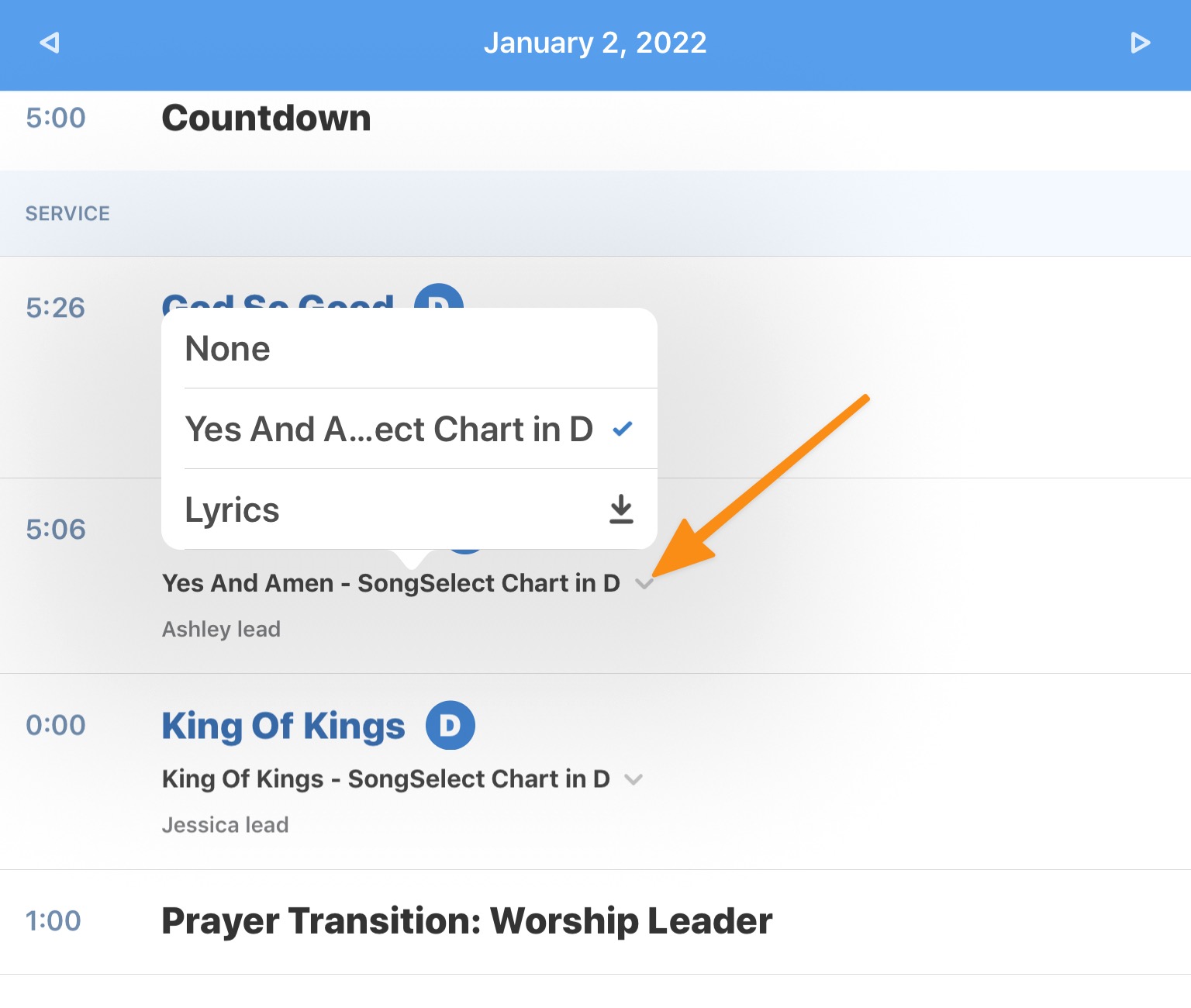
Choose the file you want to view.
Tap the song name in the service order to open the selected PDF.
Change PDFs in song view
You can also change PDFs in the song view if you're already looking at a chart during rehearsal or service.
Tap the menu icon (three horizontal lines) in the top left to open the sidebar.
Select the Plans tab.
Select a plan date from the list to open it.
Tap a song name in the service order to open the corresponding PDF.
Tap the center of the screen to view the top toolbar.
Tap the file name at the top to open the PDF Options.
Tap File to view the other PDF files attached to this song.
Choose which file you'd like to view.
If you're on an iOS device: Tap Done in the top right.
If you're on an Android device: Tap the X to close the PDF Options menu and view the file.
Download a PDF
If you want to access a PDF file later without internet access, you can download it directly to the Music Stand app.
Tap the menu icon (three horizontal lines) in the top left to open the sidebar.
Select the Plans tab.
Select a plan date from the list to open it.
Tap the dropdown arrow below a song name.
Tap the ⬇️ download icon next to a file to download it.
Tip
Downloaded PDFs are stored in Music Stand's cached data. Check out the article on how to clear downloaded data if you need to free up space on your device.