Use the metronome
Music Stand has a built-in metronome feature so you can keep time while you practice! The metronome's tempo and meter automatically change as you switch songs.
You can open the metronome from a plan page:
Tap the menu icon (three horizontal lines) in the top left to open the sidebar.
Select the Plans tab.
Select a plan date from the list to open it.
Select a song from the service order to view the chord chart.
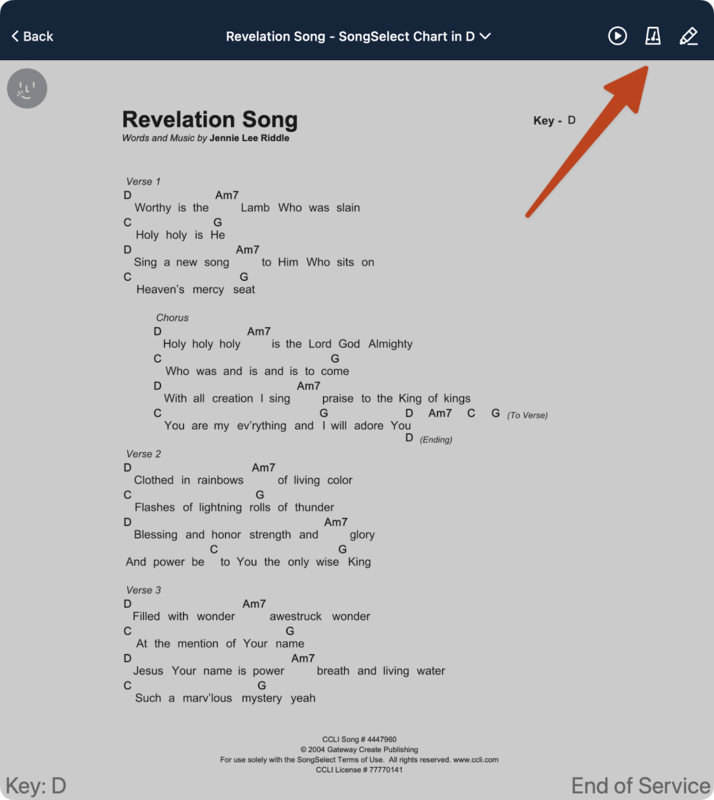
Tap the center of the screen to show the top toolbar.
Tap the metronome icon in the top right to open the metronome options in the toolbar.
Adjust your metronome options in the top toolbar.
Start/Stop: Tap the play/pause icon to start or stop the metronome. It will continue even if you close the toolbar or the app, and will change settings as you change songs.
Visual Metronome: Circles appear for each beat in the selected meter and pulse while the metronome is playing.
Sync: Adjust your sync settings if you're using Ableton Link. Check out the article on how to sync the metronome for more details.
16ths: Tap to toggle 16th note subdivisions.
2x: Tap to double the speed of the metronome sound.
Tempo/Popup Metronome: Tap the song's tempo to open the popup metronome, where you can adjust the tempo using the wheel or by using the tap tempo feature.
Tap the speaker icon in the popup metronome to change the metronome sound or adjust the volume.
Tip
If you have song editor permissions or higher in Services, you can tap Save at the bottom of the popup metronome to save a new tempo to the arrangement. Tap Reset to go back to the default tempo.
Meter: Change the song's meter by tapping it and selecting a new one from the dropdown.
Flash: Tap Flash to make the entire blue toolbar flash to the beat, which is useful if you keep the toolbar visible at all times.
Tap the X to close the metronome toolbar and return to the regular toolbar. If you close the toolbar without stopping the metronome, the metronome will continue playing.