Use a text document for special announcements
In Services, you can use media items to create editable text documents for your sermon notes, announcements, or liturgy. Once you add the media items to a plan, these files can also be accessed from Music Stand.
To create a text document:
Select the Media page in the top navigation.
Select Add media in the top right.
Enter a title for your media item.
Select Document from the Media Type dropdown.
(Optional) Enter additional media item details, such as the Length, Creator, Themes, Auto-Archive setting, or Tags.
Select Submit in the bottom right of the popup.
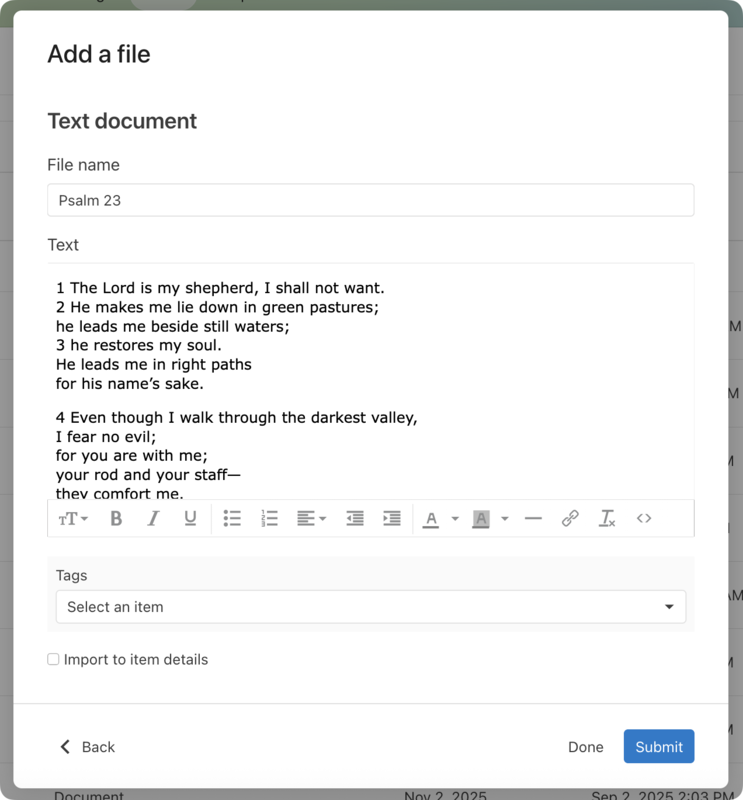
Select Text Document from the options that appear.
Add your document details to the text fields.
Tip
When you import the text into a plan item, you can edit it directly within the plan without changing the master text document.
Select Submit to attach the file to the media item.
Now, when you add the media item to a plan, those who can access plan items can view your text document in Services or Music Stand.