Conferences
Conferences can be a lot of work to pull off, but a signup in Registrations will help manage the logistics of collecting registrations and let you focus on other tasks! Use the suggestions below as a guide for setting up your next conference for success.
Adjust signup settings
After creating your signup, adjust the signup settings from the About and Settings tabs on the Configuration page. Pay close attention to the Settings tab, where you can adjust things like:
Church Center availability
Registrant options that determine what information is collected from the registration contact
Allowed payment methods
Create selection types
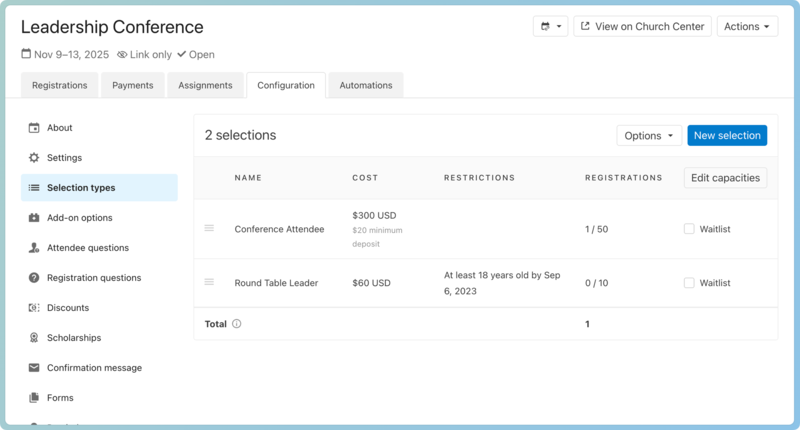
Create selection types to collect attendee information. Consider who will be attending and create a selection for each group.
For example, you may have different conference attendee levels and need to collect leader registrations. In this case, create a selection for each one.
Create add-ons
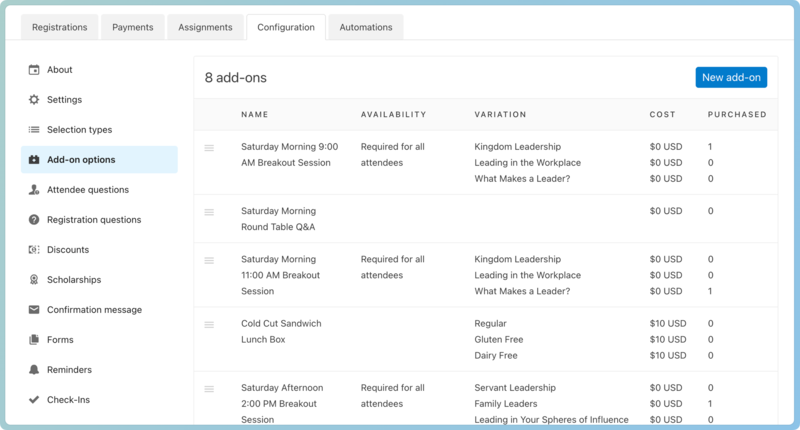
Add-ons are a great way to provide conference attendees with extra options, including those with extra costs associated. Collect choices for things like breakout sessions, lunch options, and more!
Add questions
Collect additional information from those registering by creating questions.
Use registration questions to collect information from the entire registration group.
Use attendee questions or the attendee information form to collect information from individual attendees.
Tip
Attendee questions are best for simple questions you'd like a response to immediately. Use the attendee information form for questions that might take attendees longer to answer or when the answers can wait until after the initial registration is submitted.
Registration questions
From the Registration Questions tab, use the Add a question button to create questions that apply to the registration group as a whole. These questions will be answered once, no matter how many people are registering at one time.
Attendee questions
From the Attendee Questions tab, use the Add a question button to create questions that apply to the individual attendees. Use the question settings to adjust who the questions apply to based on their selections. During the main registration workflow, these questions will be answered for each attendee.
Attendee information form questions
From the Forms tab, select Attendee information form and use the Add a question button to create attendee-specific questions. This form can be used for application-type or long-form questions, as the form is sent after the initial registration process, and the 15-minute timer does not apply. Use the question settings to adjust who the questions apply to based on their selections.
A link to the attendee information form will be sent in the confirmation email received after a registration is submitted. Registrants can also access the form from the My registrations tab of their profile on Church Center.
Discounts and scholarships
Create discounts and scholarships to help manage the conference cost.
Discounts
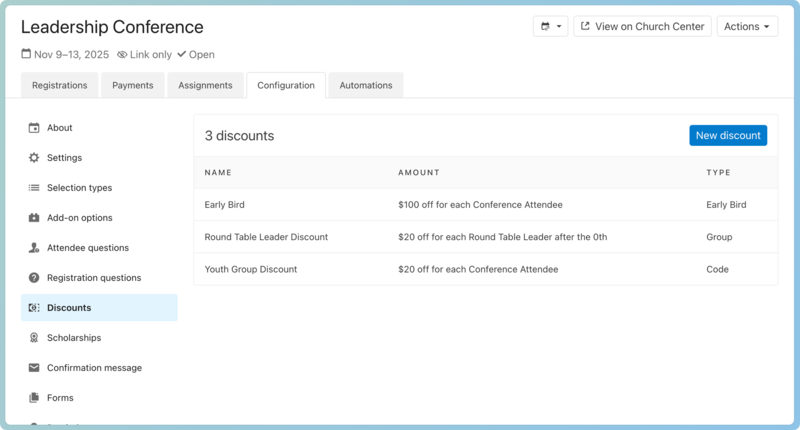
Use discounts to provide early bird, group, or code discounts.
Tip
Need to offer a discounted price to your volunteers? Create a group discount that is only available to the volunteer/leader selection type that applies a discount for everyone after the 0th attendee.
Scholarships
Create a scholarship to track money collected for conference sponsorships. When money is received, add it to the scholarship total. If a conference attendee needs financial assistance, apply a payment to their balance using the Scholarship payment method. This amount is deducted from the remaining scholarship balance on the Scholarship tab.
Tip
Collecting donations for conference sponsorships? Check out the Donate to a scholarship article.
Assignments
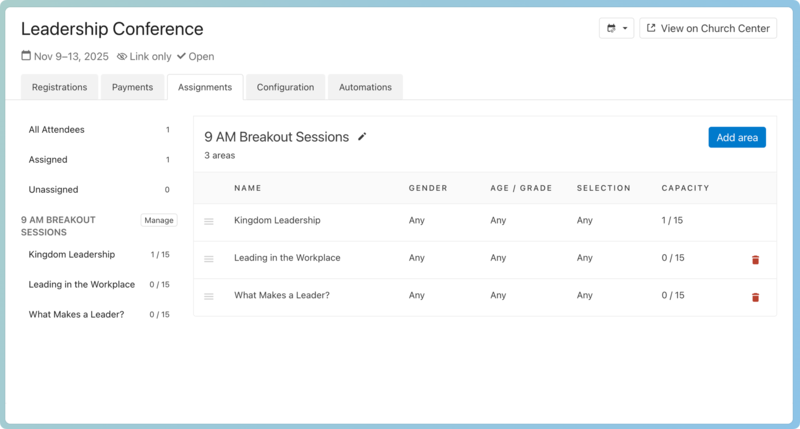
Sort conference attendees into groups by creating assignments. Use assignments to assign people to their breakout sessions, extra conference activities, or anything else helpful!
Automations
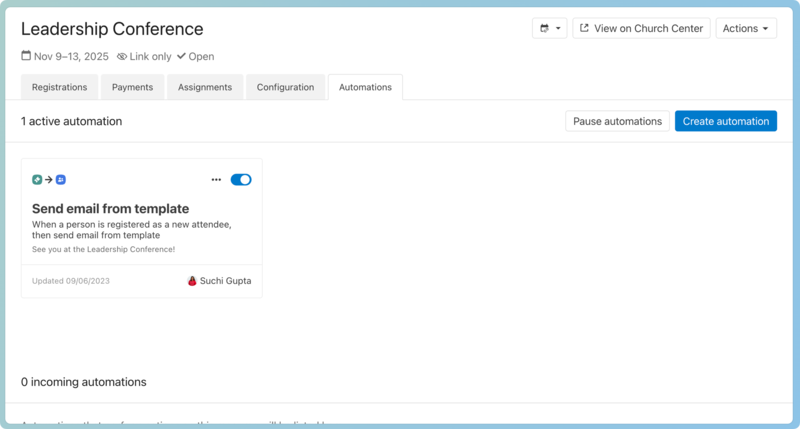
Take your signup even further by creating automations that complete actions whenever someone registers for the conference.
For example, create an automation that emails each new attendee from an email template in the People product.
Tip
For a more advanced option, in the People product, use a list to capture everyone who registered with the leader selection and use an automation to add them to a conference leader group where they can communicate with one another before the conference!