Automations in Registrations
Automations are designed to reduce your team's workload by automating manual tasks, saving you time and effort every time they run.
Create automation
From the Automations tab of a signup, select Create Automation.
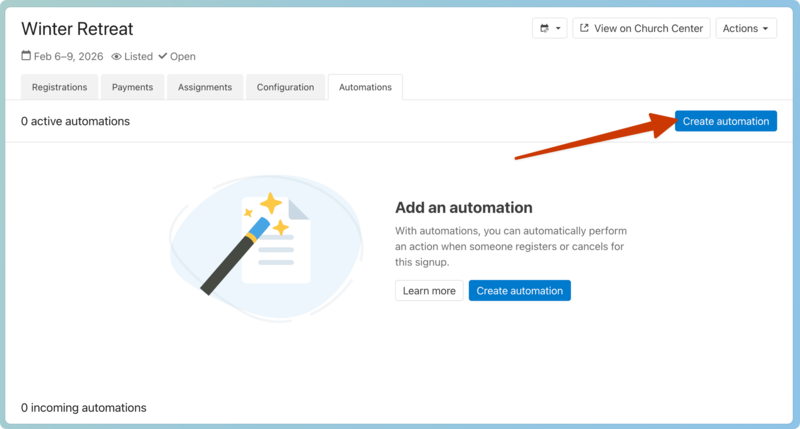
Set up the automation by completing the fields.
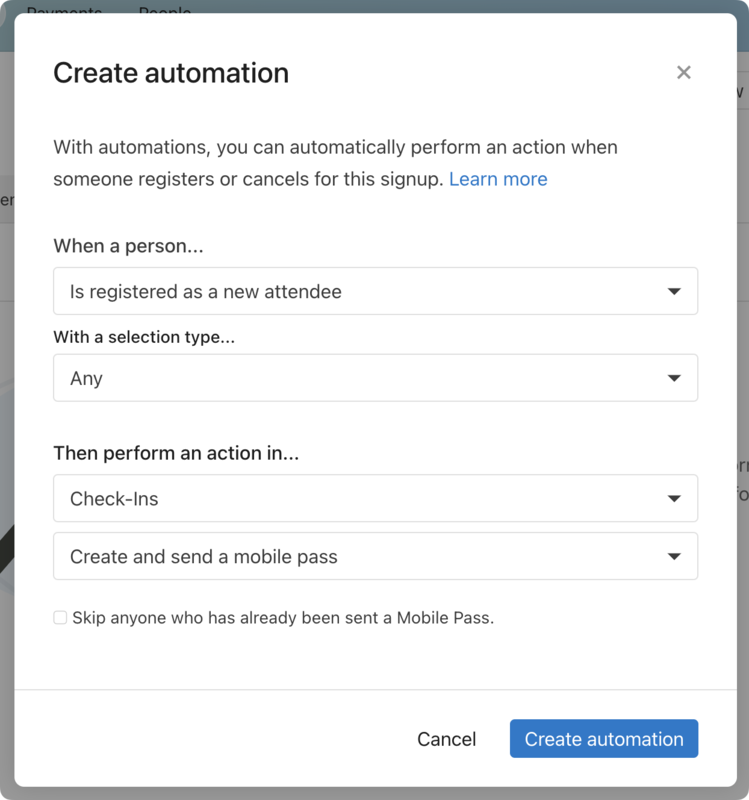
Run the automation based on the attendee or the registration contact.
Choose the product and action of the automation. If more context is needed, choose the corresponding information.
Select Create automation to enable the automation.
You can view all automations that will affect your registration on the signup's Automations tab.
Pause or delete automations
Use the toggle slider to pause an automation that you don't want to run.
To pause all your automations, select Pause automations in the top-right corner.
To delete an automation, select the three dots next to it, then choose Delete.
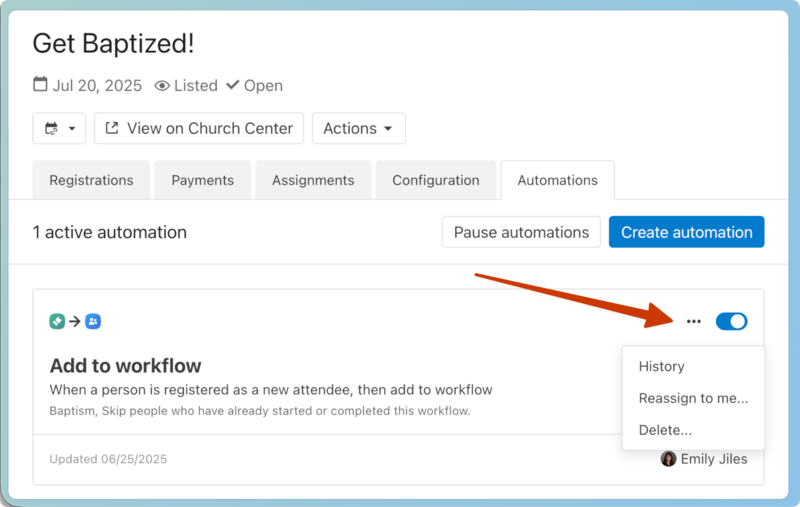
View automation history and reassign automations
You can view an automation's history for the last 32 days, reassign it to yourself, or delete it by selecting the three dots in the top right corner of the automation.
You may see the following statuses when viewing an automation's history.
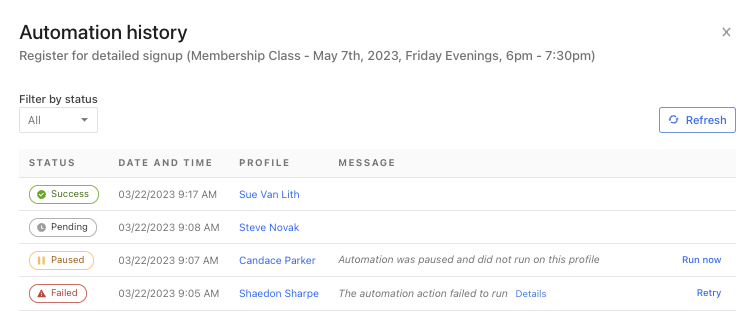
Success: The automation ran successfully on the person.
Pending: The automation is still in process.
Paused: The automation was paused before the last action that would have normally triggered it, so it did not run. Select Run now to run the automation.
Failed: The automation failed to complete. You can select Details to find out why the automation failed. Select Retry to try the automation again.
Tip
The owner of the automation will receive an email notifying them of the failure.
If an automation has any errors or instances skipped due to being paused, you will also see an indicator on the automation showing the number of paused or failed instances.
If you ignore a failed or paused automation instance, it will show up on the Automation history page with an Ignored status. It will not be included in the number of errors or paused items on the automation.
Common automations
Check out the example below to see how other churches are using automations in Registrations.
Add attendees to a group
If you want to communicate with attendees for a specific event, you can automatically add them to a group when they register.
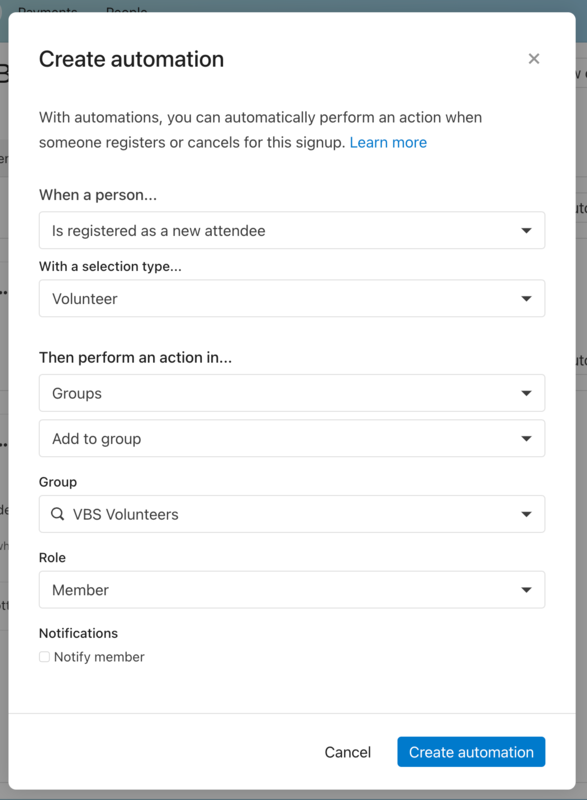
You can also create the other side of this automation. When someone cancels, set the automation to remove them from the group.
Automate creating and assigning tasks
A lot is going on at your church, and that means tasks for your staff! Instead of manually tracking these actions, you can automatically create and assign tasks.
Create an automation to add a task from the Automations tab.
When a person...: Select the activity that triggers the task automation.
Then perform an action in...: Choose Home as the product and Add a task from the dropdown.
Task name: Name your task.
Add task to: Select where to add the task.
Owner: If you're adding the task to someone else's inbox, search for that person's name. If you're adding it to a specific task list, select the list from the dropdown and add an assignee.
Days after task is created: If the task should be completed by a particular date, enable Set task due date and add the number of days before the task is due.
Once the automation runs, the assigned task appears in the assignee's inbox or task list, and they are notified of a new task. The task will have a link to the appropriate resource and, in some cases, a link to the related person's profile.