Joint donors
It is common that pairs of donors want to see a combined donation history and receive combined statements. To allow them to view a complete donation history and receive a single combined statement, you can join the donors in Giving.
Two donors can be joined, whether or not they are members of the same household.
If the donor has a household set up in People, adult members of their household will be shown as suggested profiles to link with.
If the selected donor is not a part of a household, you can search for the name of the donor you'd like to link to. If that person doesn’t exist in your Giving database, you'll have the option to add them.
Joining donors
Donors can be joined from the People page in Giving or directly on a donor's profile. This process will need to be done one by one, as there isn't a way to join donors in bulk.
Important
When two profiles are joined, each donor will be notified by email. This security setting cannot be turned off, but you can edit the email text before it is sent.
Join donors from the People page
If you're joining several donors at once, work from the People page to speed up the process.
Select People in the top navigation.
Locate the name of a donor you'd like to join in the list.
Select Join donor... in the Gives jointly with column.
If the donor already has a household in the People product, select Select [name].
If the donor does not have a household created in the People product, search for a person's name or create a new profile. Select Select [name].
Review the email that will be sent to both donors when they are joined. If needed, edit the email in the text box.
Select Join and notify donors to join the donors together.
Join donors from a donor profile
Donors can be joined directly from a donor's profile.
Search for a donor's name using the 🔎 search icon in the top right.
Select the name of the donor you'd like to join from the search results.
Select Join donors in the top right.
If the donor already has a household in the People product, select Select [name].
If the donor does not have a household created in the People product, search for a person's name or create a new profile. Select Select [name].
Review the email that will be sent to both donors when they are joined. If needed, edit the email in the text box.
Select Join and notify donors to join the donors together.
After donors are joined
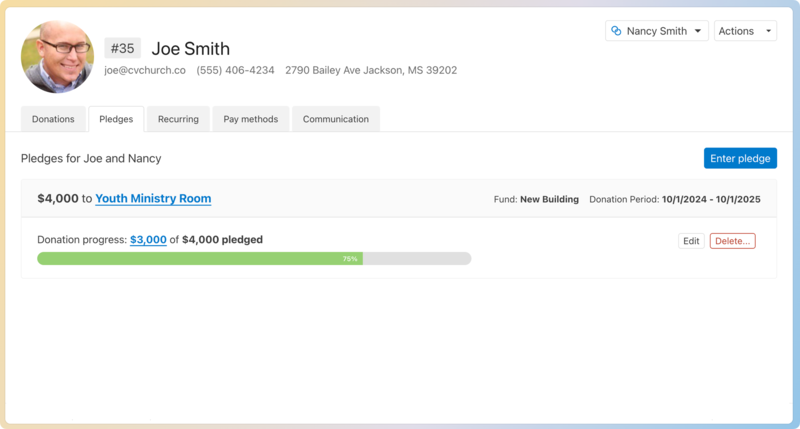
After joining profiles, donors can see a combined donation history and statements when they log into Church Center. Additionally, each donor’s profile will show the name and profile image of the person who they give jointly with. Any pledges made by either donor will now be shared with their joint donor.
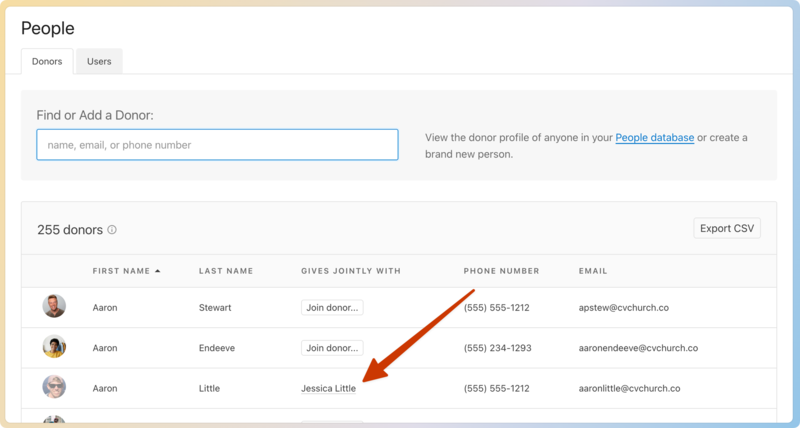
The joined donor profiles will also be visible on the People page and the By donor report by showing the name of the joined profile in the Gives Jointly With column.
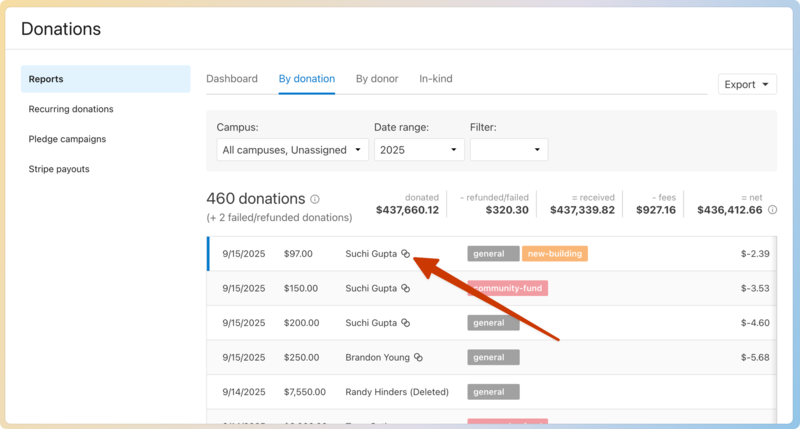
Joint donors are also indicated on the By donation report through a small link icon.
 |
Disjoining donors
There may be times when donors need to be disjoined. You can do this from a donor's profile.
Search for a donor's name using the 🔎 search icon in the top right.
Select the donor's name from the search results.
Select the name of the donor's joint donor.
Select Disjoin donors... from the dropdown.
Review what happens when donors are disjoined, and preview the email they will receive.
Select Disjoin and Notify Donors.
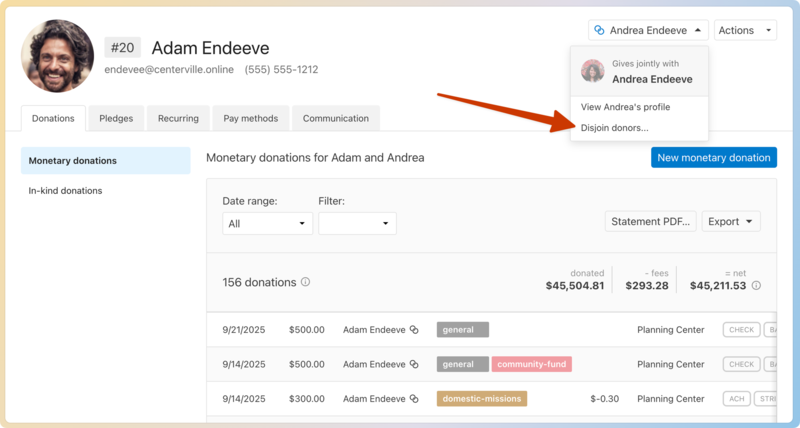
When disjoined:
Each donor will receive an email unless one of the donors is marked inactive and the reason is deceased.
These profiles will no longer have access to their previously joined donation history.
Donations will be reattributed to the donor's profile who initiated that donation.
Pledges will be reattributed to the donor who made the pledge.
Each donor will receive their own separate donor statements.
Joint statements
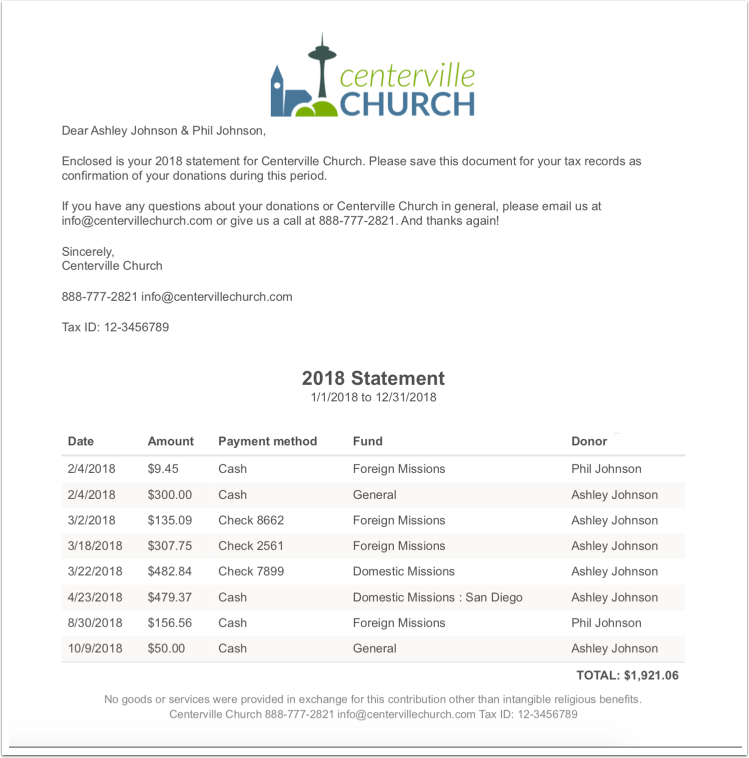
Joint donor statements are addressed to both donors and show their combined donation history for the statement date range.
If you issue statements by email, both donors will receive an identical joint statement at their primary email address. When print statements are generated, Giving will generate a joint statement for every primary mailing address on file.