Recurring donations
Recurring donations allow donors to create a donation that automatically processes at a set frequency. Donors can set up recurring donations on Church Center, and administrators can also set up or edit recurring donations on a donor's behalf.
Each recurring donation will process according to the frequency chosen when the donation was created. Recurring donations can be set to recur on one of the following patterns:
Weekly on a chosen day of the week.
Every other other week on a chosen day of the week.
Monthly on a chosen day of the month.
Twice monthly on the 1st & 15th, 6th & 20th, or 11th & 25th.
Set up recurring donations
Both donors and administrators can create recurring donations.
Donors
When donors give from your church's donation form on Church Center web or the Church Center app, they can set the donation up to recur regularly.
Administrators
Administrators can add a new donation for a donor from the Recurring tab of a donor's profile.
Search for a donor's name using the 🔎 search icon in the top right.
Select the donor's name from the search results.
Select the Recurring tab on the donor's profile.
Select New recurring donation.
Choose a saved payment method for the donation or add a new one.
Enter the donation information, including the amount and the fund.
(Optional) Select the ⊕ plus icon to create a split donation across multiple funds.
Set a frequency for how often the donation should recur and choose the date when it should start.
Select Submit to save the new recurring donation.
Tip
Administrators can choose to be notified when new recurring donations are created by enabling notifications in their profile.
Closed funds
If a recurring donation is set up, and then the chosen fund is closed, the donation will continue to process based on its set frequency. It is recommended that administrators contact donors before closing a fund to give them a chance to redirect their recurring donation.
Edit recurring donations
Donors can edit their recurring donations from My Giving on Church Center, and administrators can also make changes for donors in Giving.
Donors
Donors can update their recurring donations by logging into their profile on Church Center. Donors can follow the instructions in the Manage your giving information help center article to make changes to their donations.
Administrators
An administrator can edit the recurring donations on a donor's behalf from their profile.
Search for a donor's name using the 🔎 search icon in the top right.
Select the donor's name from the search results.
Select the Recurring tab on the donor's profile.
Select the recurring donation you'd like to edit.
Choose a different saved payment method for the donation or add a new one.
Change the donation information, including the amount or the fund.
(Optional) Select the ⊕ plus icon to change the donation to a split donation across multiple funds.
Change the frequency for how often the donation should recur and when it should process.
Change the recurring donation's status from Active to On hold indefinitely or On hold through. This prevents the donation from process going forward until a set date.
Select Delete in the bottom left to delete the donation.
Select Submit to save changes to the recurring donation.
When the recurring donation is updated, the donor will receive an email informing them of the change.
Export recurring donations
If you need to share information about recurring donations, print a report or export a CSV from the Recurring donations tab on the Donations page. Printed reports include monthly forecasting information and an itemized list of recurring donations. CSV files include an itemized list of recurring donations and only the fields you chose to export.
To print a report of recurring donations:
Select the Donations page in the top navigation in Giving.
Select Recurring donations on the left.
Select the Status dropdown to choose between active or on hold recurring donations, or recurring donations missing a payment method.
Select the 🖨️ print icon on the right. The print report will open in a new window.
Select Print list in the top right to print the report.
To export a CSV of all recurring donations:
Select the Donations page in the top navigation in Giving.
Select Recurring donations on the left.
Select the Status dropdown to choose between active or on hold recurring donations, or recurring donations missing a payment method.
Select the ⬇️ download arrow on the right.
Uncheck the boxes next to each field you'd like to exclude from the CSV file. Check the box next to Separate rows for split donations to break split fund donations into separate lines in the CSV.
Select Download.
Delete recurring donations
Donors can delete a recurring donation from My giving on Church Center, and administrators can delete recurring donations for donors in Giving.
If a recurring donation is deleted while its most recent occurrence is still in transit, the donation will continue to process as usual. Future donations will not be processed.
Donors
Donors can delete their recurring donations by logging into their profile on Church Center and following the instructions in the Manage your giving information help center article.
Administrators
Administrators can delete recurring donations on a donor's behalf from their profile.
Search for a donor's name using the 🔎 search icon in the top right.
Select the donor's name from the search results.
Select the Recurring tab on the donor's profile.
Select the recurring donation you'd like to delete.
Select Delete... in the bottom left.
Select Delete to delete the recurring donation.
Recurring donation statuses
There may be times when a recurring donation needs to be paused for a set amount of time. In these instances, use statuses. Donors can adjust the status of their recurring donations from their donor profiles in Church Center, and administrators can adjust the status on behalf of donors from their donor profiles in Giving.
Status | Description |
|---|---|
Active | This donation will continue to process regularly based on its set frequency. |
On hold indefinitely | This donation will not process again unless its status is changed. |
On hold until | This donation will not process until the set date. |
Important
If a donor profile is inactive, their recurring donations will remain active. However, if a donor profile is set to inactive with the reason Deceased, their recurring donations will be set to On Hold.
Recurring donation failures
A recurring donation may fail for several reasons, such as:
The account has insufficient funds.
The card is invalid.
The payment method was removed.
The donor's own bank rejects the transaction.
The donor will be notified if there's a problem processing a donation. Any administrators who have recurring donation failure notifications enabled in their profile will also be alerted.
The system will not automatically retry the donation for the date it failed. It will, however, attempt the same donation on the next scheduled date.
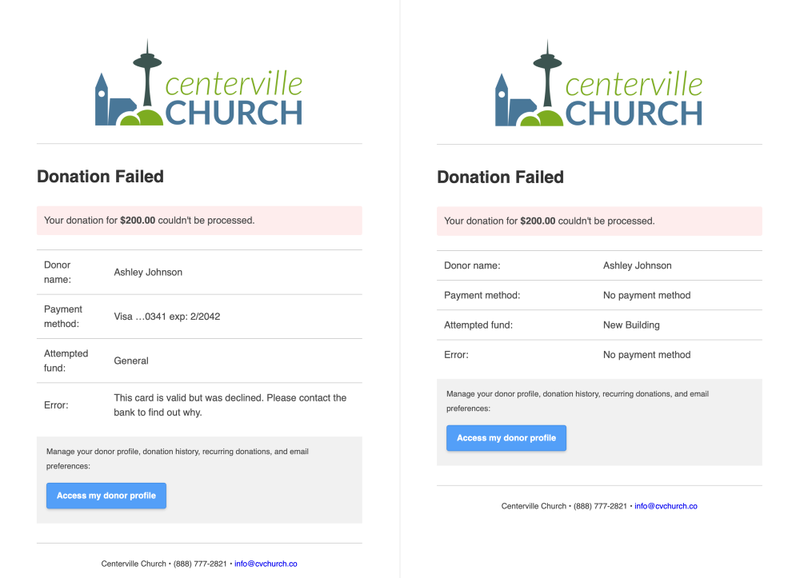
After receiving a failure message, the donor can use the link in the email to log in to their Church Center profile and do any of the following:
Fix the issue (which usually means updating the payment method).
Put the donation on hold.
Delete the recurring donation.
If a donor fixes the issue and wants to recover a failed donation, they can create a one-time donation for that month.