Add an event to the church calendar
If you want to add a group event to your church's Calendar page, ask a Calendar administrator to share an event request form with your group type. You can use this form to request rooms or resources for your events, which helps avoid scheduling conflicts at your church.
Once the request form has been shared with your group type, you can open it from the event page in Groups. All group event details (date, time, location, etc.) are automatically copied into the event request form.
If your request is approved, your group event is added to your church's Calendar page as a connected event.
Tip
If you want your group leaders to fill out the event request form when they create events in Church Center, you can create a leader-only resource.
Add a new group event to the calendar
Select the Groups page from the top navigation in Groups.
Select a group from the list to open the individual group page.
Select the Events tab from the left sidebar.
Select Create a new event in the top right.
Enter your event details.
Select Create event in the bottom right of the page to open the new event page.
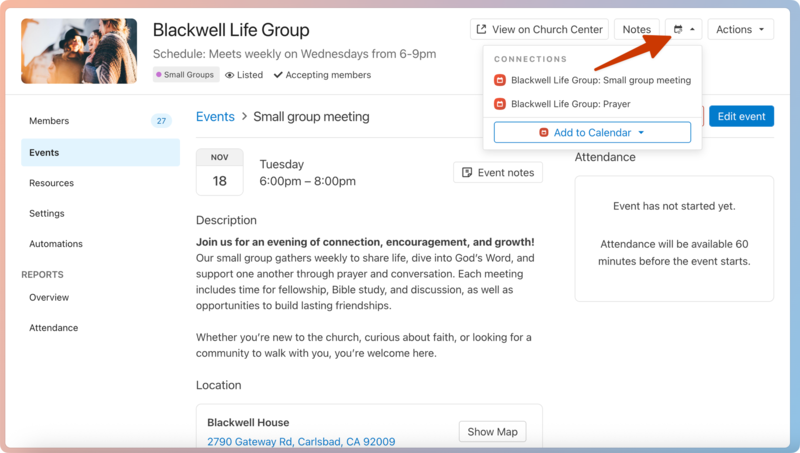
Select the 🗓️ calendar icon in the top right of the event page.
Important
If you don't see the calendar icon or the Add to Calendar button, ask a Calendar administrator to share an event request form with your group type.
Choose Add to Calendar from the dropdown to open the event request form in Church Center. If multiple event request forms have been shared with this group, select a form from the list that appears.
Answer the form questions and include any additional notes about your request. Event details, such as the name and date, are automatically copied from the group event page.
If the event request form allows you to request rooms and resources, choose which rooms and resources you need for your event.
Select Submit.
Watch your email for any responses to your request, including questions, approvals, or rejections.
Add an existing group event to the calendar
Select the Groups page from the top navigation in Groups.
Select a group from the list to open the individual group page.
Select the Events tab from the left sidebar.
Select an event from the list to open the event page.
Select the 🗓️ calendar icon in the top right of the event page.
Important
If you don't see the calendar icon or the Add to Calendar button, ask a Calendar administrator to share an event request form with your group type.
Choose Add to Calendar from the dropdown to open the event request form in Church Center. If multiple event request forms have been shared with this group, select a form from the list that appears.
Answer the form questions and include any additional notes about your request. Event details, such as the name and date, are automatically copied from the group event page.
If the event request form allows you to request rooms and resources, choose which rooms and resources you need for your event.
Select Submit.
Watch your email for any responses to your request, including questions, approvals, or rejections.