Introduction for facility managers
If you or your team physically sets up rooms and provides resources for events, you need a way to streamline information and get it to the correct people. Calendar makes it possible!
Tip
If you cannot log in, follow the steps in the Log in to Planning Center article.
Manage events
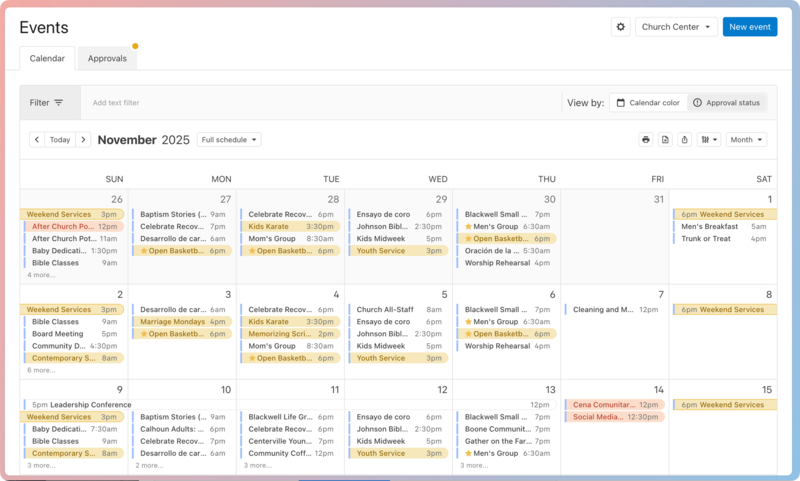
Keep track of your organization's events on the Events page. Check out this article to learn how to customize your calendar view.
Organize rooms and resources
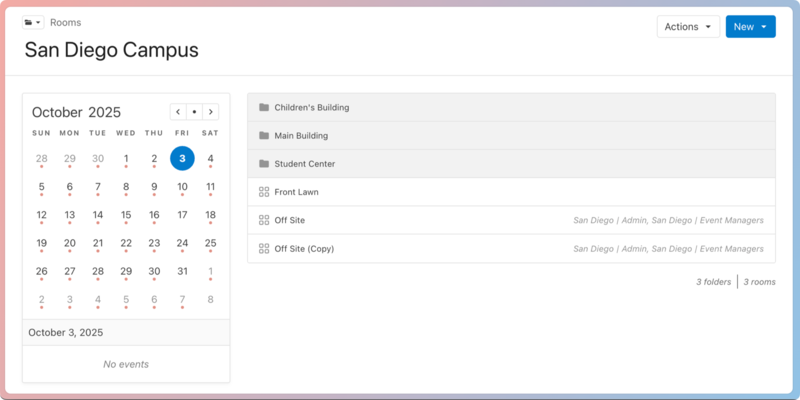
Use folders when you add rooms and resources to keep them organized.
Tip
Make sure to include anything people will need to reserve and use for events in the Rooms or Resources tabs so that they can request and reserve the correct items for events.
Create room setups
If a room has certain setups you regularly rotate, add those to the room. When someone requests a room, they can choose one of those setups.
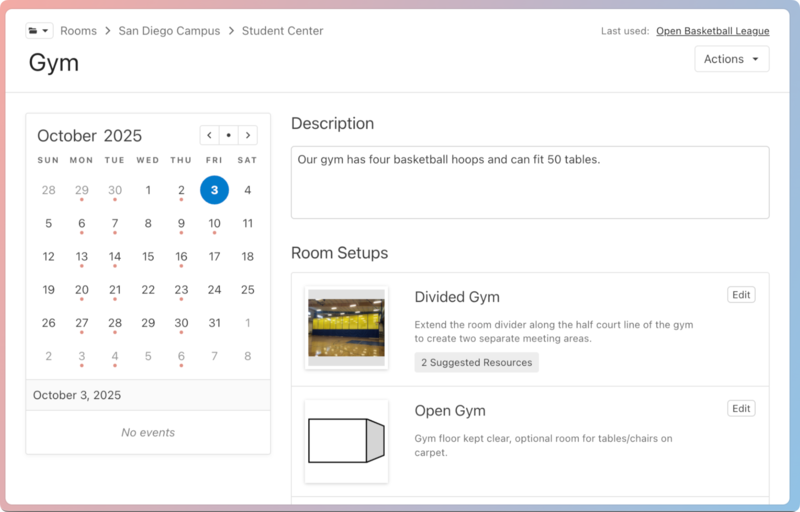
Use suggested resources to help people know what resources are typically used in the setup.
Add questions
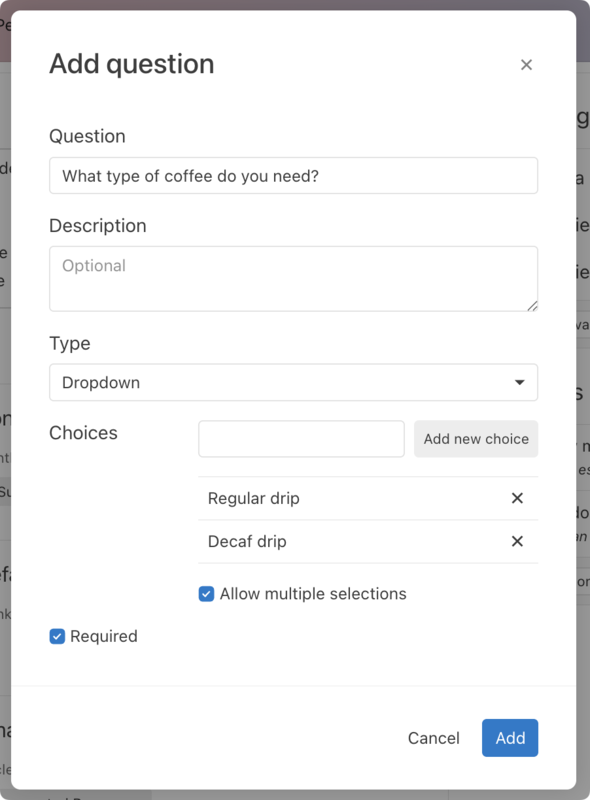
Add questions to help requesters give you all the details you need to set them up for success.
Create blockouts
If any rooms or resources need maintenance, add them to a blockout so they can't be requested for that date and time! When a room or resource is added to a blockout, requesters will see "Blocked out" next to the room or resource and won't be able to select it for their event.
Event requests
If you want all events to go through an approval process before they're added to the calendar, even if no rooms or resources are requested, you can use an event request form.
Anyone with access to the form's link can submit an event request, and you can assign an approval group to each form.
Approve or reject requests
As events are requested, you can receive email notifications about the request. From the Approvals tab, approve or reject the request, letting the event owner and managers know what changes to be made in order for them to request again.
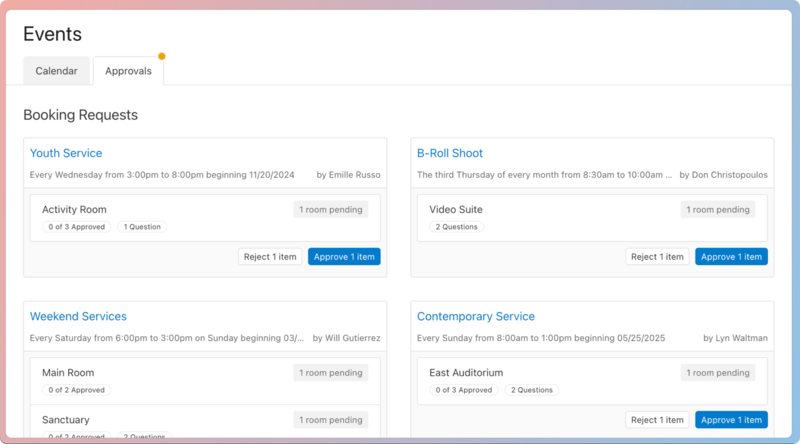
If there are event conflicts, a conflict resolver can choose the appropriate event and communicate accordingly.
Run reports
Although Calendar is best used online, you can run offline reports to inform your team about upcoming events.
Filter the calendar based on parameters your team needs, then select the 🗒️ notepad icon at the top to choose from built-in reports or create your own custom report.
Notifications
Everyone who can log into Planning Center can view their notifications across all Planning Center products by selecting the 🔔 bell icon in the toolbar. Selecting a notification takes you to that product. Or, if you select the three-dot button next to the notification, you can either mark it as read or add it as a task in your To do list. You can filter your notifications by selecting Show read or Hide read at the top of the toolbar.
Get help and support
Any time you have questions, Planning Center's support team is here to help! Use the ? question mark icon in the toolbar to open the Help and support sidebar.
From here you can:
Search online documentation for an instant answer to your question. The toolbar also suggests help articles based on the page you are currently viewing.
Access getting started resources or jump into Planning Center University (PCU). You can also connect with other Planning Center customers in the customer communities and see what's new by checking out the changelog.
Connect with a support agent for one-on-one help. You can email them directly from the toolbar, or schedule a phone call if you prefer.
Depending on which Planning Center product you're using, you can also contact support directly from the corresponding mobile app:
Services/People: Tap your profile icon in the top right, then tap Help to access help articles or open a ticket with support.
Check-Ins: Tap the ⚙️ settings icon in the bottom right, then tap Contact Support to open a ticket with support.
Music Stand: Tap the menu icon (three horizontal lines) in the top left, then tap Help to access help articles or open a ticket with support.
Organization administrator requests
The following Support requests can only be made by organization administrators:
Data removal or corrections you can't make yourself (undo old CSV imports, iCal imports, etc)
Gain access to anything that was created and managed by someone else in the account
Restore or fully delete a canceled account
Request access to Giving (if there are currently no Giving administrators in the account)