Add room or resource questions
If you need more details before approving a request, you can use questions to help the process. Whenever a team member wishes to reserve the room or resource, they must answer the required questions before submitting a request.
Room or resource editors can add questions to any room or resource.
Add a question
Select the Rooms or Resources page in the top navigation.
If you have multiple folders, select the folder that contains the room or resource you need to edit.
Select a room or resource from the list to open its settings page.
In the Questions section, select Add question.
Enter your question details in the pop-up:
Question: Enter your main question in this field (e.g., "How many people will be attending?").
Description: Enter a description or additional details to specify what kind of information you're looking for.
Type: Choose how the requester can respond to this question. If you select Dropdown, you can add multiple choices for your requesters. Check Allow multiple selections to allow requesters to choose more than one option.
Check the Required box if this question must be answered before the room or resource can be requested.
Select Add to finish creating the question.
(Optional) When adding multiple questions, you can select Add section to organize your questions by section. Move questions to the appropriate sections by dragging them.
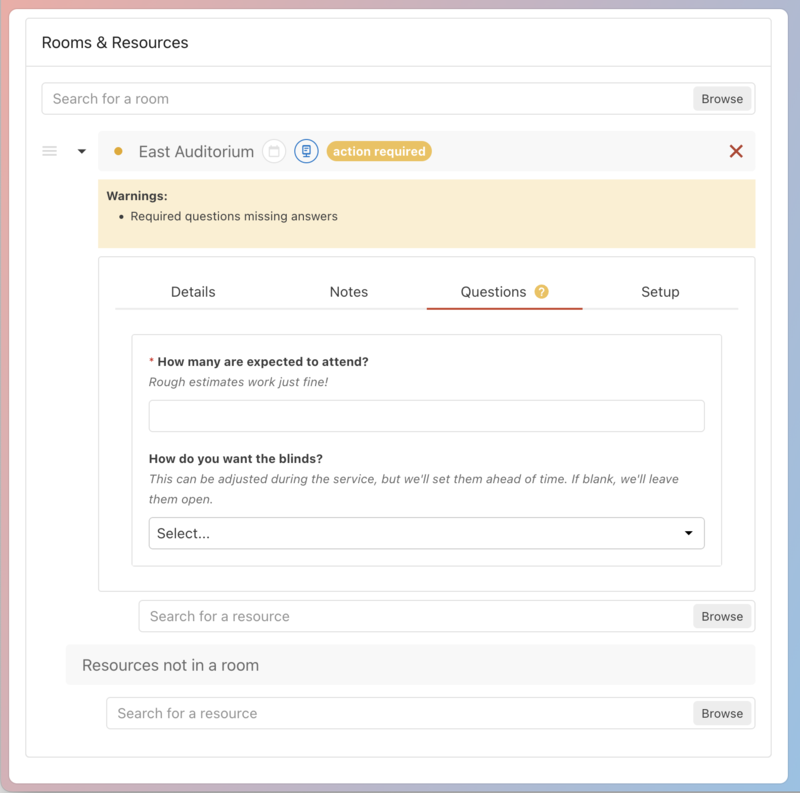
Room or resource questions appear whenever a requester adds that room/resource to their event. If the question is Required, the room or resource can't be requested unless the question is answered.
Important
Questions only appear when creating an event directly in Calendar. Requesters can't see room or resource questions when using an event request form.
Select the Rooms or Resources page in the top navigation.
If you have multiple folders, select the folder that contains the room or resource you need to edit.
Select a room or resource from the list to open its settings page.
Select the question you want to edit in the Questions section.
To edit the question, edit the details in the pop-up and select Save.
To delete the question, select Delete in the pop-up.
Request rooms or resources with questions
When requesting a room or resource, you'll see a ? icon if you have required questions that need to be answered. Select the arrow next to a room or resource to expand it, and then answer the questions.
Important
Event edits cannot be saved if the required questions are not answered.