Customize the calendar view
Customize your calendar view by choosing how you'd like events to be displayed. Calendar offers three views that can be customized to fit your needs:
Month view organizes your events on a calendar for the selected month.
Table view shows all your events in a list.
Week view shows events one week at a time on a vertical timeline.
Switch calendar views
To switch between calendar views:
Select the Events page from the top navigation in Calendar.
Select View settings in the top right of the calendar.
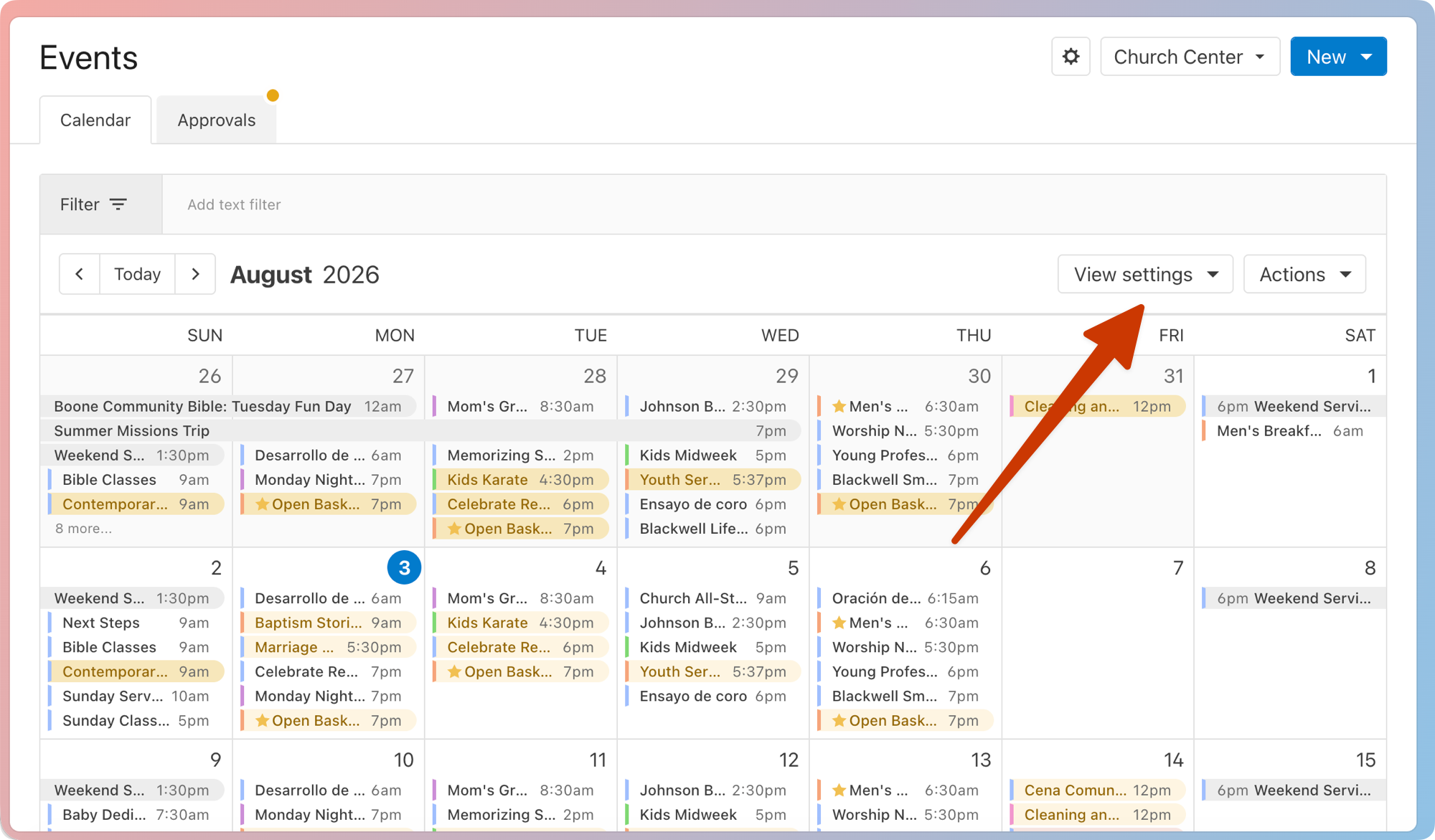
Choose either Month, Table, or Week from the dropdown.
Your view settings are saved to your browser, so they'll be automatically applied the next time you open the Events page. These view settings will not be applied to anyone else in Calendar.
Month view
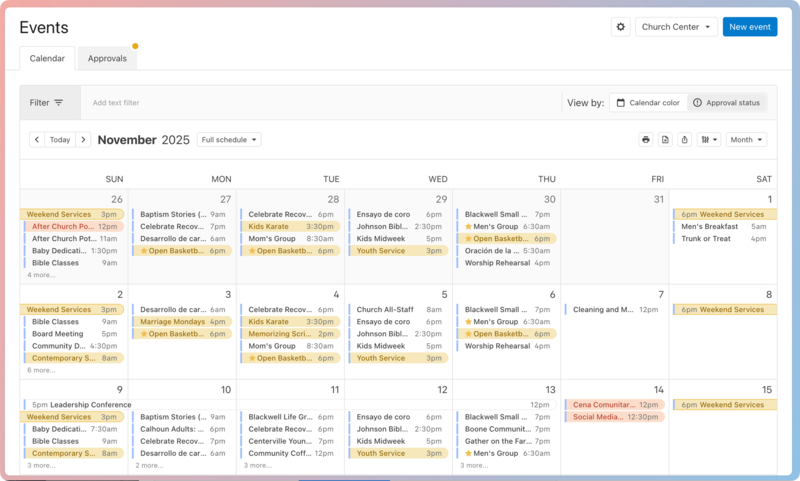
You can take the following actions on the month view:
Use the < > arrows in the top left to switch between months. Select Today to go back to the current month.
Select the month or year in the top left to choose a different month or year.
Select the View settings dropdown in the top right of the calendar to further customize how events are displayed:
View: Switch between calendar views.
Color: Choose whether to highlight events according to their calendar color or approval status.
Calendar color: If you have multiple calendars in your organization, events are highlighted by the color of the calendar they belong to.
A yellow ⚠️ warning icon appears next to events or event request form submissions that are pending event-level approval or room/resource approval. A red ❗️ warning icon appears next to rejected events, event request form submissions, or events with at least one rejected room or resource.
Approval status: Events are highlighted according to their approval status. A yellow highlight appears on events or event request form submissions that are pending event-level approval or room/resource approval. A red highlight appears on rejected events, event request form submissions, or an events with at least one rejected room or resource.
The color line to the left of an event indicates which calendar it belongs to.
Schedule: Choose whether to view the full schedule or public times only. The Public times only view won't show event times that have been hidden from shared calendars.
Density: Change the number of events that appear inside the calendar squares by choosing one of the options. Condensed shows six events per date, Expanded shows 12 events, and All Events shows every event.
Appearance: Choose the Tag dots option to show color-coded dots next to each event based on your tag colors, or choose Dim past events to display past events in gray.
Select Actions in the top right to share events, print the current calendar month, or run a report.
Table view
Important
Recurring events will only display the next upcoming instance.
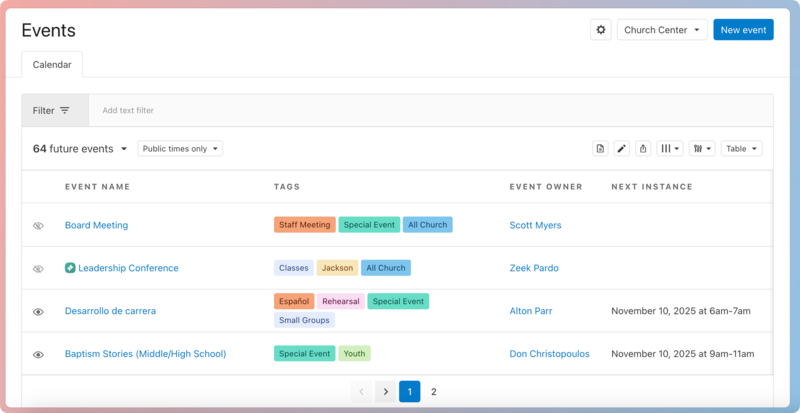
You can take the following actions on the table view:
Select [number] future events in the top left to choose whether to view all events, future events, or past events.
Select the View settings dropdown in the top right of the list to further customize how events are displayed:
View: Switch between calendar views.
Schedule: Choose whether to view the full schedule or public times only. The Public times only view won't show event times that have been hidden from shared calendars.
Columns: Choose which columns to display on the table view.
Density: Adjust how the table view displays information. Choose Compact to fit more rows on the screen, or choose Comfortable to add spacing between rows for easier reading.
Select Actions in the top right to bulk edit filtered events, share events, print the list of events, or run a report.
Select a column header to sort the list according to that column.
Week view
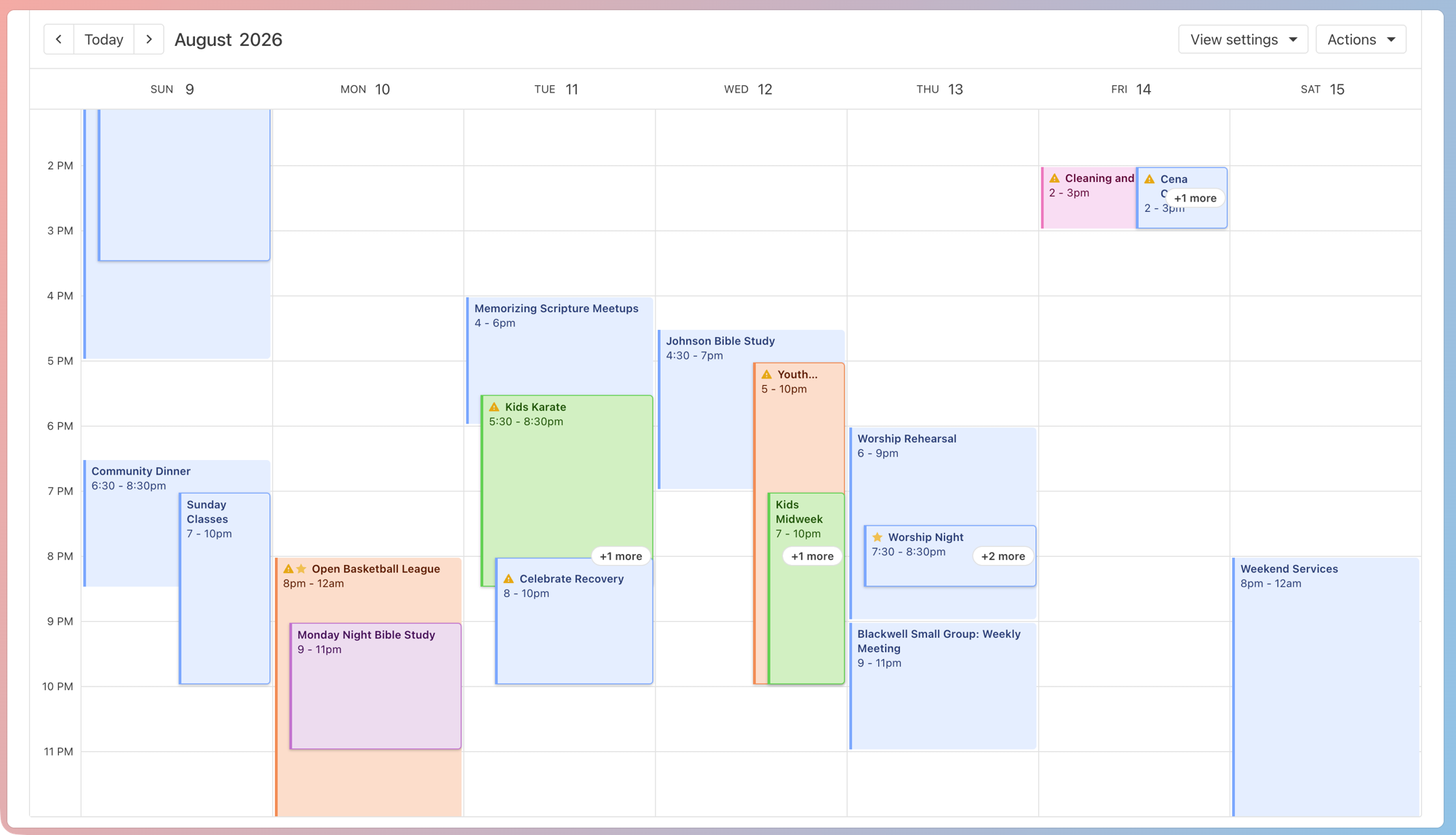
You can take the following actions on the week view:
Use the < > arrows in the top left to switch between weeks. Select Today to go back to the current week.
Select the month(s) or year in the top left to choose a different month or year.
Select a one-hour block on the calendar to create a new event at that time, or select a date at the top to create an all-day event.
If multiple events are stacked across the same timeframe , select the + [number] more button that appears to view more event names.
Select the View settings dropdown in the top right of the calendar to further customize how events are displayed:
View: Switch between calendar views.
Color: Choose whether to highlight events according to their calendar color or approval status.
Calendar color: If you have multiple calendars in your organization, events are highlighted by the color of the calendar they belong to.
A yellow ⚠️ warning icon appears next to pending event request form events or events with pending rooms or resources. A red ❗️ warning icon appears next to rejected event request form events or events with at least one rejected room or resource.
Approval status: Events are highlighted according to their approval status. Fully approved events appear in gray.
A yellow highlight indicates a pending event request form event or an event with pending rooms or resources. A red highlight indicates a rejected event request form event or an event with at least one rejected room or resource.
The color line to the left of an event indicates which calendar it belongs to.
Schedule: Choose whether to view the full schedule or public times only. The Public times only view won't show event times that have been hidden from shared calendars.
Appearance: Choose the Tag dots option to show color-coded dots next to each event based on your tag colors, or choose Dim past events to display past events in gray.
Select Actions in the top right to share events, print the current calendar month, or run a report.