Manage your organization's teams
Once you've set up teams in Services, you can manage all of your organization's teams on the Teams tab of the People page. You can also use this page to find teams you aren't using and archive them.
To manage teams that are assigned to a specific service type, go to the Teams tab of that service type.
Tip
If you're an organization administrator, you can also view all your teams in the Teams & Groups hub in People.
Manage all teams in your organization
You can manage all teams in your organization by going to the Teams tab of the People page.
Select the People page from the top navigation in Services.
Select the Teams tab.
Take the following actions to manage your team list:
Use the dropdown in the top left to filter the list of teams. My Teams is the default view, which shows all teams where you're a leader or member. You can also filter to see All Teams, Archived Teams, or teams that belong to a specific service type.
Use the search bar to search for a specific team by name.
Select any column header to sort the list by that column in ascending or descending order.
Review the icons between the Services Type and Leaders columns to see whether a team is a rehearsal team, tag team, split team, or secure team.
Select Add team in the top right to create or copy a team.
Select a team name from the list to edit its members, settings, and automations.
Clean up unneeded teams
Over time, your account might accumulate empty teams or teams that were created unintentionally. Follow the steps below to archive these unneeded teams.
Select the People page from the top navigation in Services.
Select the Teams tab.
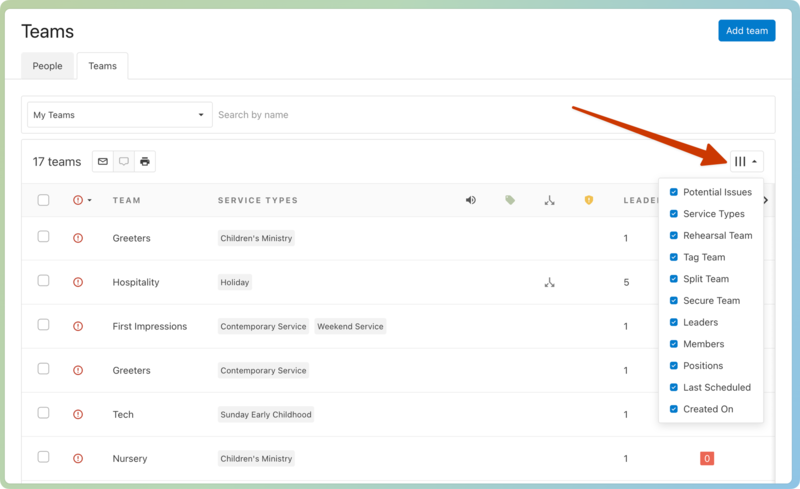
Select the column icon (three vertical lines) and make sure Potential Issues is selected.
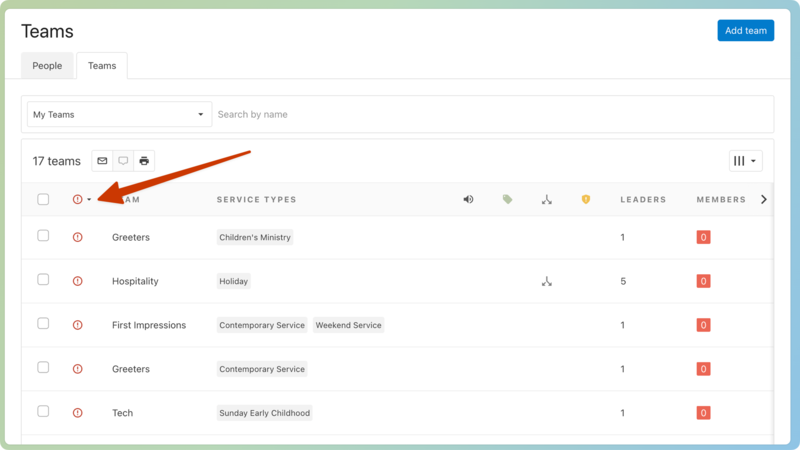
Select the red exclamation point icon column header to sort your list of teams by those with potential errors. These errors appear when a team has zero members, zero positions, or has never been scheduled.
Select the red error statuses in the Members, Positions, or Last Scheduled columns to open a popup with additional information about the error.
Close the popup and select the team name from the list to open that team's page.
On the team page, select the Actions button in the top right corner.
Choose Archive from the dropdown.
Select Yes, archive in the confirmation popup.
Manage a service type's teams
You can manage teams that are assigned to a specific service type by going to that service type's Teams tab.
Select the Plans page from the top navigation in Services.
If you have multiple folders, select the folder that contains the service type you're working with.
Select the ⚙️ settings icon to the right of the service type you're working with.
Choose Teams from the dropdown to view a list of teams assigned to this service type.
Select a team name from the list to edit its members, settings, and automations.
Select Add team in the top right of the list to create or copy a team in this service type.
Drag and drop the six-dot icons next to each team to reorder the list. This order determines how your scheduled teams appear on an individual plan page.