Troubleshoot common email problems
Sometimes, your emails don't contain the information you expected. Expand a section to fix the most common problems.
When reminder emails are sent from the plan, the signature on those emails is controlled by the Replies To setting on the team's settings page.
If the Replies To person is set to Current Scheduler, it could be a past leader who scheduled a person or added them to the original template, so if reminder emails should always come from one person, choose that person.
If you select all team leaders, the first team leader you added will be selected for the signature of the reminder.
If your prepared notifications or reminder(s) have times on them that you didn't expect, you can check a couple of things:
Check that all your dates and times are correct. You may have copied a time with a different date. For example, if the service times are set for June 19th, but the rehearsals are set for January, that's probably a mistake!
Your teams might be assigned to the wrong times. Your ushers probably aren't needed at your Thursday band rehearsal!
Review the article on how to assign your teams to times and make sure they aren't assigned to times they don't need.
Do your emails look like this?
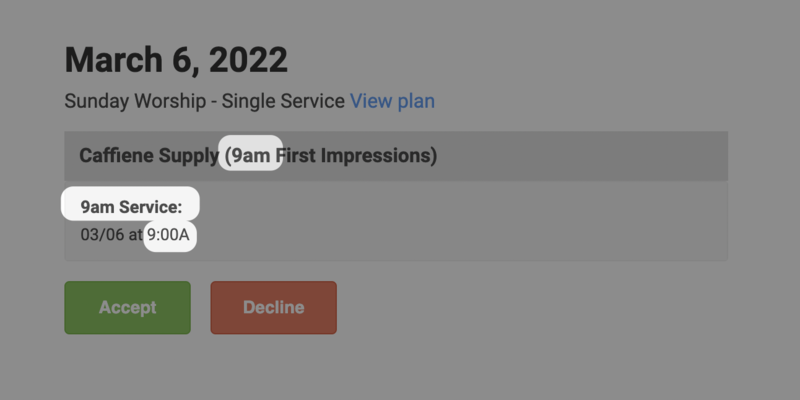 |
All of these times are taken from different places. Since we automatically include all the times a person is assigned to, if you also list these times in the names of your teams or service times, it will create redundancy in the email. For best results, there should never be times in titles.
For service times, don't include the time in the name of the service. If you need to identify your services, use titles without time designations, such as "Early Service" or "2nd Service."
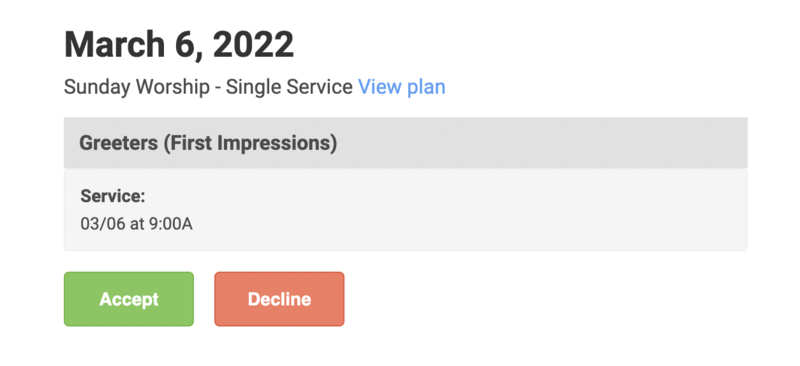
For team names, instead of using the time in the name, like "9am First Impressions," leave the name as "First Impressions," and use split teams to assign different people to different times.
Cleaning up all these names will result in a clearer email experience for your volunteers.
 |
Parents can choose to receive copies of all Services emails sent to their child by updating their household permission settings. An administrator can also set this up in the child's profile by taking the following steps:
Select the 🔍 search icon at the top right of any page in Services.
Enter the child's name and select it from the list to open their profile.
Select the Communication tab.
Check the Copy emails to household adults box.
Use the dropdown to choose which adults should be copied on the emails.
Undelivered emails
View a list of the emails sent to a person through Planning Center, including those that are undelivered, from the Communication tab on their profile.
Search for a person's name using the 🔎 search icon in the top right.
Select their profile from the results.
Select the Communication tab on their profile.
Open an email highlighted in red to see if it failed or was dropped. You can hover over the failed indicator to view the error code.
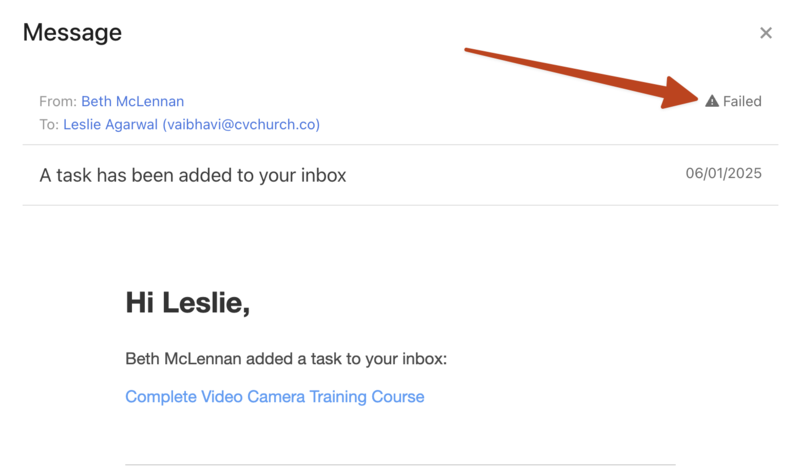
If someone mentions they didn't receive an email, or you see that an email failed to be delivered to them, check in Planning Center People to make sure their email address isn't blocked.
If they still do not receive emails after unblocking their email address, contact support for additional troubleshooting by selecting the question mark (?) in the toolbar in Planning Center.