Schedule for large events
If you have a large event with different needs than your typical worship service, such as a fall festival, Easter egg hunt, or team night, you still may need to schedule volunteers for the event. You can do that!
Expand the sections below to create a plan for your event with teams, times, and an order that fits your event.
In general, the best way to keep track of events that happen sporadically is to create a service type just for these special events.
Tip
If you already have multiple service types, you can also create a folder for special events.
From the service type settings page, set the Frequency to None. When the frequency is set to None, you can manually add times and dates to each plan instead of having them repeat on a daily or weekly basis.
Special events often pull groups of people who aren't in traditional teams together. Tags can be handy for this.
For example, if you have a yearly event that invites all of your active volunteers such as a Volunteer Night, use Service's bulk editing tool to add a yearly tag to everyone who currently serves.
This can also be useful when creating an "all hands on deck" team where any volunteer can sign up for any position.
Create a tag group called Volunteers with tags for each year (e.g., 2024, 2025, 2026, etc.).
Select the People page in the top navigation.
Select the Last Scheduled Plan column header to sort people by the last plan for which they've been scheduled. Make sure the oldest date appears first.
Select the checkbox in the top left of the list to select all people.
Deselect any people who haven't been scheduled this year.
Select the ✏️ edit icon at the top of the list.
Search for this year's tag in the Add Tags section and select it from the list.
Select Update x people to apply the tag to all selected people.
Tip
Create a list and automation in People that adds this tag to anyone who serves.
Once your tags are set up, you can use tag teams to add that group of people to positions automatically.
Most plans are used for worship services, but if you are scheduling for an event that runs on shift scheduling, you can set up those shifts as service times!
Set your teams as split teams, which allows team members to be assigned to a specific time slot, and then add people to the positions.
Create a new plan and add a service time for each of the shifts of the event.
Tip
If you want to name your times, first create them as a rehearsal time, enter the name, and then change the time to a service time.
Add needed positions for each of your shift times.
Enable signup sheets, so your volunteers can sign up.
If you don't enable signup sheets, you can manually schedule your teams. For large events, use auto-scheduling.
For plans that aren't a worship service, the order will look a little different. Consider any special instructions for each job or station, if any, and use headers to help your volunteers find what they need.
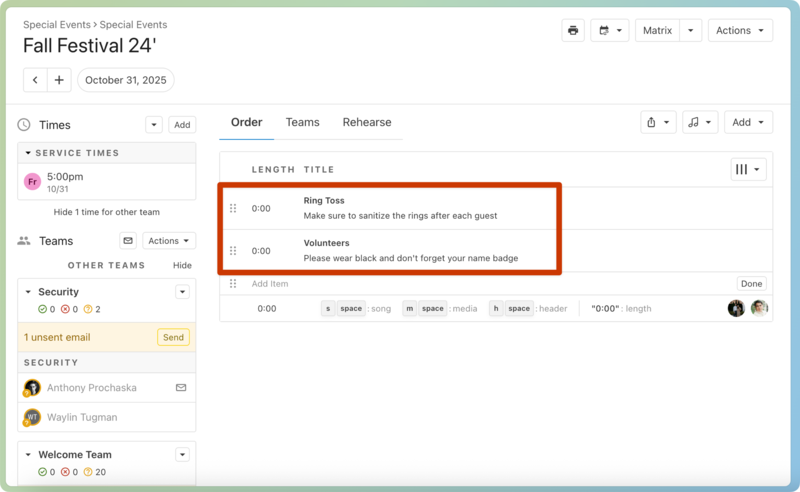 |
You could also add information for things like curriculum, release forms, or publicity flyers. Add any information your volunteers need, so they can easily access it all from Services.