Send emails
You can email registration contacts and attendees differently, depending on who needs the email and what information you want to send.
Important
Emails are sent to the primary email address, except for Account settings. Account settings sends an email to every email address listed on an organization administrator's or billing manager's profile.
Email multiple people
You can filter the attendees and send emails to the registration contacts of specific attendees, depending on an add-on, registration questions, or whatever filter you put in place. If a registration contact does not have an email listed on their profile, emails are sent to all attendees in the registration group.
Select Signups in the top navigation in Registrations.
Choose a signup from the list.
Select the Registrations tab.
Select the ⚙️ Actions button.
Choose the type of email to send from the dropdown.
Select General email to send a custom email to the registration contacts.
Select Incomplete attendee info reminder to follow up on attendees who have not completed their required attendee information (attendee questions, registration questions, and attendee information form questions).
Select Balance due reminder to follow up on attendees who still have a balance due. This sends the amount a person owes and the link to pay their balance.
Select Incomplete external form reminder to follow up on attendees who have not completed their external forms (PDF forms, People forms, and online forms via URL link).
Email all attendees
If you want to email all attendees, regardless of the registration contact, you can create a People list of attendees and send them an email from the list. Setting up the list differs depending on whether you created a signup that collects named attendee information or only a simple count.
Important
Sending an email to a list requires access to People. If you do not have access, contact an administrator to request that they create the list or give you access.
To create a list that allows you to send an individual email to every attendee on a signup that collects named attendees:
Select Lists in the top navigation in People.
Select New list.
Select Add rule.
In the first dropdown, select Registrations.
In the second dropdown, select named attendee for.
In the third dropdown, select a specific event.
Search for the event in the next dropdown.
Leave with a selection of and any selected in the following dropdowns.
Check the include active attendees box.
Select Submit.
Since signups that collect a simple count of attendees do not collect information about attendees, and only accept information about the registration contact, emailing them directly from Registrations is easier. However, if you want to use a People email template or a styled Mailchimp campaign, you must create a list in People.
Select Lists in the top navigation in People.
Select New list.
Select Add rule.
In the first dropdown, select Registrations.
In the second dropdown, select registration contact for.
In the third dropdown, select a specific event.
Search for the event in the next dropdown.
Leave with a selection of and any selected in the following dropdowns.
Check the include active attendees box.
Select Submit.
Email one registration
You can email individuals from within their registration.
Select Signups in the top navigation in Registrations.
Choose a signup from the list.
Go to the Registrations tab.
Select the registration you want to email.
Under the Registration contact section, select the Email button. If you want to email someone other than the current registration contact, you can change the registration contact by selecting the Edit button first.
In the dropdown, choose the type of email to send to the registration contact.
Send reminder emails
You can send reminder emails to attendees and registration contacts before an event. Reminders can only be sent once per selection type, so that you can send a general reminder to all attendees or different reminders to each attendee within a certain selection type. Reminder emails are the only emails sent directly to attendees in Registrations.
Select Signups in the top navigation in Registrations.
Choose a signup from the list.
Go to the Configuration tab.
Select Reminders on the left.
Toggle General Reminders on.
Select Edit to set up your email.
Choose either all attendees or only certain attendees. If you choose only certain attendees, select the selection types you want to include.
Set the time when you'd like the reminder to be sent, anywhere from 1 hour to 4 weeks before the event.
(Optional) Check the Include custom message box to add additional information to the reminder, like custom text, images, hyperlinks, and custom formatting.
You can view a copy of each sent event reminder email on an attendee or registration contact's Communication tab in their profile in the People product.
If you'd like to see the steps above in action, check out the video below.
Undelivered emails
View a list of the emails sent to a person through Planning Center, including those that are undelivered, from the Communication tab on their profile.
Search for a person's name using the 🔎 search icon in the top right.
Select their profile from the results.
Select the Communication tab on their profile.
Open an email highlighted in red to see if it failed or was dropped. You can hover over the failed indicator to view the error code.
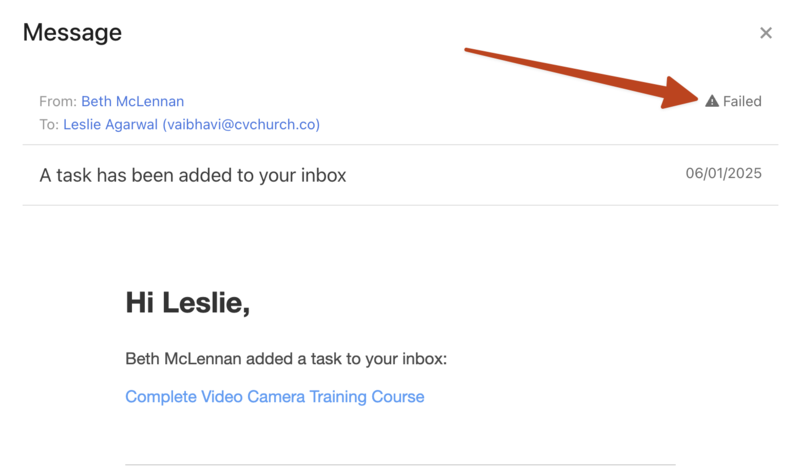
If someone mentions they didn't receive an email, or you see that an email failed to be delivered to them, check in Planning Center People to make sure their email address isn't blocked.
If they still do not receive emails after unblocking their email address, contact support for additional troubleshooting by selecting the question mark (?) in the toolbar in Planning Center.