Manage email templates
Creating an email template will save you time if you send the same type of email regularly, such as a welcome message to new guests or a next-steps list to potential members.
Important
Organization administrators and managers can use, create, and manage email templates. Viewers and editors can use email templates when emailing individuals or if they have permission to email lists.
Create a new template
Select Overview in the top navigation in People.
Select the Configuration tab.
Select New template in the Email templates section.
Enter the subject and body of the email and use the formatting tools to style your text and add images or attachments.
The {{ }} placeholder dropdown lets you insert dynamic text, such as the recipient's full name, the sender's first name, etc.
Add images using the 🖼️ image icon in the toolbar, or drag and drop the image file right into the editor. Refer to the image sizing guide for file size restrictions.
Add attachments using the 📎 attachment icon in the toolbar. You can add up to five attachments for a total of 10MB.
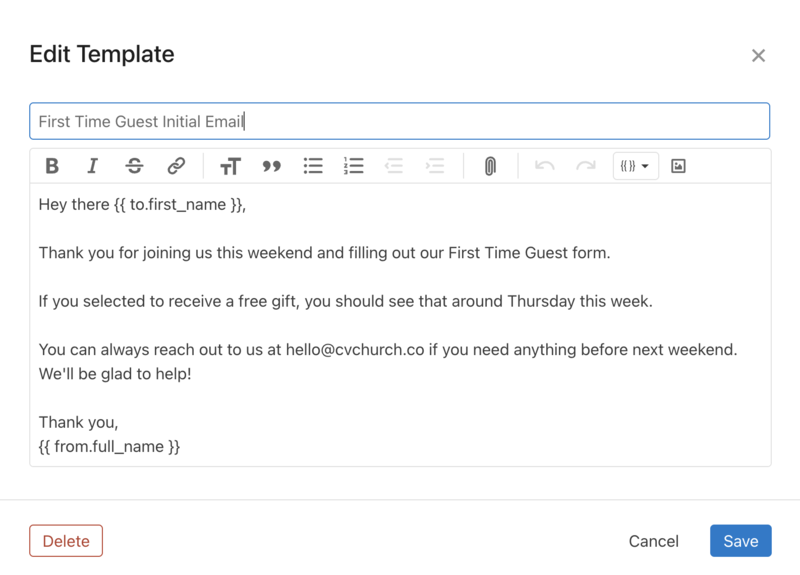
Once you've written the email, select Save to return to the list of other email templates.
Tip
You can also access email templates from the Templates dropdown when composing an email. Choose a template to send or select Manage templates... to create or edit a template.
Edit a template
Select Overview in the top navigation in People.
Select the Configuration tab.
Select the template that you want to edit.
Once you've made changes to the email, select Save.
Delete a template
Select Overview in the top navigation in People.
Select the Configuration tab.
Select the template that you want to delete.
Select Delete at the bottom of the popup.