Send an email to a list
If you need to send information to multiple people simultaneously, you can email a list of people. These emails have basic formatting but can include links, images, and attachments. Managers and those with Can email lists permissions can email a list.
Lists with more than 500 people must be sent using the Mailchimp integration. For more styling options, sync the list to Mailchimp to format your email using the tools in Mailchimp.
Emails are sent individually, so there's no carbon copying or sharing of recipient emails.
Send an email
Select the Lists page from the top navigation.
Select the list you'd like to email.
(Optional) If you don't want to email everyone on the list, use the checkbox at the top left to select everyone, and then uncheck the boxes to the left of people who should not receive the email. If no names are checked, the email will be sent to everyone on the list.
Select the message icon at the top of the list.
Choose Send email from the dropdown.
Use the formatting tools in the Send email pop-up to customize your message:
The {{ }} placeholder dropdown lets you insert dynamic text, such as the recipient's full name, the sender's first name, etc.
Add images using the 🖼️ image icon in the toolbar, or drag and drop the image file right into the editor. Refer to the image sizing guide for file size restrictions.
Add attachments using the 📎 attachment icon in the toolbar. You can add up to five attachments for a total of 10MB.
Send through Mailchimp: Toggle on to send the email through Mailchimp. Email scheduling is not available when sending emails through Mailchimp.
Send a copy to me: When the email is sent, send a copy to yourself.
Scheduled delivery: Select to send the email on a date and time up to one month in the future.
Select Send email/Schedule email to finish. Or if you're not ready to send your email, select Cancel. The next time you try to email this list, you can restore your previous email or start a new email.
List emails are sent to primary email addresses only. Once sent, they can be found on a person's Communication tab in their profile.
When people unsubscribe
When someone unsubscribes from an email sent to a list, an ⚠️ error icon appears next to their email address on their profile, and they will not receive any other emails from lists.
If they want to resubscribe, they can use the same unsubscribe link in the original email, or an administrator can invite them to resubscribe by tapping the icon on their profile.
View email message history
If you have permission to send emails to lists, you can see sent and upcoming scheduled emails to your lists by selecting Message history in the top right of the Lists page and choosing Emails from the dropdown. You can also select the Communication tab on a person's profile to see emails they received or sent through lists.
Important
By default, all managers and above can send emails and view all email history.
Past emails
In the message history, you can view details about emails sent after March 25, 2024. However, emails sent to a list of people using a bulk action will not be shown.
Select a previously sent message to see additional details about the email, including the email body, the recipients, and the deliverability status.
Scheduled emails
View scheduled emails and their details, such as the sender, list name, and number of recipients.
Select a scheduled email to review, edit, or delete it.
Undelivered emails
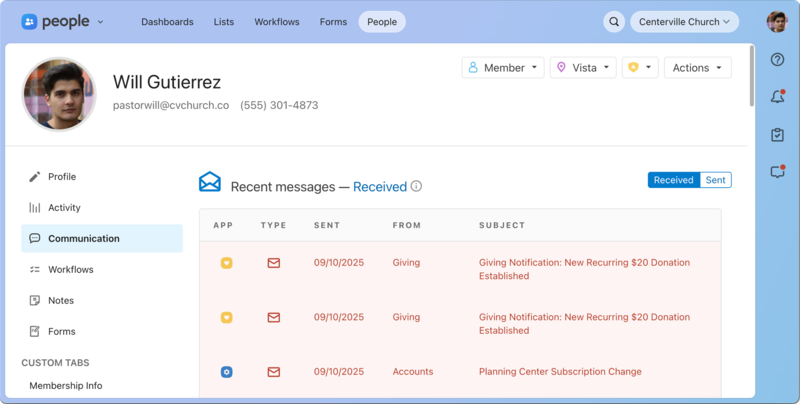
View a list of the emails sent to a person through Planning Center, including those that are undelivered, from the Communication tab on their profile.
Search for a person's name using the 🔎 search icon in the top right.
Select their profile from the results.
Select the Communication tab on their profile.
Open an email highlighted in red to see if it failed or was dropped. You can hover over the failed indicator to view the error code.
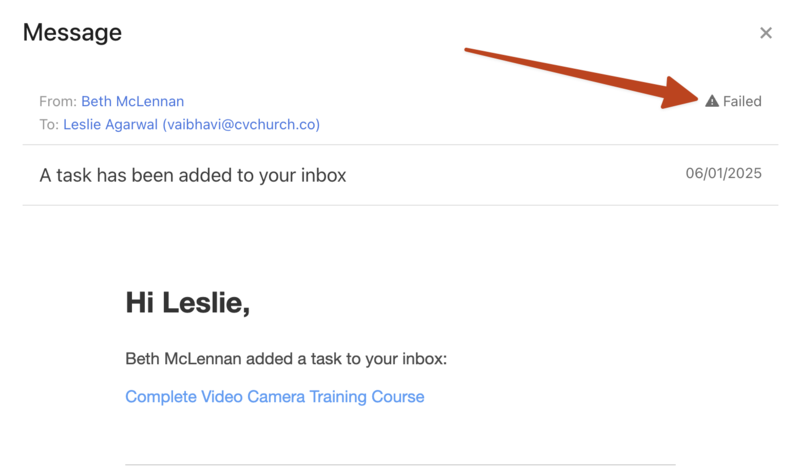
If someone mentions they didn't receive an email, or you see that an email failed to be delivered to them, check in Planning Center People to make sure their email address isn't blocked.
If they still do not receive emails after unblocking their email address, contact support for additional troubleshooting by selecting the question mark (?) in the toolbar in Planning Center.