Reports by donor
Reports by donor allow you to filter by campus, date, fund, label, stamp, or payment source to produce a list of donors who match the set criteria. After applying filters, email donors in the list or export the information.
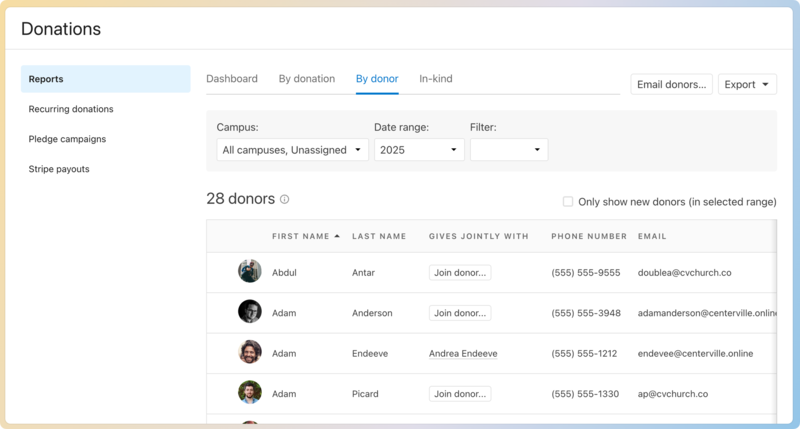
To create a report by donor:
Select Donations from the top navigation.
Choose Reports from the left sidebar.
Select the By donor tab.
Set the needed filters, including campus, date range, and information such as fund, labels, and stamps. After you have applied filters, the donor table will produce a list of donors that match the criteria.
(Optional) Check the Only show new donors box to filter the report to only new donors within the set range.
(Optional) Select the ✉️ email icon to contact the filtered list of donors directly from Giving.
(Optional) Select the 🖨️ print icon to print the list of donors.
(Optional) Select the ⬇️ download arrow to export the data into a CSV.
The table includes information about the donors relevant to the filters you applied, including:
The donor's name.
The person the donor gives jointly with.
The donor's contact information from their profile.
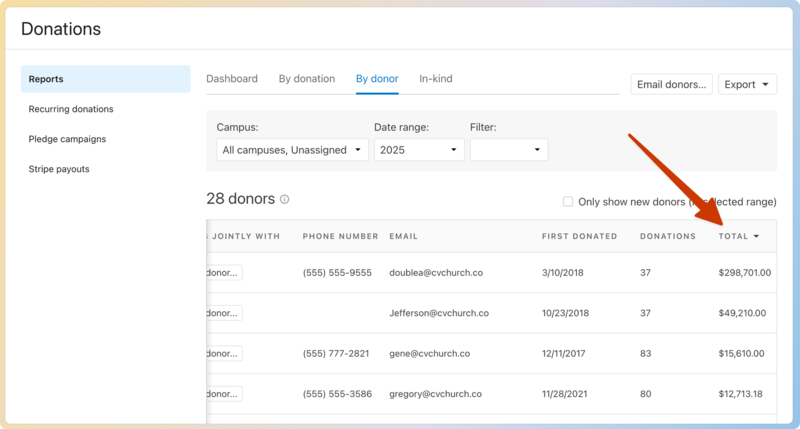
The date of the donor's first donation, based on the filters applied.
The total number of donations the donor has given within the filters applied.
The total amount the donor has given, based on the filters applied.
Tip
To produce a report of your top donors, filter the table by the Total column to see your highest donors.
 |
Available filters
When building a report, many filters are available. Each one helps you capture a specific group of donors based on set information.
Campuses
Filter by campus to locate donations designated to a specific campus. The available campuses are determined by the campuses listed in Account settings. If you have the campus selector on the online donation form enabled, donors can choose a campus to donate to. If the campus selector is turned off, donations will be assigned to a campus based on the donor's primary campus in People.
Funds
Funds are set up by your church as categories for your donors to choose when giving.
Labels
Labels help organize your donations. They can be created, edited, and manually applied to each donation by an Administrator.
Important
Labels are only visible in Giving. They are not visible to donors in their Church Center profile, and they will not be included in donor statements.
Stamps
Stamps automatically apply to donations and tell the donation's story as a financial transaction. They are defined by Giving and are not editable.
Stamps show you information about a donation, including its status and how/where it was created:
Stamp | Explanation |
campus | If you have the campus selector enabled on the online donation form, the campus stamp indicates the campus chosen by the donor while donating or when the donation was entered into a batch. If the campus selector is turned off, the campus stamp indicates the donor's primary campus. |
recurring | Donation is part of a recurring donation. |
sms | Donation was received through text2give. |
mobile app | Donation was given on the Church Center app. |
express | Donation was received through express give. |
adjusted | Donation was edited when it was in a committed batch or after it had finished processing. Select the donation to review the adjustment history. |
refunded | Donation was refunded, and funds were returned to the donor. |
anonymous | Donation was given by an anonymous donor. |
fee covered | The donor chose to cover the fee for this donation. |
memo added | Donation has a memo attached. Select the donation to view the memo. |
nondeductible | Donation was given through a nondeductible payment source. |
Channel (batch, payments, or api) | Indicates how a donation was entered into Giving, either through a batch, processed online through Payments, or the Giving API. |
Method (ach, cash, check, or card) | Indicates the payment method of the donation. |
uncommitted | The donation is part of a batch that hasn't been committed. |
awaiting verification | Donation was made from a bank account added through the manual verification process, which takes 2-5 days to complete. Once the verification process is complete, the donation will process. |
awaiting transit | The ACH donation is less than two hours old and hasn't yet entered the banking system. There's still time to cancel this donation if it was made in error. |
in transit | The ACH donation has now entered the banking system and can no longer be canceled. It will take a few days for the transaction to settle. |
in dispute | The donor has disputed this charge with their bank. This is a rare occurrence. |
failed | The transaction failed, either in the banking system or because it was marked as failed by an administrator. |
succeeded | The transaction was given to the bank; it didn't fail and wasn't refunded. The transaction will appear on donor statements. Most donations will end their lifecycle with this status. |
paid out | This donation was in a payout that was deposited into the church's bank account. |
Payment sources
Payment sources give you a way to identify donations that came from external systems, such as Paypal, Square, SimpleGive, FellowshipOne, etc.