Track a person's activity
Track people's check-in activity on their profile pages. Whenever someone checks in, their check-in information is logged on their profile, along with any additional details they enter. This article explains how you can view people's profile activity, export their check-in data, and update their profile information.
View a profile's Activity tab
You can view a person's check-in information on the Activity tab of their profile.
Select the People page from the top navigation in Check-Ins.
Select a name to open that person's profile, or search for someone's name using the search bar in the top right.
Choose the Activity tab to view their check-in information and manage their personal details:
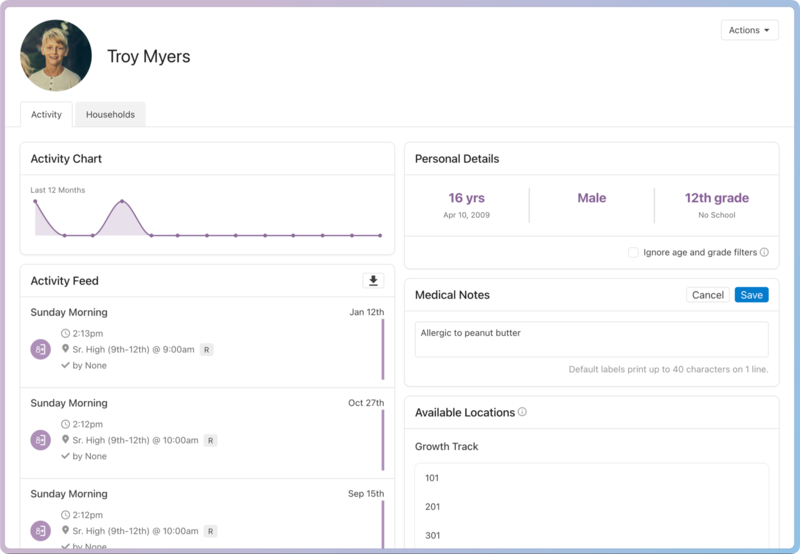
Activity Chart: The Activity Chart shows the past twelve months of activity, with each dot representing a month. Hover over the dot to see that specific month's activity.
Activity Feed: The Activity Feed is a concise report of every specific check-in, including the actual time they checked in, which location, and who checked them in. If they were checked out, you'll see the time of the checkout, the location, and who checked them out.
Select Load More to view check-in activity past the last four check-ins.
Personal Details: Since check-ins revolve around location filters, view all the things a filter could be set to, such as age, gender, and grade. Select a detail to make changes, and it will save automatically.
If you want this individual to be allowed to check in to any location, regardless of the filter, check the Ignore age and grade filters option. Any changes to their age or grade on their profile will not affect auto-suggestions after you select the location the first time.
Medical Notes: Add any medical information to the profile, which will print on the name label. Start typing in the box, and you'll see Save appear at the top right.
Available Locations: View all the available locations this person can check into. Try to set location filters so that only one location is available for each person for each event, so Check-Ins will automatically choose that location.
Tip
If a person isn't able to check into an event, view the Available Locations section to see if the location is shown. If the location you want is not listed, compare the location's filters (birthdate, grade, gender, adult/child, etc.) with the user's profile data.
Export check-ins data
If you need to download someone's attendance history, you can export a CSV of their check-in data across all events in your organization.
Select the People page from the top navigation in Check-Ins.
Select a name to open that person's profile, or search for someone's name using the search bar in the top right.
Scroll down to the Activity Feed section of the Activity tab.
Select the ⬇️ Export CSV button in the top right of the Activity Feed.
Update profile information
Keep people's profile information up to date so you have an accurate record of everyone who checks in to your events.
Select the People page from the top navigation in Check-Ins.
Select a name to open that person's profile, or search for someone's name using the search bar in the top right.
(Optional) To update this person's profile picture, select their current profile picture or initials in the top left of the profile page.
If you haven't uploaded a profile picture yet, select Choose file to upload a new photo.
Tip
Use the image sizing guide to upload the right size and file type.
If you've already uploaded a profile picture, you can choose Delete photo to delete it or Change photo to upload a new one.
Select Actions in the top right of the profile page.
Choose Edit profile to edit this person's name, email addresses, phone numbers, and addresses.
Select Save in the bottom right of the popup to apply your changes.