Prepare a CSV file for import
A successful import relies on properly formatted data! Here's a rundown of all you need to know to get set up for success. If you'd like to watch a video to get familiar with the content in this article, check out the walkthrough below:
Format your CSV file
You should have the option to export a CSV file from your current database. Many systems generate CSV files in different ways, so read through the following tips to make sure your data is ready to be loaded into Planning Center:
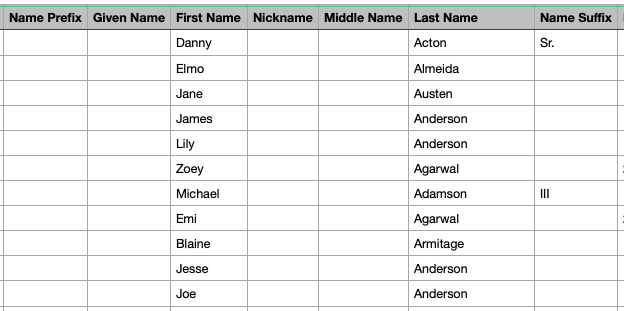
Name your CSV file's column headers the same as the default fields in Planning Center. Download this sample CSV file to see how to set up your CSV file.
If you need to track information that does not fit in the default fields, such as baptism dates or group membership, create custom fields to hold the information. After the fields are created, add the custom field titles as columns in your CSV file.
If you’re new to Planning Center, learn about households and names to see how they're used throughout Planning Center products. This will help you decide how to best structure your CSV file to translate well into Planning Center's structure.
Delete any fully blank columns or rows.
Delete any columns you don't want to import.
If you have more than 100,000 individual cells in your import, break the data up into separate CSV files. When breaking up your CSV into multiple files, make sure household members are kept together in the same file.
To import addresses in specific formats, change the format in the CSV columns before importing.
The accepted default fields, along with their formatting requirements, are listed below.
Default fields
These default fields already exist in People and cannot be renamed. Make sure the column names in your CSV file match the fields listed below.
The importer will match profiles based on name fields (first, middle, last, suffix) unless you use a remote ID.
Important
First and last names are required for every import, including imports with a remote ID.
Default fields | Accepted answers |
|---|---|
First Name | Any text, the preferred name |
Last Name | Any text |
Any text, a formal first name. Only use if different from their preferred name. | |
Middle Name | Any text |
Nickname | Any text, used by administrators for searching or confirming the correct profile |
Must match prefix name field options exactly | |
Must match suffix name field options exactly |
To create households, add the same characters to a Household ID column for each household member. As long as that ID matches each household member, and the whole household is in the same import, they will be linked together in a household.
Household fields | Accepted answer |
Household ID | Names, numbers (up to nine digits), or a combination of both |
Household primary contact | TRUE (Households can only have one primary contact—only include TRUE next to the primary contact and do not write False next to those who aren't.) |
TRUE (Only assign this role to adult profiles if there is a child profile in the household.) |
During the preview stage of the import, you will be able to see created and updated households. Select the changes that will be made to see the household name, primary contact, and household members.
The Household ID is not saved to the profile; it only exists in the current import, so keep your household members together in the same CSV file. If you want to save the Household ID number to reference it later, create a custom field with a different name and duplicate the Household ID column with that name.
You can only create one household at a time for a profile in a single import. If a profile should be in multiple households, you'll need to either do that manually once all the profiles are imported or run a second import to create the second household.
If importing an address, you must include all the fields. If a field is left blank in the CSV file, you can choose for it to overwrite the current address with a blank field or ignore the field entirely.
Default fields | Accepted answers |
|---|---|
Home Email | Any text. Multiples can be separated by a semicolon. |
Work Email | |
Other Email | |
Home Phone Number | Any length, with or without dashes.
|
Work Phone Number | |
Mobile Phone Number* | |
Other Phone Number | |
Home Address Street Line 1 | Any text |
Home Address Street Line 2 | Any text |
Home Address City | Any text |
Home Address State | Abbreviation or full name |
Home Address Zip Code | Any text |
Home Address Country Code | 2-letter country codes |
Work Address Street Line 1 | Any text |
Work Address Street Line 2 | Any text |
Work Address City | Any text |
Work Address State | Abbreviation or full name |
Work Address Zip Code | Any text |
Work Address Country Code | 2-letter country codes |
Other Address Street Line 1 | Any text |
Other Address Street Line 2 | Any text |
Other Address City | Any text |
Other Address State | Abbreviation or full name |
Other Address Zip Code | Any text |
Other Address Country Code | 2-letter country codes |
To create background checks with an import, a column for Background Check Cleared with an accepted answer is required. If the other background check columns are not included in your CSV, you will create background checks with partial data.
Background checks must be manually deleted.
Default fields | Accepted answers |
|---|---|
Background Check Cleared | Y/N Yes/No True/False T/F 1/0 |
Background Check Date Completed | Any combination of: YYYY-MM-DD MM/DD/YYYY Follow the formatting from your Accounts Localization Setting. Must have Background Check Cleared entered |
Background Check Expires On | Any combination of: YYYY-MM-DD MM/DD/YYYY Follow the formatting from your Accounts Localization Setting. Must have Background Check Cleared entered |
Background Check Note | Any text Must have Background Check Cleared entered |
Default fields | Accepted answers |
|---|---|
Birthdate | Any combination of: YYYY-MM-DD MM/DD/YYYY
|
Anniversary | Any combination of: YYYY-MM-DD MM/DD/YYYY
|
Any text | |
Grade | 12 or 12th Grade 11 or 11th Grade 10 or 10th Grade 9 or 9th Grade 8 or 8th Grade 7 or 7th Grade 6 or 6th Grade 5 or 5th Grade 4 or 4th Grade 3 or 3rd Grade 2 or 2nd Grade 1 or 1st Grade 0 or Kindergarten -1 or Pre-K -2 or Preschool 3s* -3 or Preschool 2s* -4 or Preschool 1s* *These options are not enabled by default but can be added to your grade list by adjusting localization settings. If Transitional Kindergarten (TK) is enabled for your organization, then TK is -1, Pre-K is -2, Preschool 3s is -3, etc., because Kindergarten is always 0. |
School Name | Must match school names exactly |
Gender | M/F Male/Female |
Child | Child/Adult Y/N Yes/No True/False 1/0 |
Barcode | Barcodes must be unique for each row/profile. Existing barcodes must be manually deleted; they cannot be overwritten by an import. If you import a barcode, it will just be added to the profile. |
Campus | Must match campus names exactly |
Status | Active/Inactive |
Inactive Reason | Moved, New Church, Deceased, or custom. This field is case-sensitive. |
Inactive Date | Any combination of: YYYY-MM-DD MM/DD/YYYY Follow the formatting from your Accounts Localization Setting. |
Marital Status | Single, Married, Widowed, or custom. This field is case-sensitive. |
Must match Membership Type exactly |
Don't see a field you need?
If you don't see a field above that matches some of the data you're trying to import, create it as a custom field before importing your file. You can also create a new one if needed during the import process, by selecting the dropdown in the People field column and choosing Create new field at the bottom of the dropdown.
Here are some tips for importing into custom fields:
Give your custom field a unique name. If you reuse a default field name, the data will be imported into the default field.
If you import multiple items into a checkbox field, separate the responses with a pipe (|), semicolon, or newline character.
Set the column to be the name of the field, not the name of the tab.
If you have a custom field of the dropdown type, ensure the text you have in your CSV file exactly matches an option available in People, with no extra spaces at the beginning or end.
Tip
Use a custom field to import group membership from another database. If you also have Planning Center Groups created, once the import is complete, run a bulk action to add members to the groups.
Match existing profiles
A remote ID is a unique identifier that allows you to update a profile with future imports without relying solely on name fields. Add remote IDs to new profiles when importing, or if you already have profiles in Planning Center, use remote IDs to improve accuracy and decrease the chances of creating duplicate profiles.
Important
First name and Last name fields are still required when using remote IDs.
Using remote IDs
When a remote ID is added to a profile, future imports with a matching remote ID will automatically update the correct profile.
You can add a remote ID to an existing profile if that profile has an email address and the name and email fields match exactly with the information in your CSV. If the profile does not have an email address, a duplicate will be created and will need to be merged.
The remote ID column in your CSV file must be named remote_id, and the contents of that column must be positive whole numbers.
Some database providers include an Individual ID in their exported CSVs. If this is unique for each person in your CSV, you can repurpose that column by changing it to remote_id before importing.
Planning Center exports include a Person ID that is unique for each profile. You can repurpose that column by changing it to remote_id before importing.
If you want to save the remote ID to a profile so that you can view it, create a custom field. Duplicate the column in your CSV and rename the new column to match your custom field name.
Remote IDs do not appear on a profile, but they are visible in exports.
Matching by name
If you're not using remote IDs, use the main Name Fields (First, Middle, Last, and Suffix) and the column names to match them when you import. This ensures that your import updates the correct profiles.
Next step: import
Once you've followed these guidelines for preparing your file, you're ready to import your CSV.