Manage all teams in your account
Once you've set up teams in your Services account, you can see most your teams' information on the Teams tab of the People page. You can also use this page to find teams you aren't using and archive them.
Tip
If you're an organization administrator, you can also view all your teams in the Teams & Groups hub in People.
View the Teams page
To view your organization's teams:
Select the People page from the top navigation in Services.
Select the Teams tab.
Take the following actions to manage your team list:
Use the dropdown in the top left to filter the list of teams. My Teams is the default view, which shows all teams where you're a leader or member. You can also filter to see All Teams, Archived Teams, or teams that belong to a specific service type.
Use the search bar to search for a specific team by name.
Select any column header to sort the list by that column in ascending or descending order.
Review the icons between the Services Type and Leaders columns to see whether a team is a rehearsal team, tag team, split team, or secure team.
Select Add team in the top right to create or copy a team.
Select a team name from the list to edit its members, settings, and automations.
Clean up unneeded teams
Over time, your account might accumulate empty teams or teams that were created unintentionally. Follow the steps below to archive these unneeded teams.
Select the People page from the top navigation in Services.
Select the Teams tab.
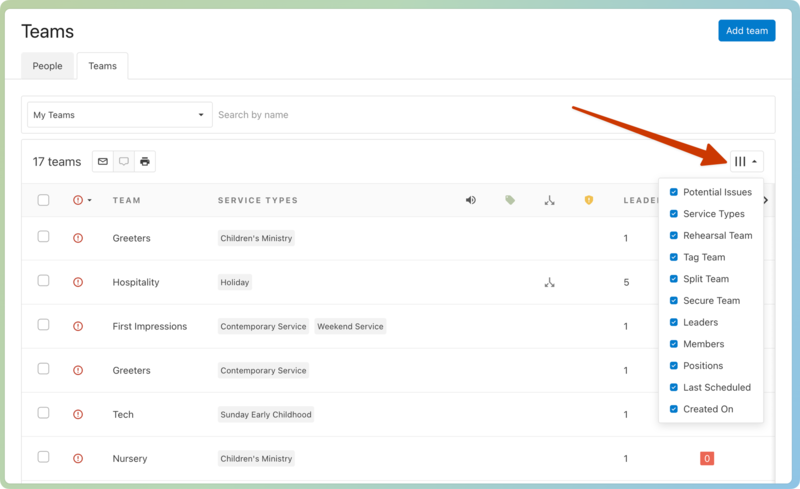
Select the column icon (three vertical lines) and make sure Potential Issues is selected.
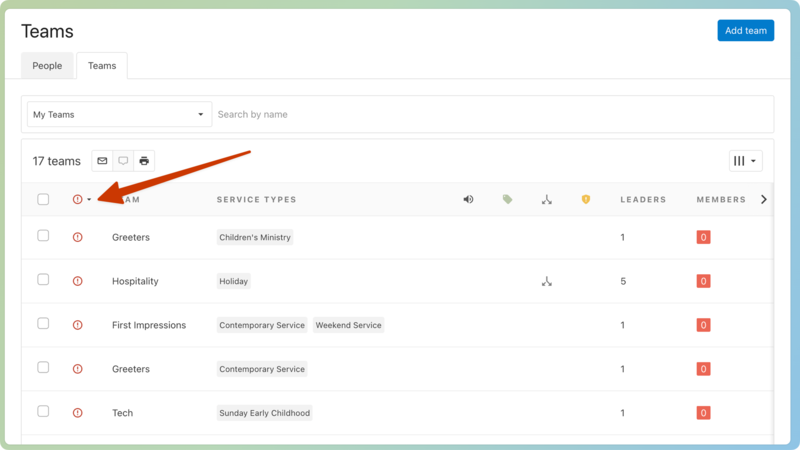
Select the red exclamation point icon column header to sort your list of teams by those with potential errors. These errors appear when a team has zero members, zero positions, or has never been scheduled.
Select the red error statuses in the Members, Positions, or Last Scheduled columns to open a popup with additional information about the error.
Close the popup and select the team name from the list to open that team's page.
On the team page, select the Actions button in the top right corner.
Choose Archive from the dropdown.