Create and edit your home page
When someone opens Church Center, the first page in your navigation is the one they start on, but you don't have to set the same start page for everyone! You've got three options in Publishing:
Home page for guests, the Me page for members: Guests will land on your custom home page, while members land on their personalized Me page.
This is the recommended option because the Me page is the right home for members — it's personal, fast, and full of what they need. But for first-time guests who haven't connected with your church yet, the Me page can feel empty and impersonal, so presenting them with your home page puts your best foot forward. To use this hybrid option, toggle on the Use Me as the start page for logged-in members setting at the top of the Customize page in Publishing.
Me page for everyone: Guests and members both start on the Me page. To use this option, set the Me page as the first item in your Church Center navigation.
Home page for everyone: Guests and members both start on your custom home page. To use this option, set the Home page as the first item in your Church Center navigation.
Create your home page
Add announcements and styled graphics with links, or display upcoming events or Giving funds. Here's an example of a home page.
Select Content from the top navigation in Publishing.
Select Home from the list of active pages.
Drag content blocks from the right sidebar and drop them into your page design on the left.
Add a header image
Header images display in a 16:9 aspect ratio on both web and mobile. The recommended dimensions are 2000 x 1125 pixels.
Header images automatically zoom and crop based on the device you're viewing them on, and they're meant to act as a background image behind the text and button you can enable in the header block. (If you'd like the image to scale the same for both the Church Center app and Church Center web, you can use an image block for your header instead of a header block.)
Images can be PNG, JPG, GIF, or WebP files, up to 10 MB.
Drag the Section header block from the right sidebar and drop it into your home page.
Select Upload image.
Add your image file to the pop-up.
Select Add image.
Add a linked image
Make your images clickable so that when someone selects an image, they're taken to a linked page.
Drag the Image block from the right sidebar and drop it into your home page.
Select Choose image.
Add your image file to the pop-up.
Select Add image.
Add a description of the image in the Alt text box to make it accessible for screen readers.
Select the Link image toggle.
Enter the URL for the linked page.
(Optional) Check the Open link in new tab box if you want the linked URL to open in a new web browser tab instead of the current one.
Preview, discard, save, or publish your changes
Use the buttons at the top right of the editor:
Preview: Preview your changes using draft mode.
Discard: Undo the changes since you last saved your draft.
Save draft: Save your current changes without publishing them.
Save & Publish or Publish: Publish your home page's current draft.
Preview a home page draft on mobile
Publishing administrators can see a draft of the home page on the Church Center mobile app by enabling Draft preview mode when logged in to the app.
Log in to the Church Center mobile app.
Tap your profile icon at the top of the app.
Select My information and settings.
Under Administrator tools, toggle on Draft preview mode.
Select Home in the navigation menu to see the home page draft.
Share your home page
Select Content from the top navigation in Publishing.
Select Home from the list of active pages.
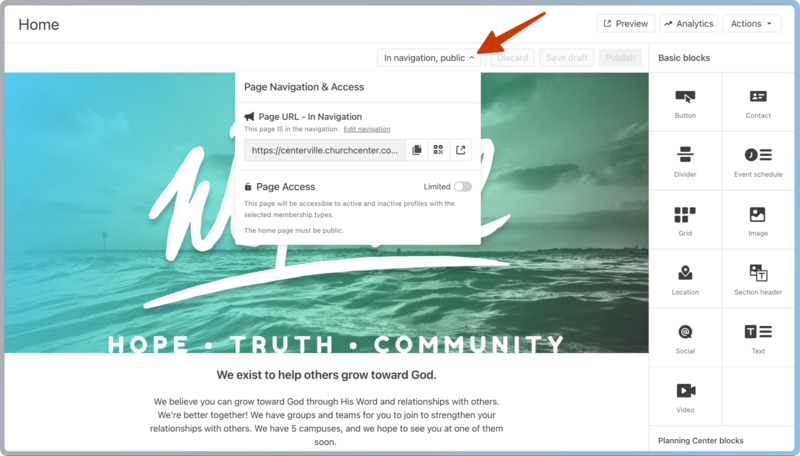
Select the Page Navigation & Access dropdown at the top of the editor to find the URL and QR code options for sharing your home page.
Set Me as your home page
Instead of the traditional home page, you can set the Me page as your members' start page in Church Center, which is personalized for each congregant and shows their schedule, group membership, registration history, and organizations. Congregants can set their schedules, email team leaders, customize their profile and settings, and manage their giving from this page.
Select the Customize page from the top navigation in Publishing.
At the top of the page, select the Use Me as the start page for logged-in members toggle.
Select Save & Publish.
People can still tap Home in Church Center if the Home page is in the navigation. They can also view the Me page by selecting their profile image, even if it's not set as the start page.