Common Groups lists
Using the Lists feature in Planning Center People, you can create a list of group members according to event attendance, missed events, the date they joined, or the date they applied to join. You can also share lists with others or print them using reports.
Expand the sections below to see common examples of Groups lists.
You can see members in more than one group or a specific number of groups.
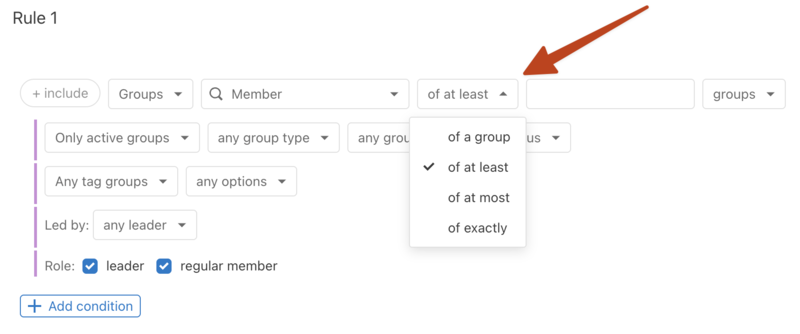
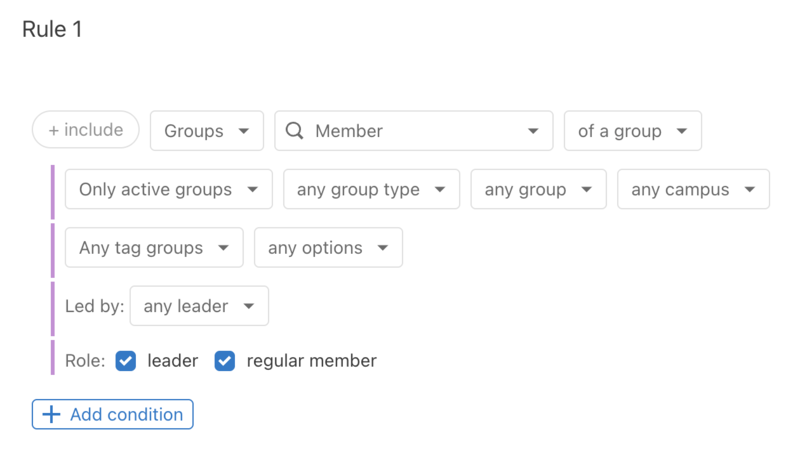
Create a list of all your group members.
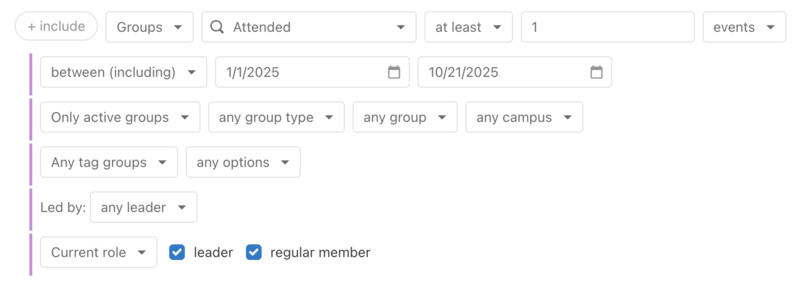
Create a list to find group members who have attended a group event in a specified time frame.
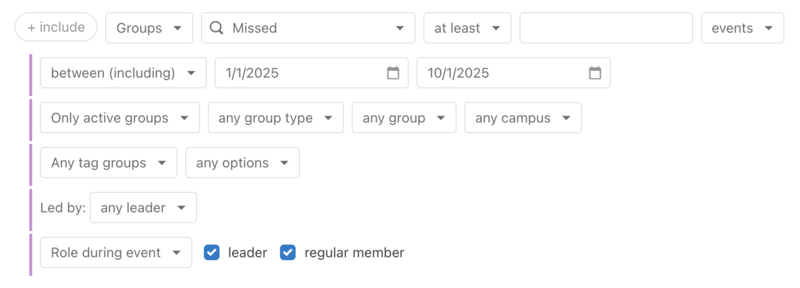
Create a list of members who did not attend events within a specific time frame.
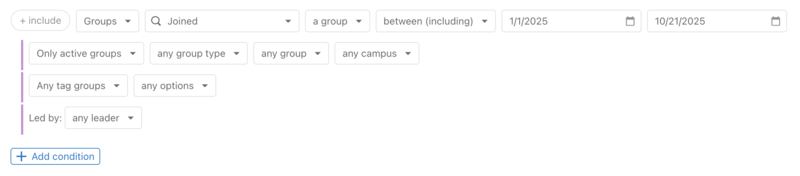
Create a list of anyone who has joined a group within a time frame.
Create a list of anyone who applied to join a group (or all the groups in a specific group type) and is still waiting for a response.
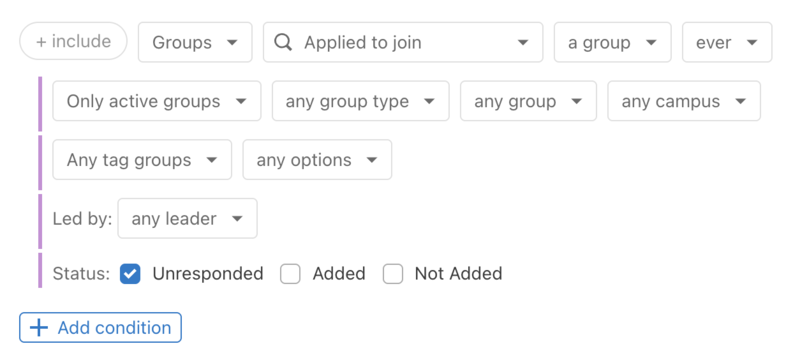
Using the Status, you can narrow the list down to those who have a pending request, were accepted, or were declined.
Create a list of group members without phone numbers or other incomplete profile information.
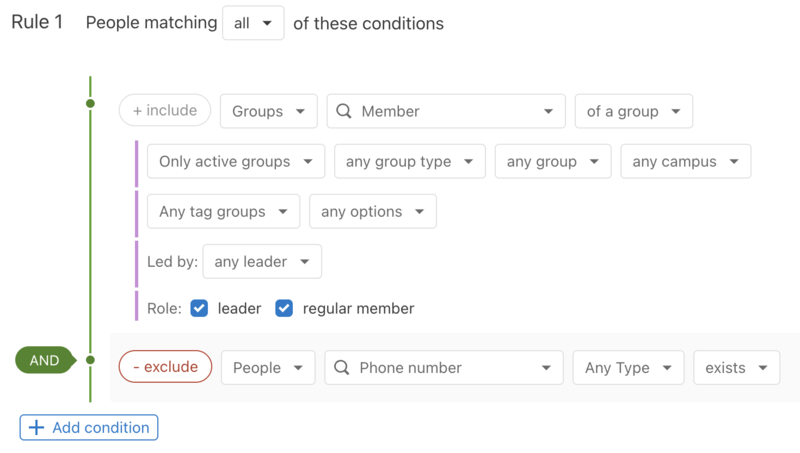
You can email or text the people in the list, asking them to update their contact information. Include this link that will guide them to update their profiles in Church Center!
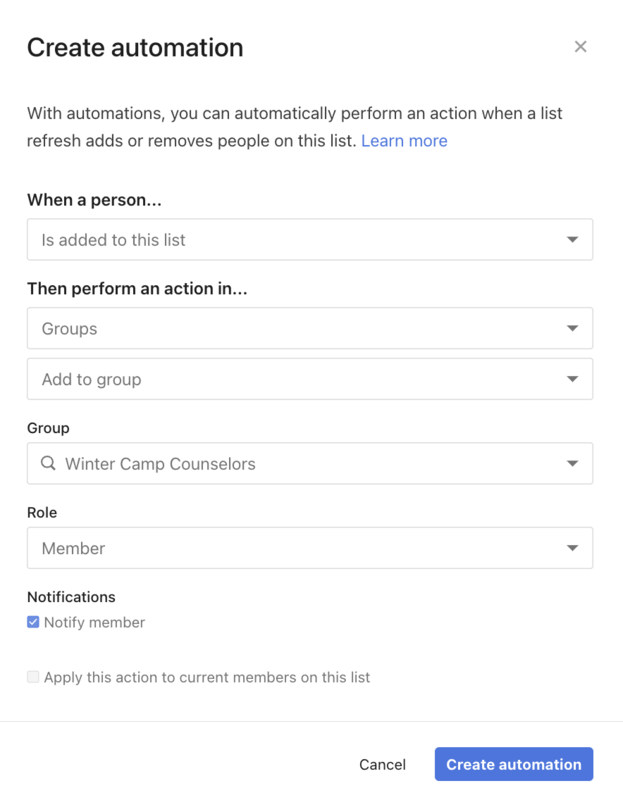
If you need to communicate and share resources with people who register for a specific selection, you can add them to a group when they register! Create a list and set it to auto-refresh with an automation that adds them to a group. Once they're added to the group, they can message, access resources, or view upcoming events applicable to them.
Important
If you want all registered attendees to be in a group, create an automation in the Registration signup.
If attendees don't need to be automatically added to the group, use bulk actions on a list instead.
Create a list
Create a list in People to find the attendees who have registered for the event. Add the specific selection or assignment for the people you want to add to the group.

Set list to auto-refresh
Set the list to auto-refresh nightly in the List settings.
Create automation
Create a list automation to add the people to the group.
Select what to see in your list
The Results tab shows all the people who met your conditions and rules.
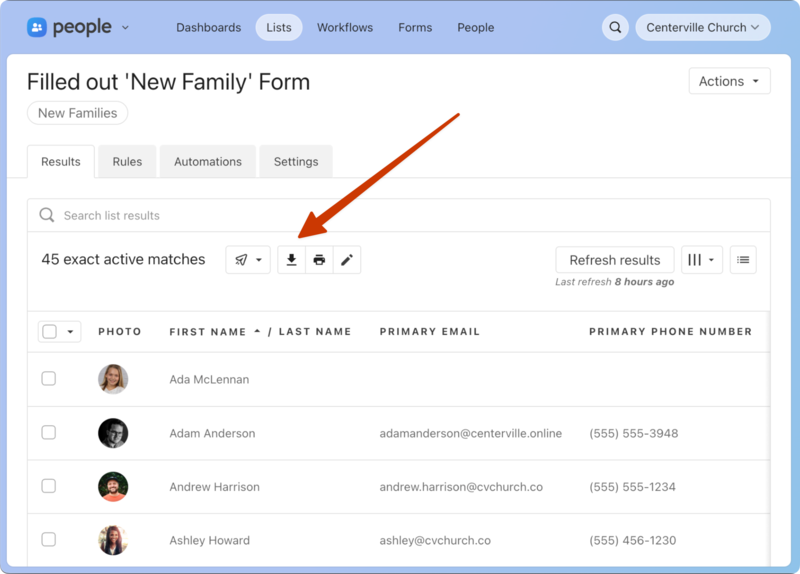 |
Send a text message, email, or Church Center message to people on the list.
Use bulk actions to make changes to everyone on the list.
Export the list to a CSV file.
Print a report of people on the list.
If printing the Default Report, verify your columns show all the information you want to print.
Edit the information viewed in your results by selecting any of the available columns.
See the results for each of your conditions and then the total of all of them together in the sidebar.