Send a Church Center message
If you want to let people in your church know something is coming up or alert them to a schedule change, send a message through the Church Center app.
Tip
Do you want to know who is using the Church Center app? Create a list to see who has used it in a designated time frame!
Create a message
Church Center messages are sent through People lists.
Send the message to only specific people on the list by checking the box next to the selection dropdown and unchecking anyone who should not receive it.
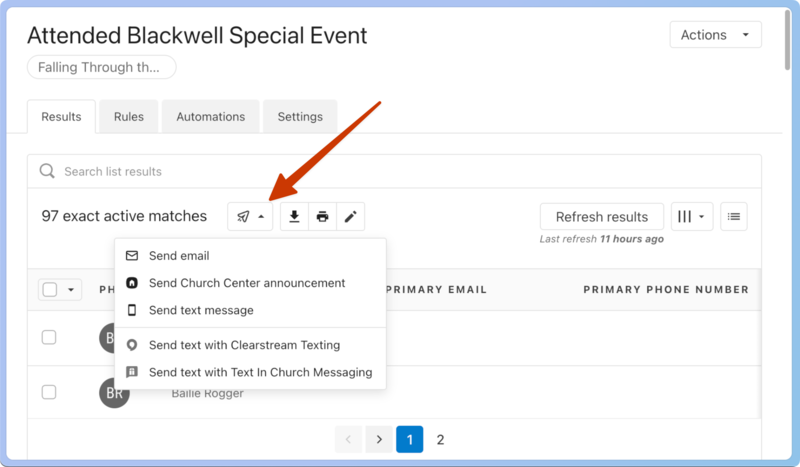
Select the message dropdown, and choose Send Church Center message.
Tip
If you know you're creating a list to send a message, make sure you add the condition to include those who have used Church Center within a timeframe, so those who haven't don't get a random notification the next time they log in.
Enter the information you want to share in the message.
Title: The title is the first thing recipients see on their notification page.
Body: Enter the necessary information in the body.
Automatically mark as read after...: To remove unread messages from notifications, set this message to be marked as "read" after a designated amount of time.
Include action button: If you have an action you want people to take, check the Include action button and add those details.
Scheduled delivery: If the message should be sent in the future instead of immediately, schedule the date and time. Scheduled message can only be sent between 6 a.m. and 8 p.m. in the organization's time zone.
Select Review when you've added all the needed information to see what your congregants will see when they receive the message.
View sent messages
Anyone with permission to send Church Center messages can view all sent messages from the message history page or a person's profile.
Important
By default, all managers and above can send messages and view all message history.
All messages
Select the Lists page from the top navigation.
Select the Message history button in the top right.
Choose Messages from the dropdown.
Select a message to see the recipients and who read it.
View individual messages
Select the People page from the top navigation.
Select a person's name from the list.
Select the Communication tab from the left sidebar of the person's profile.
View messages in the Church Center app
Messages can be viewed by selecting the 🔔 notification bell icon at the top of the app.
If notifications are toggled on for Church Center, a person will receive a notification on their device when they get a new message.