List settings
From the Settings tab, you can share your list, add it to a category, and set it to refresh automatically.
Actions: Select the Actions dropdown to edit the list's title, duplicate it, or delete it. Duplicated lists will include the same rules, but collaborators and settings will not be saved.
Collaborators: Type a name to share the list with a specific person or everyone with a certain permission level in People.
Filter settings: Select a campus or category to make it easier to filter to your list on your main Lists page.
Auto-refresh settings: Select a frequency for your list to automatically refresh. Auto-refresh is particularly helpful for automations and workflows.
Notifications: If auto-refresh is enabled, you can add people who should receive a notification email when profiles are added to the list during automatic refreshes.
Mailchimp status: Sync this list to Mailchimp to add a tag with this list name to each person's contact in Mailchimp to show they are part of the list results. Toggle on the option to Re-sync every night to auto-sync your list to Mailchimp each night.
Permissions
Share a list you've created with others and allow them to view or manage the results. List managers can update the list's settings, but cannot remove someone who has added an existing condition.
Important
To completely remove a list creator's access, duplicate any conditions they've created, then delete their conditions. You can then remove the person's permissions in People, which will terminate their access to all lists.
There are two levels of access for list collaborators.
View only: This level lets you view the results, automations, and settings on a list, but you can't change its rules.
Manage: This level allows you to edit the list's rules, automations, and settings.
If you're a list manager, you can see who created the conditions and add your own from the Rules tab.
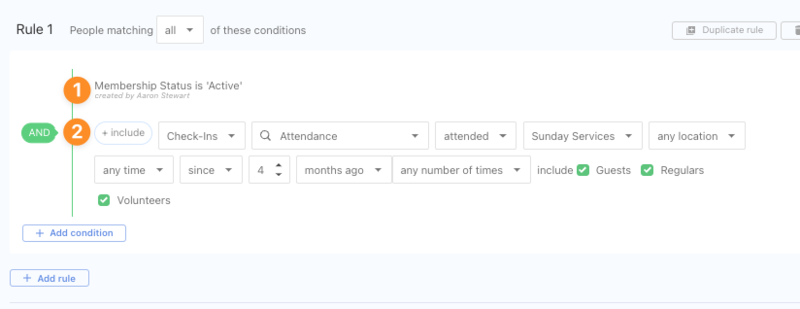
You cannot edit a rule or condition made by another person. However, you can duplicate another person's rule or condition and then delete the original to change pre-existing rules or conditions.
If you don't have permissions in a product, you can see list results concerning that product, but you can't add new rules or edit existing rules related to that product.
Unmanaged lists
If a list has been abandoned, meaning it doesn't have a manager, organization administrators will see it listed under the Unmanaged option on the main Lists page. Organization administrators can add themselves as managers to any list in this view.