Contact donors
You can contact donors by sending them an email from the donor list in Giving or through a People list.
Important
Emails are sent to the primary email address, except for Account settings. Account settings sends an email to every email address listed on an organization administrator's or billing manager's profile.
Email donors in Giving
The most direct way to email your donors is from the donor list in Giving.
Select the Donations tab in the top navigation in Giving.
Select the Reports on the left side.
Select the By donor tab above the dashboard.
Select the filters you need: Campus, Date range, then Filter by fund, label, stamp, or payment source.
(Optional) Check the Only show new donors (in selected range) box to display only new donors within the specified date range and filters.
Select the Email donors button.
In the popup, select the sender of the email and add a subject line.
Use the text editor to add the email body text.
Select the 📎 paperclip icon in the toolbar to upload an attachment. You can only upload attachments up to 10MB each, up to 5 per email, for a total of 10MB.
Add images using the 🖼️ image icon in the toolbar, or drag and drop the image file directly into the editor. Refer to the image sizing guide for file size restrictions.
The {{ }} placeholder dropdown lets you insert dynamic text, such as variations of the donor's or sender's names.
Select the Send Email button.
Tip
You can view the donor's communication history and email preferences from their profile.
Email donors with People lists
If you have access to People, you can use the powerful lists feature to generate a list of donors from any number of criteria across any date range. You can even combine multiple filters and blend them with filters from other Planning Center applications.
This process requires access to People. If you don't have access, ask another administrator to take this step or to give you permission.
If this is the first time you're creating a list in People, see the Lists overview article for detailed instructions.
Select Giving in the top left of the top navigation.
Select People in the dropdown.
In Planning Center People, select the Lists page in the top navigation.
Select the New list button.
Select the Add rule button.
Set up filters to create a list of people you want to email. For donors, make sure you select Giving in the first field.
Select the Save button to populate the list.
On the Results tab, select the message icon.
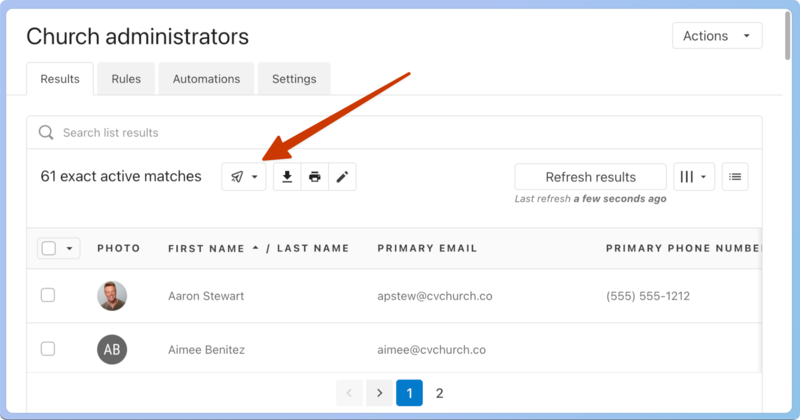
Select Send email in the dropdown.
Tip
For a styled email, use the integration with Mailchimp.
Undelivered emails
View a list of the emails sent to a person through Planning Center, including those that are undelivered, from the Communication tab on their profile.
Search for a person's name using the 🔎 search icon in the top right.
Select their profile from the results.
Select the Communication tab on their profile.
Open an email highlighted in red to see if it failed or was dropped. You can hover over the failed indicator to view the error code.
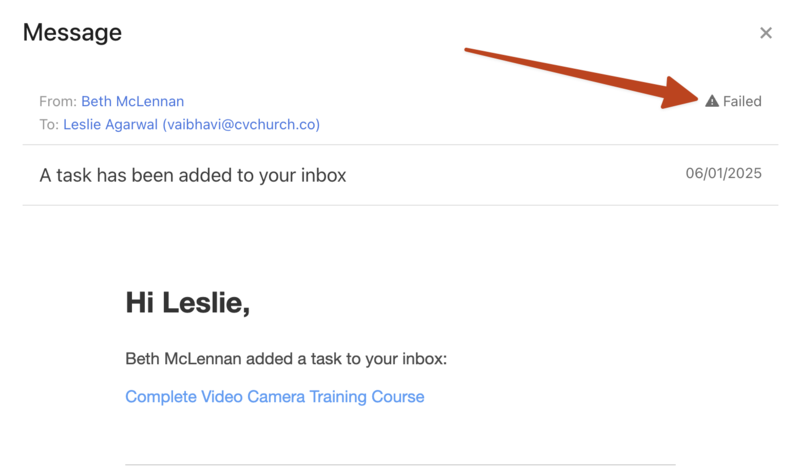
If someone mentions they didn't receive an email, or you see that an email failed to be delivered to them, check in Planning Center People to make sure their email address isn't blocked.
If they still do not receive emails after unblocking their email address, contact support for additional troubleshooting by selecting the question mark (?) in the toolbar in Planning Center.