Accept payments with Stripe
Important
This article is for customers using Stripe to process online transactions. If you are using Planning Center Payments, you'll want to move over to the Accept payments with Planning Center Payments article instead.
Planning Center uses Stripe to process online donations and payments, though Planning Center and Stripe are separate companies. Stripe offers straightforward pricing and top-tier security, giving you confidence to let your congregants make online payments.
Pricing:
Stripe's fees do not fluctuate with volume. Using Stripe and Planning Center together gives you a low rate, and Planning Center doesn't take any percentage of the fee.
Security:
No card/bank account data is stored on Planning Center servers, as Stripe handles all payment data.
Stripe offers industry-leading fraud prevention and PCI compliance. Stripe has been audited by a PCI-certified auditor and is certified as a PCI Level 1 Service Provider, the most stringent level of certification available. You can confirm Stripe's certification in Visa's Global Registry of Service Providers.
Important
Before you get started, it is important that you review information about Stripe's rules and restrictions. As a global payment processor, Stripe is required to follow banking and government compliance rules, which could impact what you can and cannot do with your Stripe account.
View Stripe payout reports
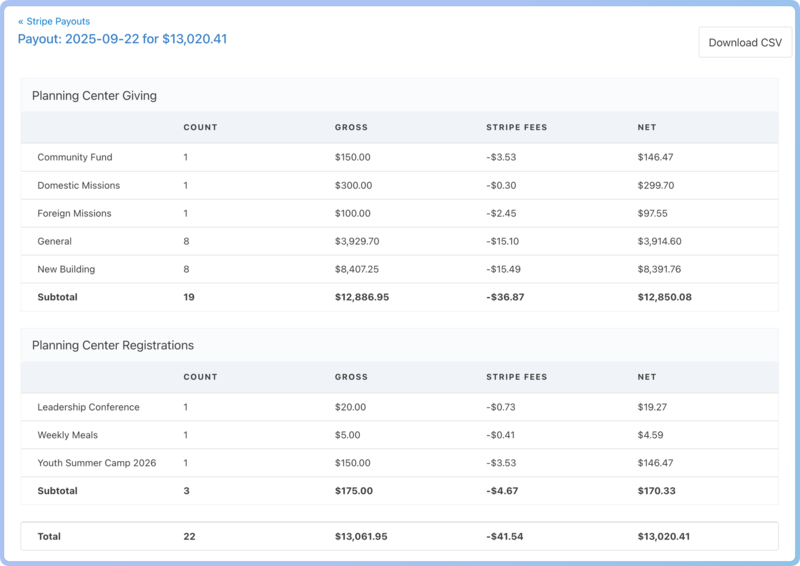
As people donate money in Giving or make payments in Registrations, money accumulates in your Stripe account. As transactions clear, Stripe deposits these funds to your bank (minus Stripe's processing fees). Stripe calls these payouts. While all Stripe account settings are managed directly in Stripe, you can view Stripe payout reports in Planning Center for an overview of each deposit.
Read more about payouts and how you can view and export transactions in View and download payouts.
Using Stripe is the only way to process online payments directly in Giving and Registrations through Church Center.
If you prefer to use another platform to process donations, you can manually enter donations into batches using payment sources. You could also use one of the third-party Giving integrations or build your own integration using the open API for Giving.
If you prefer another platform for payment processing in Registrations and you are not using Giving, you can disconnect Stripe and include a link to the other platform in the confirmation emails to collect payments. It is also possible to turn off online payments for specific signups from the signup settings.
How Stripe processes payouts
After a person makes a donation or payment, the following occurs:
Stripe deducts the processing fee from each transaction.
As transactions clear, they are bundled into payouts and scheduled for deposit.
The payout is deposited into your church bank account.
Stripe’s deposits to your bank are set by default to pool together successful transactions from the past two days and initiate a payout to your bank. Because these payouts need to wait for transactions to clear, the length of this process can vary depending on the selected payment method.
Cards: Clear in 1-3 business days; payout in 2-5 business days
ACH: Clear in 4 business days; payout in 5-8 business days
Tip
If you prefer deposits to be paid out weekly or monthly, someone with access to your Stripe account can adjust your payout schedule from within your Stripe account settings here: https://dashboard.stripe.com/account/payouts.
Note: Only automatic payouts will work with Planning Center, so do not change settings to manual payouts.
Understand processing fees
There is always a cost associated with processing digital payments. Planning Center is proud to offer low rates for customers who use Giving and Registrations to collect online donations and event payments.
Check out the processing fees article for a full breakdown of the fees incurred each time a digital payment is received, as well as a few additional fees that could be charged.
Keeping your Stripe account secure
When using Stripe for Planning Center donations or payments, you are a customer of both Planning Center and Stripe. Though you've connected your Stripe account to your Planning Center account, these accounts are separate, so Planning Center cannot access your Stripe login credentials.
Take the following steps to ensure that your account remains secure:
Know who your Stripe administrators are. By default, this is the person who created the account, but you can add others as well.
Enable two-factor authentication. This feature adds another level of security, verifying each login with a text message or authentication app to ensure your login information is not compromised.
Ensure Stripe can reliably reach you at the email on your Stripe profile. Stripe will contact you when issues need to be resolved or verified directly in your account.
Stripe troubleshooting
If you have issues with your Stripe account or processing payments, consult the corresponding page in Stripe or contact Stripe's support team directly to resolve the issue.
Issue | Solution |
|---|---|
Stripe login | |
Stripe settings changes | |
"This account cannot make live charges" error | Stripe has likely sent an email to your Stripe administrator requesting information. |
Payouts no longer deposited to bank account | Stripe account info needs to be updated or verified. See balances, holds, and payout dates on your Balance Overview page in Stripe. |
Declined card | View your Stripe Payments page for decline details, and ask the donor to contact their bank. |
Understanding Stripe's restrictions
As a global payment processor, Stripe operates within a broader payments ecosystem that includes banks, card networks, and government-mandated financial compliance programs. While US law may permit some organizations to support humanitarian or mission work in sanctioned countries under specific exemptions or licenses, Stripe’s banking partners have determined they are not willing or able to take on the financial and regulatory risk associated with processing payments to these countries. Compliance, as outlined in Stripe’s documentation, is not subject to negotiation.
Because of those requirements, Stripe will restrict or decline transactions connected to sanctioned or high-risk countries or individuals, and following a risk assessment review, a church’s Stripe account may be frozen. This applies even when your organization's intent is humanitarian, religious, or mission-driven.
Important
As of December 2025, this includes Cuba, Iran, North Korea, Russia, Syria, and the Crimea, Donetsk, and Luhansk Regions of Ukraine, but other jurisdictions may also be subject to restrictions. The list of sanctioned countries can change at any time based on government policy and financial regulations. See Stripe’s Prohibited and Restricted Business document for more information.
Payments connected to sanctioned or high-risk countries or individuals cannot be processed using Planning Center. This includes card and bank debit transfers, but not checks, cash, or monies processed outside of Stripe.
This does not mean that your organization is prohibited from supporting causes or partners in these areas; it means that Stripe cannot facilitate transactions explicitly for these restricted jurisdictions. These restrictions are not targeted at churches or religious activity, and they are not based on Planning Center making a judgment about your organization's mission or the purpose of your giving.
Stripe's risk assessment review process is not fully disclosed for security purposes, but certain factors can trigger a review:
Fund names
Fund or signup descriptions
Website content
Transaction patterns
When Stripe detects activity that may fall into these categories, Stripe's risk team will contact your Stripe account owner to notify you of this review and guide you through what is needed to avoid any account restrictions. During a review:
Your payment and donation forms will continue to receive online donations and payments.
Payouts to your bank account may be temporarily unavailable.
Planning Center cannot override Stripe's review or payout decisions.
If you have content on your website or donation form about mission work or philanthropy in these areas, Stripe may ask you for evidence that the payments for or in these areas are not being processed through Stripe.
If you process online payments connected to restricted jurisdictions through another platform, where it’s both legal and supported by your bank and payment processor, you can maintain those records in Planning Center.
For donations in Giving: Use payment sources and batches.
For event payments in Registrations: Apply payments manually.
This approach keeps payment records, contribution history, and reporting accurate in Planning Center, even when the payment itself is processed outside of Stripe.
Disconnect from Stripe
Disconnecting an active Stripe account from your Planning Center account can cause issues, including the loss of the ability to refund payments/donations, charge saved payment methods, or generate accurate reports.
If you need to disconnect from Stripe, an organization administrator should contact Planning Center's support team by selecting the question mark icon in the toolbar.